Share via

Eyedropper now only returning inverted colors

Anonymous
2023-07-22T13:13:04+00:00

I was trying to fill a shape with a color that exists elsewhere in my slide, so I used the Eyedropper tool, which normally works very well and is an indispensable tool.

However, this now returns a color that is clearly not the one under the mouse cursor. In fact, it seems to be the inversion of that color. For instance, if I point to white, it returns black.

The screenshot below shows another example, where the color of the slide background is reported to be orange instead of blue.
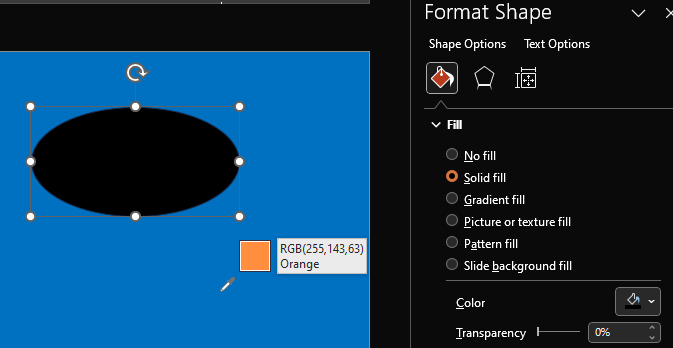
I rebooted my PC and closed any programs that make special demands on the graphics card (e.g. flux), and also started Powerpoint in safe mode; but the problem always stays the same. It happens no matter what PPTX file is being worked on (including in a blank one).

Using MS Office 365 on a Windows 10 laptop with an Intel HD Graphics 620 graphics card. No updates are available at this time for either Windows or MS Office.

Microsoft 365 and Office | PowerPoint | For business | Windows

Locked Question. This question was migrated from the Microsoft Support Community. You can vote on whether it's helpful, but you can't add comments or replies or follow the question.

0 comments No comments

10 answers

Sort by: Most helpful
  1. Anonymous
    2023-11-28T19:25:51+00:00

    Found the solution from another post, and worked perfectly:

    I've had the same issue for months and just got lucky stumbling upon a solution:

    • Click Windows Key + Plus symbol to open the Windows Magnifier app (or go to the search bar and search "Magnifier")
    • Once the Magnifier app is open click the gear icon and then select "Go to settings" and unclick "Invert Colors"
    • Close out of Magnifier and go back to power point and try using the eye dropper tool again

    The above steps solved this problem for me. I'm not sure why this setting messed up the eyedropper even when the Magnifier app was not running, but it did, and when I turned it off the eye dropper worked again.

    Hope this helps someone else!

    Was this answer helpful?

    40+ people found this answer helpful.
    0 comments No comments
  2. Anonymous
    2023-08-02T10:51:49+00:00

    I have this exact problem also.

    Was this answer helpful?

    1 person found this answer helpful.
    0 comments No comments
  3. Anonymous
    2023-07-25T07:59:24+00:00

    Dear wildetudor,

    Thank you for posting back. We appreciate your precious time doing test and sharing with us the result.

    On one hand, I sincerely recommend you refer to the workaround as John mentioned.

    On the other hand, I suppose you have submitted feedback. Since the issue may need to be fixed from back end, please wait patiently. We will also post back if we get any update.

    Thanks for your cooperation and understanding!

    Hope you stay safe and healthy.

    Sincerely,

    Tina | Microsoft Community Moderator

    Was this answer helpful?

    1 person found this answer helpful.
    0 comments No comments
  4. Anonymous
    2023-07-22T20:33:35+00:00

    Thanks to both for your replies. I deactivated dark mode (switched the office theme to White) and restarted PowerPoint. However, this left the problem exactly the same.

    It's very hard to explain how this bug appeared all of a sudden when I've been using PowerPoint (in dark mode, since it has become available), including its eyedropper tool, for years.

    I will just report the bug using the feedback tool, but this will of course take ages until the problem is fixed. If anybody can meanwhile suggest some workaround, it would be greatly appreciated!

    Was this answer helpful?

    1 person found this answer helpful.
    0 comments No comments
  5. John Korchok 232.1K Reputation points Volunteer Moderator
    2023-07-22T14:38:51+00:00

    I would guess this is a bug that appears in dark mode, which inverts the colors of some program elements.

    To test, switch to a normal display and see if it still happens.

    To report, add your screenshot to a slide, then choose File>Feedback>Send a Frown. Describe the issue and include the screenshot. Submitting sends the report to the PowerPoint team. They are unlikely to reply.

    Was this answer helpful?

    1 person found this answer helpful.
    0 comments No comments
