Microsoft 365 and Office | Install, redeem, activate | For home | Windows
Processes in Microsoft 365 for setting up Office apps, redeeming product keys, and activating licenses.

This browser is no longer supported.
Upgrade to Microsoft Edge to take advantage of the latest features, security updates, and technical support.
' cx='32' cy='32' r='32' /%3E%3Ctext x='50%25' y='55%25' dominant-baseline='middle' text-anchor='middle' fill='%23FFF' %3EA%3C/text%3E%3C/svg%3E)
I need link to install office 365
Processes in Microsoft 365 for setting up Office apps, redeeming product keys, and activating licenses.
Locked Question. This question was migrated from the Microsoft Support Community. You can vote on whether it's helpful, but you can't add comments or replies or follow the question.
Hello Vivienne E,
Welcome to Microsoft Community.
I am a Microsoft user just like you, I hope you are doing well?
If you have a Microsoft 365 subscription, you can install/get download link from your Microsoft account Services and subscriptions page, you can also download from Office.com using the Microsoft account associated with this license.
To install Microsoft 365 from your Microsoft 365 subscription, find steps below for guidance:
Source: https://support.microsoft.com/office/4414eaaf-0478-48be-9c42-23adc4716658
Please let me know if you need more assistance.
Give back to the Community, Help the next person who has this issue by indicating if this reply solved your problem. Click Yes or No below.
Warm Regards

Hi Vivienne,
Please see the following:
If you're using Microsoft 365 Germany, sign in with your work or school account to portal.office.de. 2. Sign in with the account you associated with this version of Microsoft 365. This account can be a Microsoft account, or work or school account. I forgot the account I use with Office 3. After signing in, follow the steps that match the type of account you signed in with.
You signed in with a Microsoft account

1. From the Microsoft 365 home page select **Install apps**.
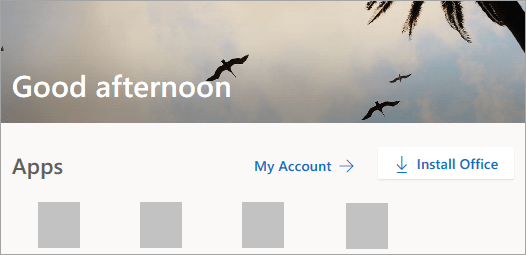
2. Select **Install** (or depending on your version, **Install apps>**).
You signed in with a work or school account
1. From the home page select **Install apps**(If you set a different start page, go to [aka.ms/office-install](https://aka.ms/office-install "aka.ms").)
Notes:
- For Microsoft 365 operated by 21 Vianet go to [login.partner.microsoftonline.cn/account](https://login.partner.microsoftonline.cn/account "login.partner.microsoftonline.cn").
- For Microsoft 365 Germany go to [portal.office.de/account](https://portal.office.de/account "portal.office.de").
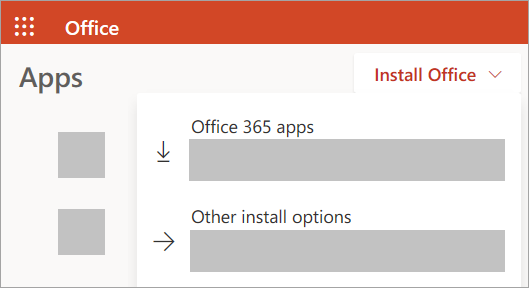
2. Select **Microsoft 365 apps** to begin the installation.
The 64-bit version is installed by default unless Microsoft 365 or Office detects you already have a 32-bit version of Microsoft 365 or Office (or a stand-alone app such as Project or Visio) installed. In this case, the 32-bit version of Microsoft 365 or Office will be installed instead.
To change from a [32-bit version to a 64-bit version](https://support.microsoft.com/en-us/office/choose-between-the-64-bit-or-32-bit-version-of-office-2dee7807-8f95-4d0c-b5fe-6c6f49b8d261?wt.mc_id=SCL_InstallOffice_Home# "support.microsoft.com") or vice versa, you need to [uninstall](https://support.microsoft.com/en-us/office/uninstall-office-from-a-pc-9dd49b83-264a-477a-8fcc-2fdf5dbf61d8 "support.microsoft.com") Microsoft 365 first (including any stand-alone Microsoft 365 apps you have such as Project of Visio). Once the uninstall is complete, sign in again to [www.office.com](https://www.office.com/ "www.office.com") and select **Other install options**, choose the language and version you want (64 or 32-bit), and then select **Install**. (See [Install Visio](https://support.microsoft.com/en-us/office/install-visio-or-access-visio-for-the-web-f98f21e3-aa02-4827-9167-ddab5b025710 "support.microsoft.com") or [Install Project](https://support.microsoft.com/en-us/office/install-project-7059249b-d9fe-4d61-ab96-5c5bf435f281 "support.microsoft.com") if you need to reinstall those stand-alone apps.)
Notes:
- For Microsoft 365 operated by 21 Vianet go to [login.partner.microsoftonline.cn](https://login.partner.microsoftonline.cn/account "login.partner.microsoftonline.cn").
- For Microsoft 365 Germany go to [portal.office.de](https://portal.office.de/account "portal.office.de").