Microsoft 365 and Office | SharePoint | For business | Other
A group of Microsoft Products and technologies used for sharing and managing content, knowledge, and applications.

This browser is no longer supported.
Upgrade to Microsoft Edge to take advantage of the latest features, security updates, and technical support.
' cx='32' cy='32' r='32' /%3E%3Ctext x='50%25' y='55%25' dominant-baseline='middle' text-anchor='middle' fill='%23FFF' %3EA%3C/text%3E%3C/svg%3E)
Not the previous versions of an item in MS Lists, but the whole MS Lists file Version History? (e.g. in case I want to restore the whole Version of a MS Lists file after someone made some mistakes in the file etc.)
Thank you very much!
A group of Microsoft Products and technologies used for sharing and managing content, knowledge, and applications.
Locked Question. This question was migrated from the Microsoft Support Community. You can vote on whether it's helpful, but you can't add comments or replies or follow the question.
Dear Ala555,
Good day! Thank you for posting to Microsoft Community. We are happy to help you.
According to our investigation we did not find a method to achieve your requirement. Personally, I completely agree with you, this is indeed a good addition to the current features of Microsoft list. Thank you for bringing thing to our attention. We sincerely recommend you go toMicrosoft listFeedback community to provide your feedback:Microsoft list· Community (microsoft.com). This is the best platform to let related team hear from you and make the products and services better for you and others.
Your understanding and patience will be highly appreciated.
If there is any misunderstanding, please feel free to correct me.
Have a nice day!
Best regards,
Dear Ala555,
Good day! Thank you for posting to Microsoft Community. We are happy to help you.
View version history in SharePoint in Microsoft 365 or SharePoint Server 2019 or 2021
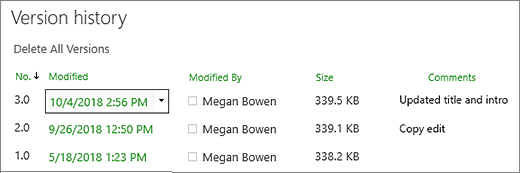
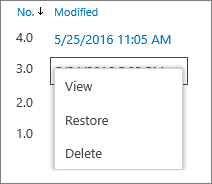 Click View.
**Note:**For all document versions except the latest, you'll see View, Restore, and Delete. For the latest version, you'll only see View and Restore.
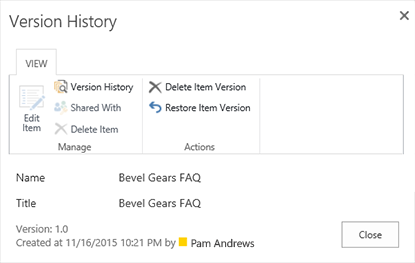
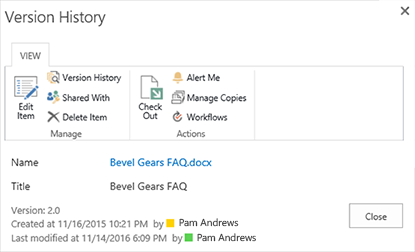 The view of the version history for a previous version of a file shows the option to restore or delete that version.
Your understanding and patience will be highly appreciated.
If there is any misunderstanding, please feel free to correct me.
Have a nice day!
Best regards,
Hi Sophia Papadopoulos,
Thank you for your reply.
This method allows to see the Version History just per item:
However, I need it for the overall MS list (for example Test2) to see the Version History.
Is there such an option in general?
Thanks for your help.
Dear Ala555,
Good day! Thank you for posting to Microsoft Community. We are happy to help you.
according to the screenshot you provided we are able to narrow down why you get the error.
from the SharePoint list library
Versioning >> and you can see all the version history from here you can restore back.
Your understanding and patience will be highly appreciated.
If there is any misunderstanding, please feel free to correct me.
Have a nice day!
Best regards,
Hi Sophia Papadopoulos, thank you for your reply.
I'd like to find the Version History of a MS Lists file specifically:
![Image](https://learn-attachment.microsoft.com/api/attachments/9d0fdced-7f9f-4359-b9f3-7d478f265eb9?platform=QnA"https://learn-attachment.microsoft.com/api/attachments/f421fafa-1cdc-4c10-832f-49a8876e9179?platform=QnA" title="filestore.community.support.microsoft.com" rel="ugc nofollow">![Image](https://learn-attachment.microsoft.com/api/attachments/f421fafa-1cdc-4c10-832f-49a8876e9179?platform=QnA