Microsoft 365 and Office | Publisher | Other
A desktop publishing application from Microsoft that focuses on page layout and graphic design.

This browser is no longer supported.
Upgrade to Microsoft Edge to take advantage of the latest features, security updates, and technical support.
' cx='32' cy='32' r='32' /%3E%3Ctext x='50%25' y='55%25' dominant-baseline='middle' text-anchor='middle' fill='%23FFF' %3EA%3C/text%3E%3C/svg%3E)
Just two fonts won't pull through to publisher. They load into text boxes if I paste the font in but it doesn't come up as an option in the list.
Steps I have already taken:
At a loss here, ran through any fixes I found on google but still not pulling through. The next thing I would try is soft resetting the device.
A desktop publishing application from Microsoft that focuses on page layout and graphic design.
Locked Question. This question was migrated from the Microsoft Support Community. You can vote on whether it's helpful, but you can't add comments or replies or follow the question.
Hello there! Matthew
Thank you for responding.
It seems that you only have a problem with the Publisher application. All of the troubleshooting steps that I provided didn't fix the issue. I really do appreciate that you tried to perform those steps there on your end. It appears that the issue you're having right now is beyond my knowledge and expertise.
To help you achieve the best resolution for this, we strongly advise you to contact our live support for you to get further assistance with the issue that you have. Nothing to worry, I will provide you the steps on how to get in touch to our live support easily.
Here are the steps:
We appreciate your kind understanding!
Thank you,
John Lloyd
Microsoft Moderator
Hi John,
Thankyou for the prompt response, myself a few others have already gone down the install custom fonts route unfortunately. The fonts work in other Microsoft applications, such as Word and Excel etc...
I see Century Gothic is on the list of compatible fonts, so it must be something to do with Publisher itself. I have gone through all the settings and don't see anything that could help.
If you have any obscure fixes you know of that would be amazing!
Cheers,
Matt
Hi Matthew,
Thank you for posting in Microsoft Community.
I understand that you’re having trouble with your fonts in Publisher. Based on the information you provided, it seems that you have already tried several troubleshooting steps to resolve the issue. Just a heads up that in regards to this kind of issue, our option is limited and we can only perform basic troubleshooting steps.
Here are some additional steps that you can try:
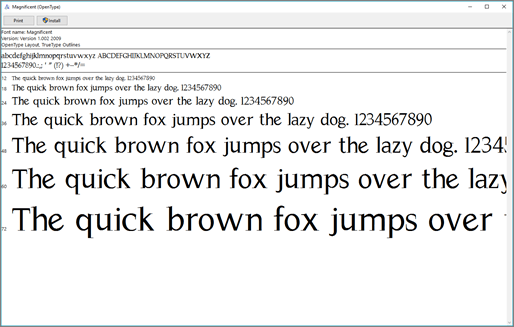

If you want to perform a Soft reset on your device. Make sure to have a backup with the application and the data files that you have.
Please send us a reply if there are any confusions or clarifications to our description. I hope this helps!
Sincerely,
John Lloyd
Microsoft Moderator