Share via

Split a task to complete another priority task

Anonymous
2024-05-29T16:46:34+00:00

Hello

I am looking for a way to automatically split a task to complete other tasks with higher priority and then resume and finish the first task, as detailed below.

Microsoft 365 and Office | Project | For home | Windows

Locked Question. This question was migrated from the Microsoft Support Community. You can vote on whether it's helpful, but you can't add comments or replies or follow the question.

0 comments No comments

3 answers

Sort by: Most helpful
  1. Anonymous
    2024-05-30T01:07:02+00:00

    AnaNW,

    Here is yet another way to do it. I don't like dragging my mouse around on the chart. I lean towards this being a resource over-allocation/leveling problem and solved as John suggests.

    But it can be done without considering the resource or dragging on the bars.

    I have pretended we have actuals so that I can separate the first and second parts of task 5.

    The actual part of 5 stays where it is because actual, and then the remaining part of 5 has 6 as predecessor.

    I also used stop and resume, but the predecessor already does the job.

    I filled in some missing predecessors at 7 for you as well.

    Was this answer helpful?

    0 comments No comments
  2. John Project 49,705 Reputation points Volunteer Moderator
    2024-05-29T21:03:07+00:00

    AnaNW,

    Dale's approach is probably the one I would use but let me offer another option. Your scenario seems like an application for resource leveling, so let's see how that might play out.

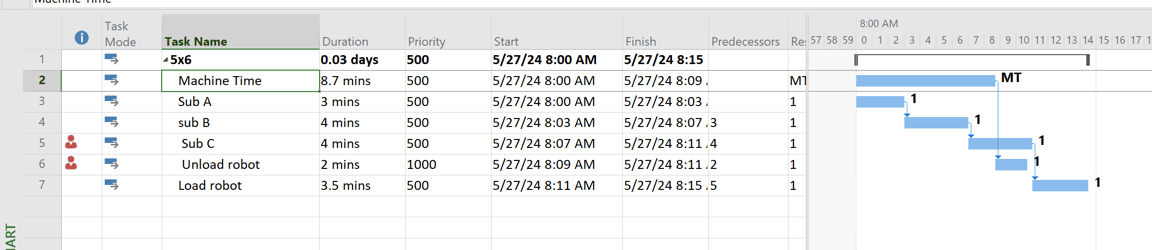
    First of all, I don't think the "load robot" task is as much dependent on the "unload robot" task as it is on the finish of "Sub C". Basically what you are saying in your third bullet. So I think you basic plan should look like this (BUT, see my caveat on the last screen shot).
    Image

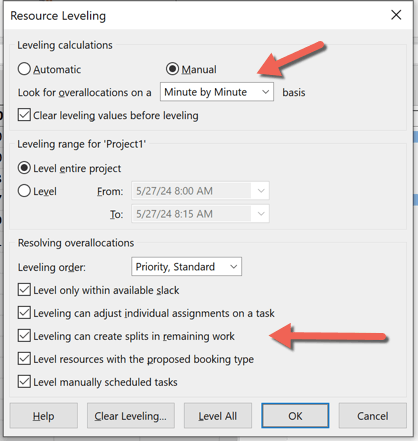
    Note I've set the "unload robot" with the highest priority. Set up leveling option as shown
    Image

    With that all set up, the leveled plan looks like this. I added a custom date field to show the start of the 2nd split part of "sub C". Truth be told, I had to reset the "load robot" predecessor AFTER leveling otherwise the leveling algorithm didn't like what I was trying to do.

    Image

    John

    Was this answer helpful?

    0 comments No comments
  3. Dale Howard [MVP] 29,860 Reputation points MVP Volunteer Moderator
    2024-05-29T19:37:15+00:00

    Ana --

    One way to accomplish this would be to use the Split Task feature in Microsoft Project. To do this, first click the Split Task button in the Schedule section of the Task ribbon. Your mouse pointer will change into the Split Task indicator. Then complete the following steps:

    1. Float your mouse pointer over the Gantt bar for the Sub C task. Microsoft Project will display a floating information dialog.
    2. Click and hold your mouse button when Scheduled Start date in the floating information dialog is the date when the Sub C task work must stop.
    3. Drag your mouse pointer to the right until the Task Start date is one day later than the Finish date for the Unload Robot task. This will cause the task to resume the day after the Unload Robot task is completed.

    You will now see the task split in the middle of the Gantt bar for the Sub C task. If the right-most task portion is not starting on the correct date, you can click and hold that Gantt bar portion and drag it into the correct position. BTW, I had to do that a couple of times while writing this solution.

    Hope this helps.

    Was this answer helpful?

    0 comments No comments