Hello, Jason J. E.
Welcome to Microsoft Community.
I realize that you have encountered a problem that you are blocked by Family Safety and not be able to access your daughter's computer. I understand how you feel.
I know that you need help, but in order to more accurately address your question and avoid misunderstanding, we may ask you for more information.
1 -> When you mention "setup process," are you referring to the Windows system setup that appear when you start your computer for the first time?
Or the settings within the Family Safety app or website?
If possible, please attach a screenshot of the "Time for a Break" message or the setting.
2 -> You can log in to this website to check the screen time limits in Family Safety: https://account.microsoft.com/family
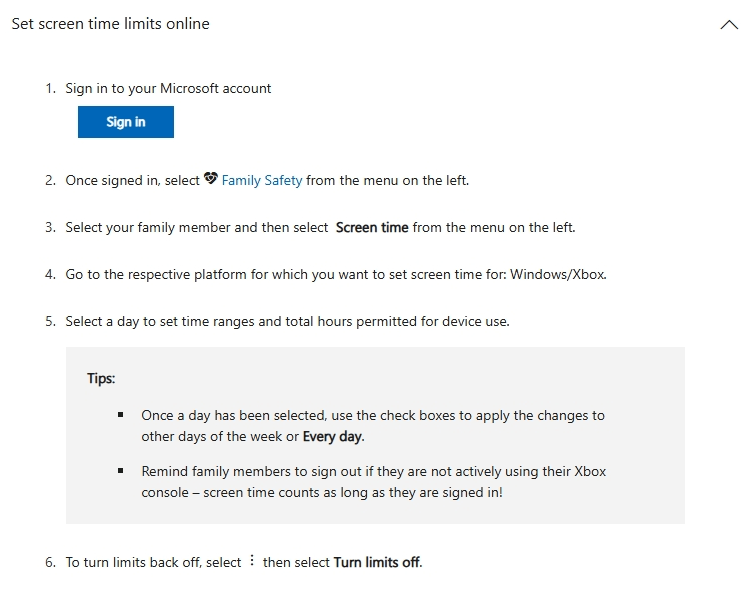
For more information, see Set screen time limits across devices - Microsoft Support.
3 -> Even though you are a parent, you are still blocked. This could also be because you are using your daughter's Microsoft account when logging into the laptop. The computer might mistake you for your daughter.
Please press Windows + I to open System Settings -> Accounts -> Email & Accounts. Check the account displayed there.
I'm looking forward to your reply. Let's take it step by step.
Best wishes,
Lucia Wu - MSFT | Microsoft Community Support Specialist
' cx='32' cy='32' r='32' /%3E%3Ctext x='50%25' y='55%25' dominant-baseline='middle' text-anchor='middle' fill='%23FFF' %3EA%3C/text%3E%3C/svg%3E)
