the instructions are as follows
Both methods are done on the PowerApps Project Resources page in Dynamics 365. To go there, do the following:
- While logged into Office 365, open a browser window and go to https://make.powerapps.com.
- On the PowerApps page, select Apps.
- On the Apps page, in the Apps tab, select Project.
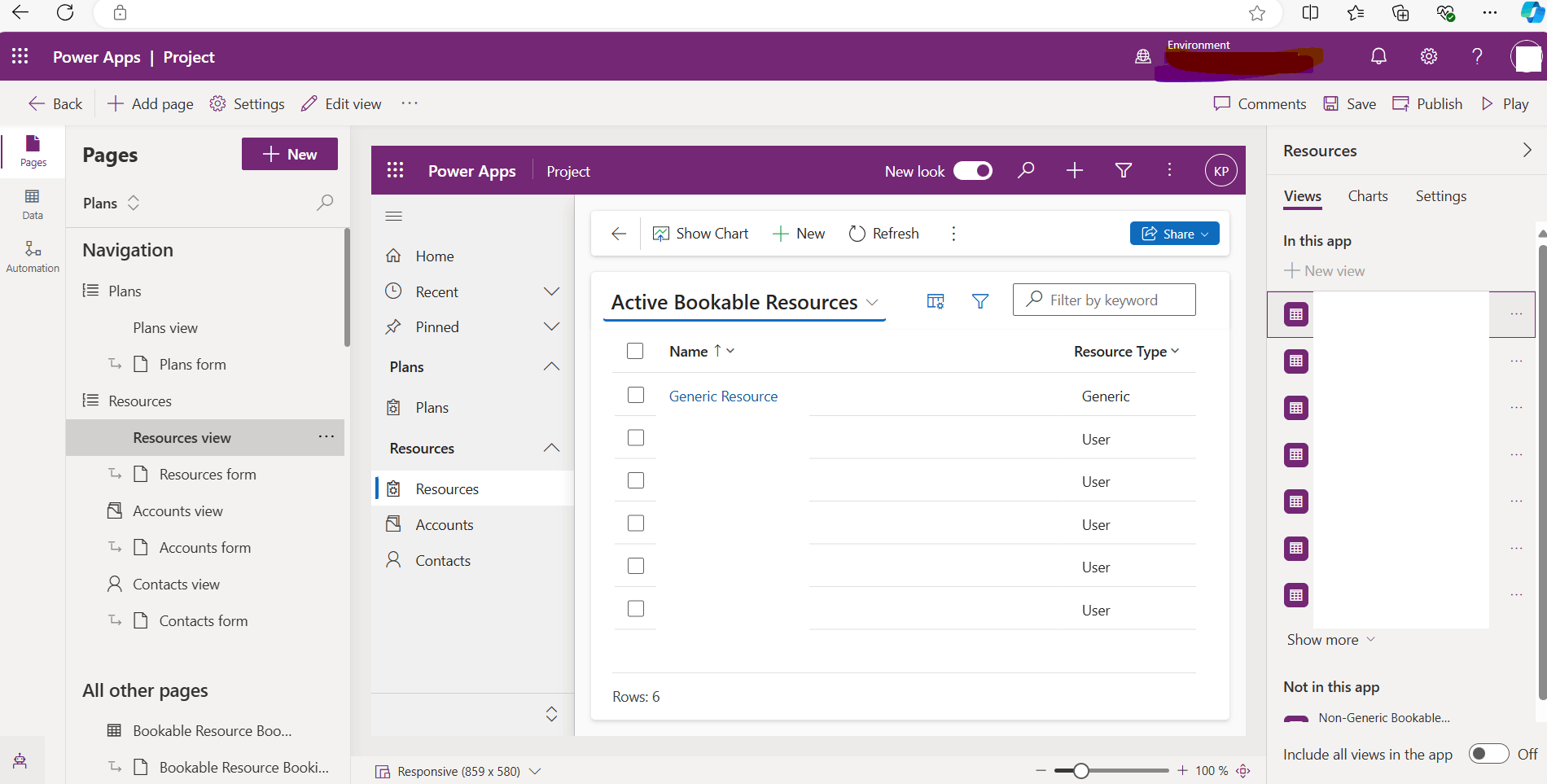
- On the Project page, in the left pane, select Resources.
I am able to complete all of the above
However I don't see the Projects menu on the bottom of the left pane as described in 1. below: (see screenshot below)
Create a new work hours template from the Calendar Templates page
- On the Resources page, click the Projects menu on the bottom of the left pane, and then select Settings.
- On the Project Settings Parameters page, click Calendar Templates.
- On the Active Work Hour Templates page, click New.
- On the New Work Templates page, give it a name.
- In the Template Resource field, type the name of a resource to base the work hours on.
- Click Save and Close.
- Your new work hours template will display on the Active Work Hour Templates
' cx='32' cy='32' r='32' /%3E%3Ctext x='50%25' y='55%25' dominant-baseline='middle' text-anchor='middle' fill='%23FFF' %3EA%3C/text%3E%3C/svg%3E)
