Share via

How to Print/export a Gantt Chart from MS Project Web

Anonymous
2024-12-13T08:33:57+00:00

Good day,

I have a task to export a Gantt Chart from Project Web so that it fits onto one page and is still clearly visible.

I have tried the zoom option however my project still gets split into multiple pages. Furthermore, the dates are not displayed on the left when I zoom out and export to pdf.

Filtering and trying to export produces the same results; a split Gantt.

Please advise

Kind regards

Microsoft 365 and Office | Project | For business | Other

Locked Question. This question was migrated from the Microsoft Support Community. You can vote on whether it's helpful, but you can't add comments or replies or follow the question.

0 comments No comments

Answer accepted by question author

  1. Anonymous
    2024-12-18T06:43:35+00:00

    Hi Keagan,

    Thanks for coming back with me.

    As per the updated details you have shared with me, it seems like the project is having a quite lengthy timeline. If so, as per my test results and searched in Microsoft Documentaries, currently there do have no out-of-box features in Project Online to zoom in the Gantt view and control them to get exported as the PDF in the same page.

    From my further tests for you just now, if you are now have two split pages, I think a manual workaround may be take a screenshot when select the Page view to Two page and then crop the middle part to make the timeline connected. But I do understand this is low-efficient for end users especially for multiple split pages. But I do agree the timeline zoom out feature is indeed necessary to export the PDF as sometimes the entire project can be lengthy. And I suggest you submit this great idea directly to the Project Online development team and let the engineers get informed of this real customer requirement and improve this in the coming updates. You can do this by clicking the Smile button from your project and click I have a suggestion.

    Meanwhile, I will make sure to keep your thread open and see if our community Project MVPs here like Dale Howard [MVP] or John - Project will share their possible workarounds for your scenario here based on their resourceful experience.

    Please correct me if I made any misunderstanding or if there have anything else I can do for you.

    Your patience is highly appreciated. Hope you a nice day and stay safe!

    Best Regards,

    Mia

    Was this answer helpful?

    2 people found this answer helpful.
    0 comments No comments

Answer accepted by question author

  1. Anonymous
    2024-12-13T12:02:36+00:00

    Hi Keagan Enoch,

    I went through your post carefully and it seems like your demand is to export the Gantt Chart for a project where you require the timeline fits into one page instead of separate pages which is absolutely making sense for a better and clearer management view experience.

    As per the detail you mentioned that you tried to export to PDF, I believe you are using Project Online where I can find the same Export to PDF function from three-dot button. But do feel free to correct me if you are currently using PWA (from my test, PWA only provides the Print button).

    So just now I tried to deploy some tests for you to better simulate the scenario you are encountering with. And it seems like when I zoomed as 1 week, I can reproduce the same split page result but when zoom out further, it can stay in one page.

    In this situation, I assume you may have a larger project and may I confirm if it will lead to a split Gantt even if you select the minimized zoom as six years? Also, for another detail you mentioned the dates are missing from left side, it seems like I can reproduce when it comes to the following spilt pages in the export PDF as it displays the task name only.

    Please correct me if there also have anything else that I made mistake or misunderstanding for the scenario you are seeing with because I am glad to offer any possible support for you.

    Appreciate your time and patience and I will be here waiting for your updates. Hope you a nice day and stay safe!

    Best Regards,

    Mia

    Was this answer helpful?

    2 people found this answer helpful.
    0 comments No comments

4 additional answers

Sort by: Most helpful
  1. Anonymous
    2024-12-19T06:00:42+00:00

    Hi Keagan,

    I appreciate your kind words and I'm glad my test results can help in some way of this 'Exported Gantt chart PDF split into pages' scenario.

    If you can understand my explanation and appropriate details about this entire scenario, it will be highly appreciated if you could provide a valuable vote in my above replies so that other users can understand the whole situation and other users who may encounter with the same concern can also easily find the current Project by-design behavior of exported Gantt chart in PDF. Because other users will also search the same query through this community and From your valuable votes, other users can find this topic efficiently and acquire the related status of the feature behavior situation and make better decision to find the best resolution based on their own environment, which will be also helpful for other users across the community.
    Image

    Meanwhile, for the further demand, it is definitely a great idea to automatically send the email reminder for assigned users so that they can get informed of the due date of tasks. Once the project is imported into a SharePoint list, it will be easy to setup the workflow based on the due date of a task and send to related users.

    Reference: Create a reminder flow in Power Automate for SharePoint items - Power Automate | Microsoft Learn

    Solved: Sending automated reminder 10 days before a due date, from a Microsoft List

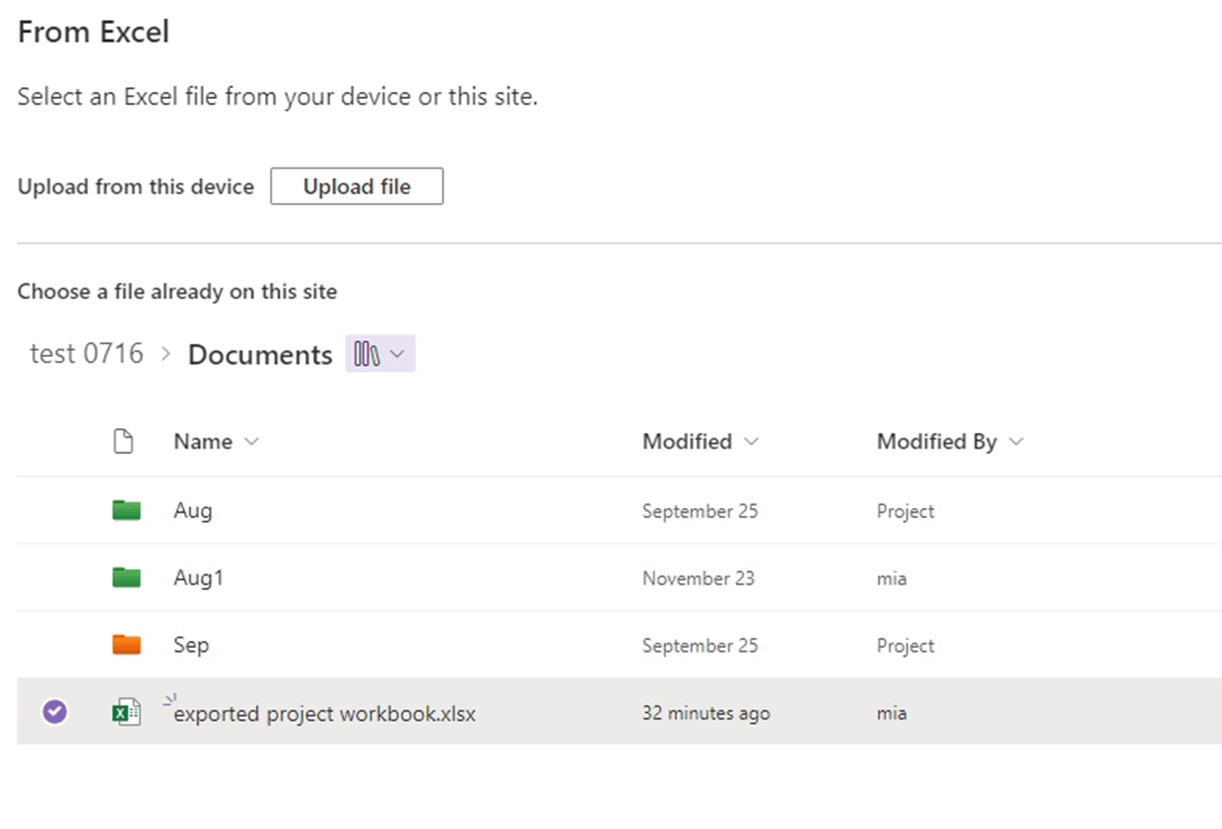
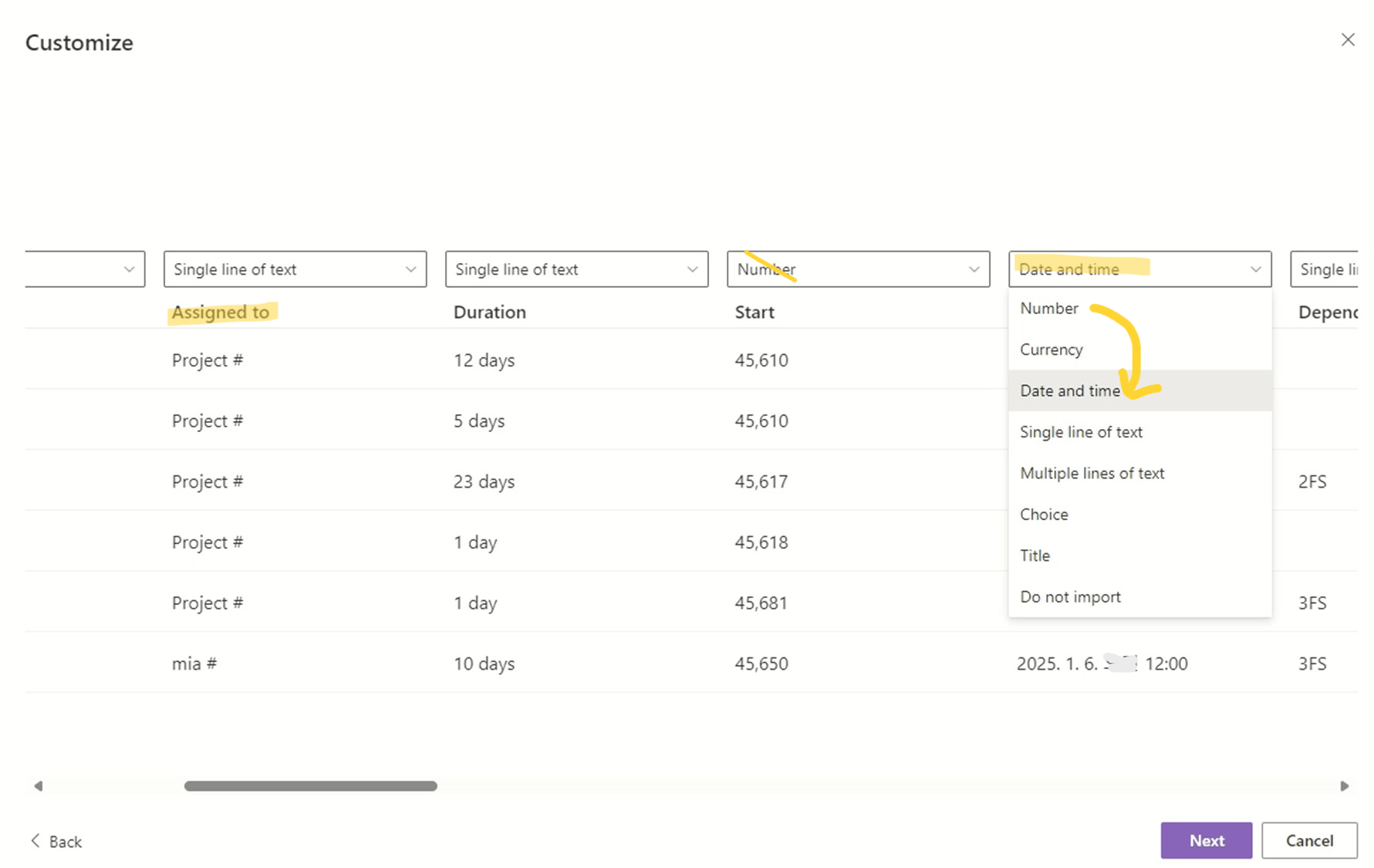
    However, from my search, currently the Project Online has not integrated with SharePoint by default but only the Project desktop app: Sync with a SharePoint tasks list - Microsoft Support. To seek a possible workaround, I tried to use the Export to Excel button and then select the required contents to manually create a workbook so that we can create a new list by selecting From Excel to import the related information. Below I attached the screenshots from my tests for you just now for a better display. However, I do understand that this can only be a temporary workaround as the list will not keep the sync with the original project. Also, I found the imported Assigned to column will not be able to trace the user account correctly.
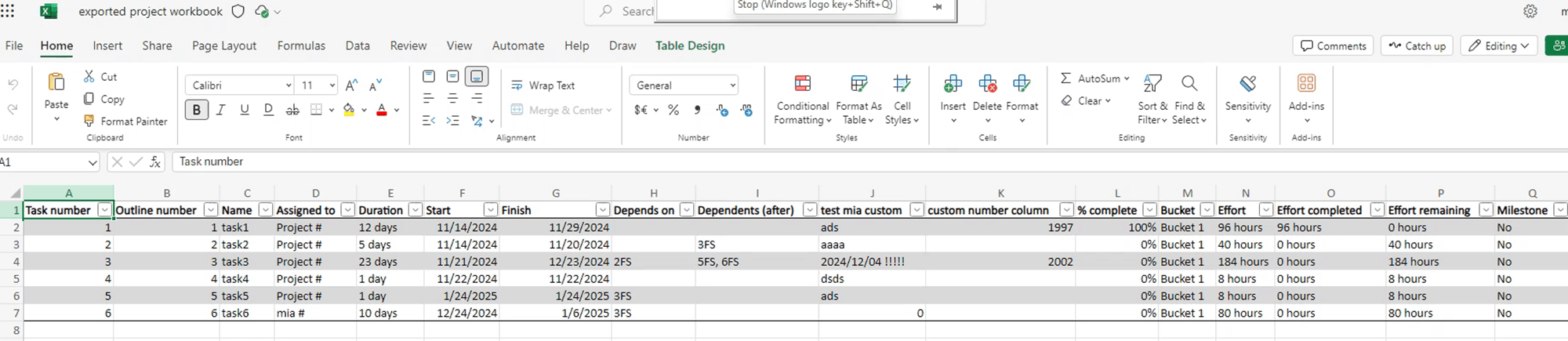
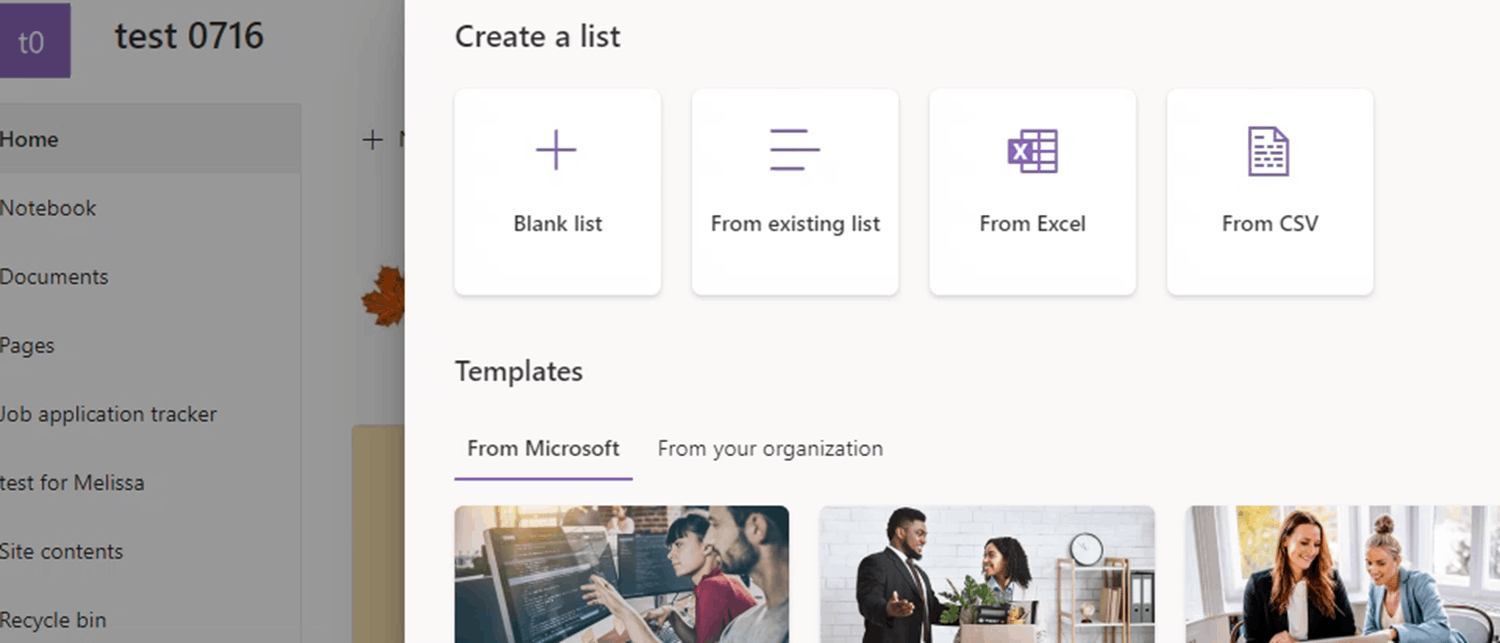
    Image Image Image Image

    Hence, since currently there has no out-of-box feature to connect Project Online and SharePoint, this might be difficult for you to deploy the reminder workflow, but if you have the Project desktop app or Planner, it is suggested to give it a try and it may provide a better experience.

    Appreciate your kindness and time on checking my reply. Let me know if I made any misunderstanding to your demand and I hope you a nice day and stay well!

    Best Regards,

    Mia

    Was this answer helpful?

    1 person found this answer helpful.
    0 comments No comments
  2. Anonymous
    2024-12-18T06:51:10+00:00

    Good Morning Mia,

    I truly appreciate your help and advice on this query. You're a star

    Kind Regards

    Keagan

    Was this answer helpful?

    0 comments No comments
  3. Anonymous
    2024-12-17T06:49:21+00:00

    Hi Mia,

    I appreciate your assistance on this query,

    You are correct in assuming I am using Project Online, and the only options are to export to pdf and to Excel. I have tried minimizing (zooming out); however, it still gives me a split Gantt view in the pdf. The project is quite lengthy and could be the reason for the split pages.

    I am not sure how to overcome this and i have tried many different options.

    Thank you for your help, I am not sure if you could advise me further

    Best regards

    Keagan

    Was this answer helpful?

    0 comments No comments