Hi Fabiano,
Please try the accepted answer in the following thread exactly as instructed.
That should fix the Firewall and BFE services.
This browser is no longer supported.
Upgrade to Microsoft Edge to take advantage of the latest features, security updates, and technical support.
' cx='32' cy='32' r='32' /%3E%3Ctext x='50%25' y='55%25' dominant-baseline='middle' text-anchor='middle' fill='%23FFF' %3EFS%3C/text%3E%3C/svg%3E)
Yesterday I upgraded my Windows 10 to Windows 11. Everything went fine, but I’m facing an issue I haven’t been able to resolve.
The Windows Defender Firewall stays in the "Stopping" status and does not change. When I tried to taskkill the corresponding PID, Windows froze and restarted.
I also noticed that the Base Filtering Engine (BFE) service is not listed. I believe this might be the cause. How can I fix this?
I have already run the following commands, but without success:
sfc /scannow
DISM /Online /Cleanup-Image /RestoreHealth
I also cannot install Teams.
Answer accepted by question author

Hi Fabiano,
Please try the accepted answer in the following thread exactly as instructed.
That should fix the Firewall and BFE services.
Thank you so much, this fixed the problem!

Now I've also managed to install Teams! However, it won't let me log in with my corporate account; I get this message that didn't appear in Windows 10:

An error occurred. [48v35]

I'll try reinstalling Teams.
Glad that helped.
For the Teams error, please start a new thread in the relevant forum. An IA or moderator will help.
This answer has been deleted due to a violation of our Code of Conduct. The answer was manually reported or identified through automated detection before action was taken. Please refer to our Code of Conduct for more information.
Comments have been turned off. Learn more
Hello Ramesh, thank you for your reply.
Please find attached the files shared via OneDrive. I found it strange that Windows didn’t allow me to run FRST64English.exe with a double-click (it said I needed a program to open it); I was only able to run it through the Command Prompt.
https://1drv.ms/u/c/bd182d6967813add/EUwzRZOwUD5PsyhIaxFCM6MBqDvM8dYQMZw9oAatbFeSDw?e=GQCSh7
Please share your Farbar scan logs for analysis.
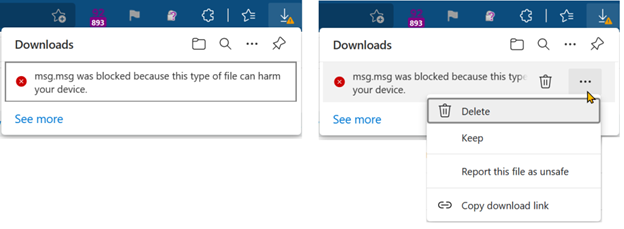
FRST64.exe to FRST64English.exe.Note: If Microsoft Edge or Chrome mislabels the Farbar Scanner executable as PUA/malware, choose to keep it by tapping … in the bottom bar, choosing Keep, and then choosing Keep anyway in the dialog that appears. See this screenshot. It's a safe tool used in most antimalware forums.
Hello Ramesh, thank you for your reply.
Please find attached the files shared via OneDrive. I found it strange that Windows didn’t allow me to run FRST64English.exe with a double-click (it said I needed a program to open it); I was only able to run it through the Command Prompt.
https://1drv.ms/u/c/bd182d6967813add/EUwzRZOwUD5PsyhIaxFCM6MBqDvM8dYQMZw9oAatbFeSDw?e=GQCSh7