Hi 齊藤 皓斗,
Welcome to Microsoft Q&A!
Based on your description, it sounds like Windows screenshot tools and photo apps are failing to launch, and screenshots aren't saving properly. This could be a system-level issue where the core components responsible for handling images and apps become corrupted. Here's what you can do:
1 - Repair or reset the affected apps
- Open Windows Settings > go to Apps > Installed apps
- Search for
Photos > click three-dot > Advanced options
- Scroll down and select Terminate > then click Repair
- Repeat this process with
Snipping Tool > Restart your PC
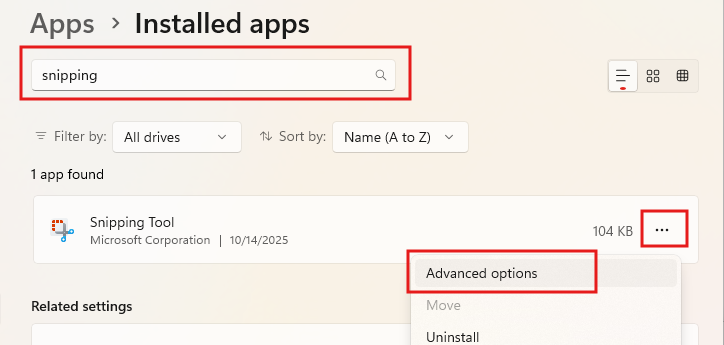
- Test the behaviors of both applications. If that doesn't work, go back to the Advanced options and click Reset. This will clear the app's data, which can fix deeper corruption.
2 - Re-register all Windows apps:
- Search Windows for PowerShell and run it as Administrator
- Enter the following commands one by one to repair the apps:
-
Get-AppxPackage Microsoft.Windows.Photos | Remove-AppxPackage
-
Get-AppxPackage -AllUsers Microsoft.Windows.Photos | Foreach {Add-AppxPackage -DisableDevelopmentMode -Register "$($_.InstallLocation)\AppXManifest.xml"}
-
Get-AppxPackage Microsoft.ScreenSketch | Remove-AppxPackage
-
Get-AppxPackage -AllUsers Microsoft.ScreenSketch | Foreach {Add-AppxPackage -DisableDevelopmentMode -Register "$($_.InstallLocation)\AppXManifest.xml"}
- Wait for the process to finish and restart your computer.
- If the issue persists, run this:
Get-AppXPackage -AllUsers | Foreach {Add-AppxPackage -DisableDevelopmentMode -Register "$($_.InstallLocation)\AppXManifest.xml"}
3 - Check photo and screenshot settings:
- Make sure everything is up to date:
- Go to Settings > Windows Update and click Check for updates.
- Expand Advanced options > Optional updates > Install if any
- Clipboard history:
- Go to Settings > System > Clipboard
- Ensure that "Clipboard history" is toggled ON
- File type associations:
- Go to Settings > Apps > Default apps
- Scroll down and click "Choose default apps by file type".
- Find the image types and ensure they are set to open with the Photo app
- Or scroll further down and click Reset all Microsoft recommended defaults.
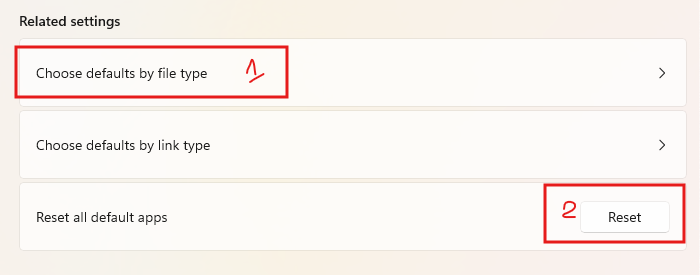
4 - Scan and repair corrupted system files:
- Open Command Prompt as Administrator > Enter
sfc /scannow
- Wait for the process to complete and follow the instructions (if any)
I hope the information above helps. Let me know if you have troubles applying any of the steps or if the issue persists after trying everything. Consider sharing your Windows versions so I can help better.
If the answer is helpful, please click "Accept Answer" and kindly upvote it. If you have extra questions about this answer, please click "Comment".
Note: Please follow the steps in our documentation to enable e-mail notifications if you want to receive the related email notification for this thread.
' cx='32' cy='32' r='32' /%3E%3Ctext x='50%25' y='55%25' dominant-baseline='middle' text-anchor='middle' fill='%23FFF' %3EA%3C/text%3E%3C/svg%3E)

' cx='32' cy='32' r='32' /%3E%3Ctext x='50%25' y='55%25' dominant-baseline='middle' text-anchor='middle' fill='%23FFF' %3ESD%3C/text%3E%3C/svg%3E)
' cx='32' cy='32' r='32' /%3E%3Ctext x='50%25' y='55%25' dominant-baseline='middle' text-anchor='middle' fill='%23FFF' %3ELN%3C/text%3E%3C/svg%3E)