Microsoft 365 and Office | SharePoint Server | For business
A family of Microsoft on-premises document management and storage systems.

This browser is no longer supported.
Upgrade to Microsoft Edge to take advantage of the latest features, security updates, and technical support.
' cx='32' cy='32' r='32' /%3E%3Ctext x='50%25' y='55%25' dominant-baseline='middle' text-anchor='middle' fill='%23FFF' %3ER%3C/text%3E%3C/svg%3E)
Hi,
I'm using SharePoint 2013 on premise, I would like to create a site using a backup copy of another site. Is this possible?
I'm only seeing information on how to restore a backup of a site with its own backup.
Thanks,
Raquel
A family of Microsoft on-premises document management and storage systems.
' cx='32' cy='32' r='32' /%3E%3Ctext x='50%25' y='55%25' dominant-baseline='middle' text-anchor='middle' fill='%23FFF' %3ELB%3C/text%3E%3C/svg%3E)
To create a site collection using a backup of another site, you can follow these general steps:
Obtain the backup of the site: Ensure that you have a backup of the site that you want to restore as a site collection. This backup can be in the form of a database backup or a backup file provided by your content management system.
Prepare the target environment: Make sure you have a suitable environment to restore the site collection. This typically involves setting up a new web application or site collection in your content management system.
SharePoint: Use the SharePoint Central Administration site to restore the backup. Go to Central Administration > Application Management > Restore from a backup, and follow the prompts to select the backup file and restore it as a new site collection.
Configure the site collection: After the restore process is complete, you may need to configure the newly created site collection. This involves setting up permissions, configuring site settings, and customizing the site to fit your requirements.
Test and validate: Once the site collection is set up, thoroughly test it to ensure that everything is functioning as expected. Check for any issues or discrepancies compared to the original site.
It's important to note that the specific steps may vary depending on the content management system you are using and the backup method employed. Be sure to consult the official documentation or resources provided by your CMS for detailed instructions tailored to your specific setup.

if by "site" you mean site collection and it was backuped via Backup-SPSite you may restore it with Restore-SPSite cmdlet. The problem with this approach is that it will work only if source and target Sharepoint farms have the same CU version (and it is not problem if you backup and restore on the same web application). However there is workaround for this issue with restoring site on different Sharepoint version: How to restore site collection from higher Sharepoint version.
' cx='32' cy='32' r='32' /%3E%3Ctext x='50%25' y='55%25' dominant-baseline='middle' text-anchor='middle' fill='%23FFF' %3EED%3C/text%3E%3C/svg%3E)
There're two options to create a site collection by using another backup site collection.
1.Save site as a template.
(1)Go to Site Settings -> In the Site Actions section, click Save site as a template -> Click Include Content.
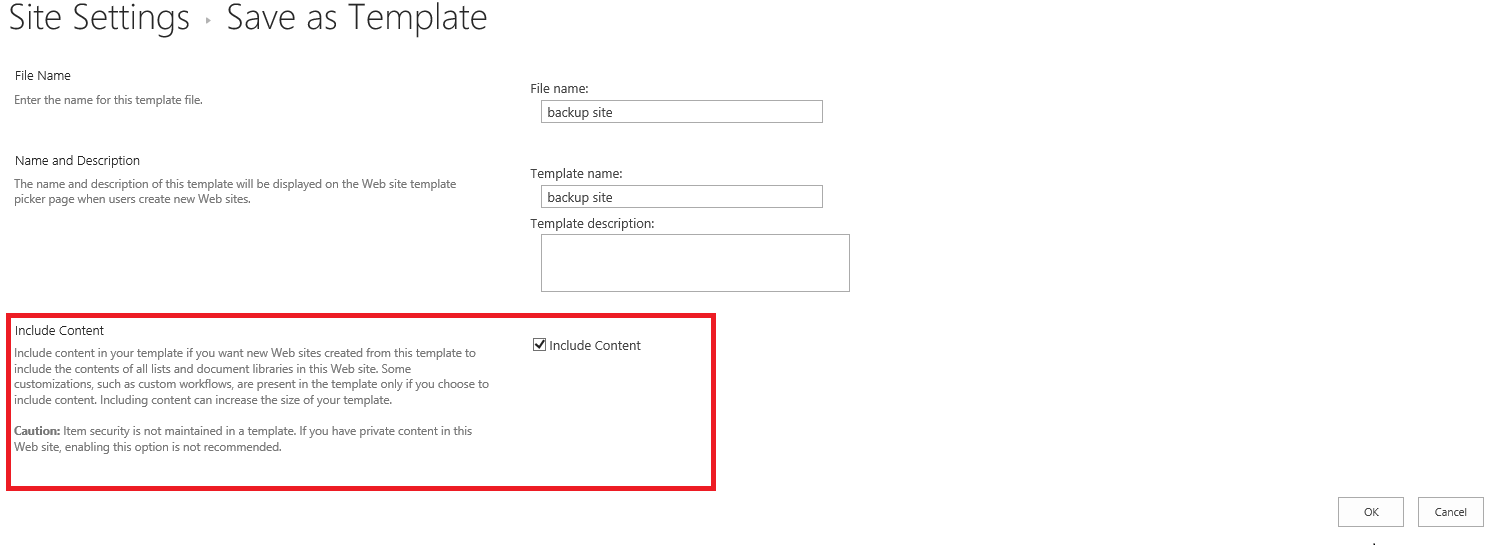
(2)Go to Site Settings -> In the Web Designer Galleries section-> Solutions -> Activate the backup file -> Click the file -> Download the backup file.

(3)Go to Central Administration -> Create a site collection -> In the Select a template section, Custom tab, choose Select template later.
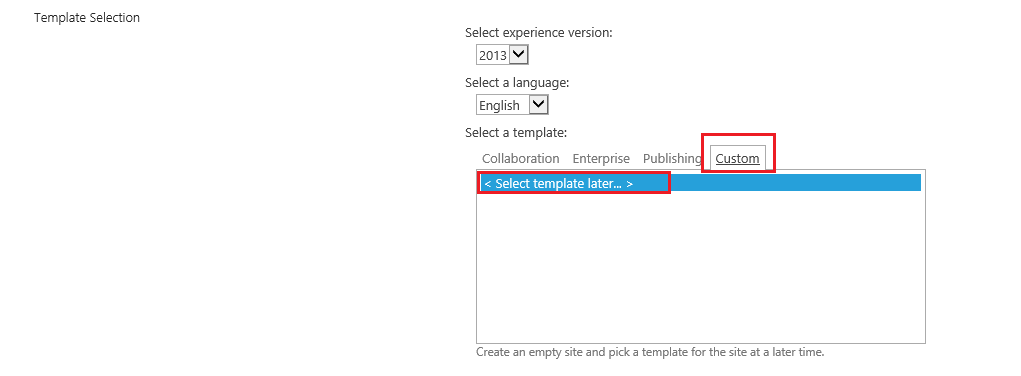
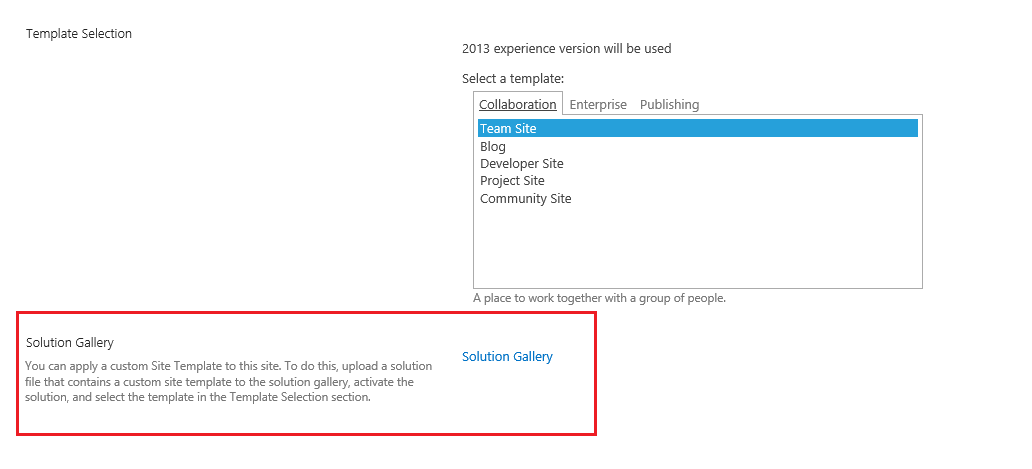
(4)Go to the new site collecion -> Solution Gallery -> Upload the backup file -> Activate the backup file.
(5)Go to the new site collecion again -> In the Select a template section, Custom tab, select the backup file.
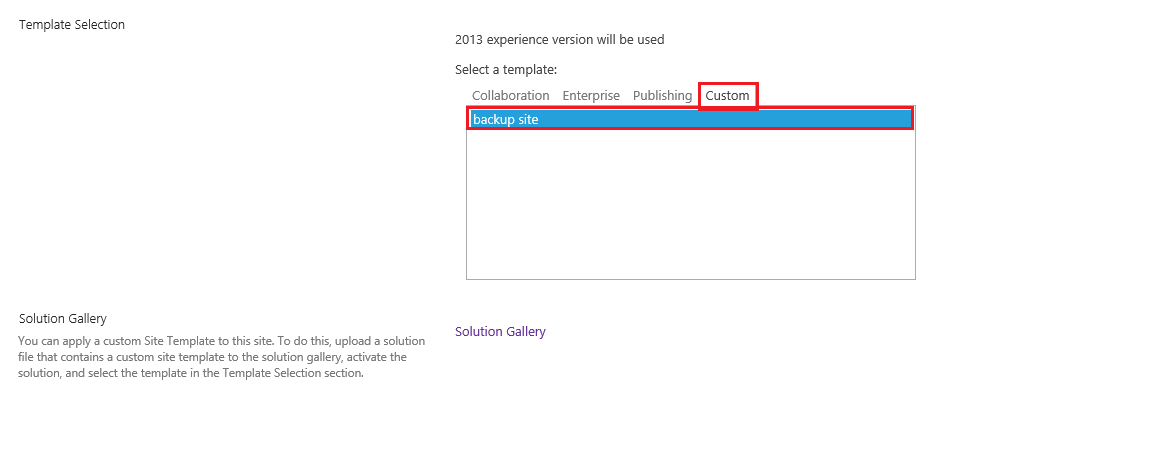
2.PowerShell.
Backup a site collection.
Backup-SPSite http://vemdum205vm/sites/emilytest -path C:\backup.bak
Create a new site collection by using backup file.
Restore-SPSite http://vemdum205vm/sites/emilytest1 -path C:\backup.bak
If the answer is helpful, please click "Accept Answer" and kindly upvote it. If you have extra questions about this answer, please click "Comment".
Note: Please follow the steps in our documentation to enable e-mail notifications if you want to receive the related email notification for this thread.
Thanks.
I would like to use an existing backup file for the site.
The situation is this, I want to retrieve a file that exists on a backup of the site, I don't want to restore the site with this as data will be lost.
I just want to create a site with this old backup, to retrieve a version of a file on it.
Versioning was not previously turned on for this file, so I can't return to an older version of this file. My only option is to make use of an older backup of the site
Best Regards,
Raquel
How did you backup site collection before?
I’m checking how the things are going on about this issue.
If there is any problem with this issue, feel free to let me know.
I scheduled my site collection to be fully backed up once a week.
Whether you get weekly site collection backup file via Save site as a template or PowerShell?