Share via

BitLocker Issue after Updates Surface Book 2

Anonymous
2018-08-06T12:04:27+00:00

A few months back I purchased the new Surface Book 2 for a bit over 3,000 EUR. I had high hopes that as Microsoft knows this hardware inside out (just like Apple does with their MacBooks) I would not anymore have to go through the usual driver issues and what not but instead have a nice, reliable machine at hand that would make my everyday work life easier, not harder. 

1. Sleep of Death

Before my holiday I then started using my old Dell notebook again, as there was no way, I could put this 3,000 EUR Surface Book 2 to hibernate (or sleep! - both did actually not work) without having to do press the power button thereafter for 20 sec or so and hardresetting the thing to wake up. It seemed to be the (what seems to be quite common actually!) sleep of death issue. In light of the many users seeming to have the same issues I was hoping Microsoft would get on to a firmware update during my vacation and all would be solved upon my return. In fact, after my return this morning there were about 20 or so updates that got installed after I powered the SB2 up, amongst them a firmware update.

2. Laptop Bricked after Update - for good!

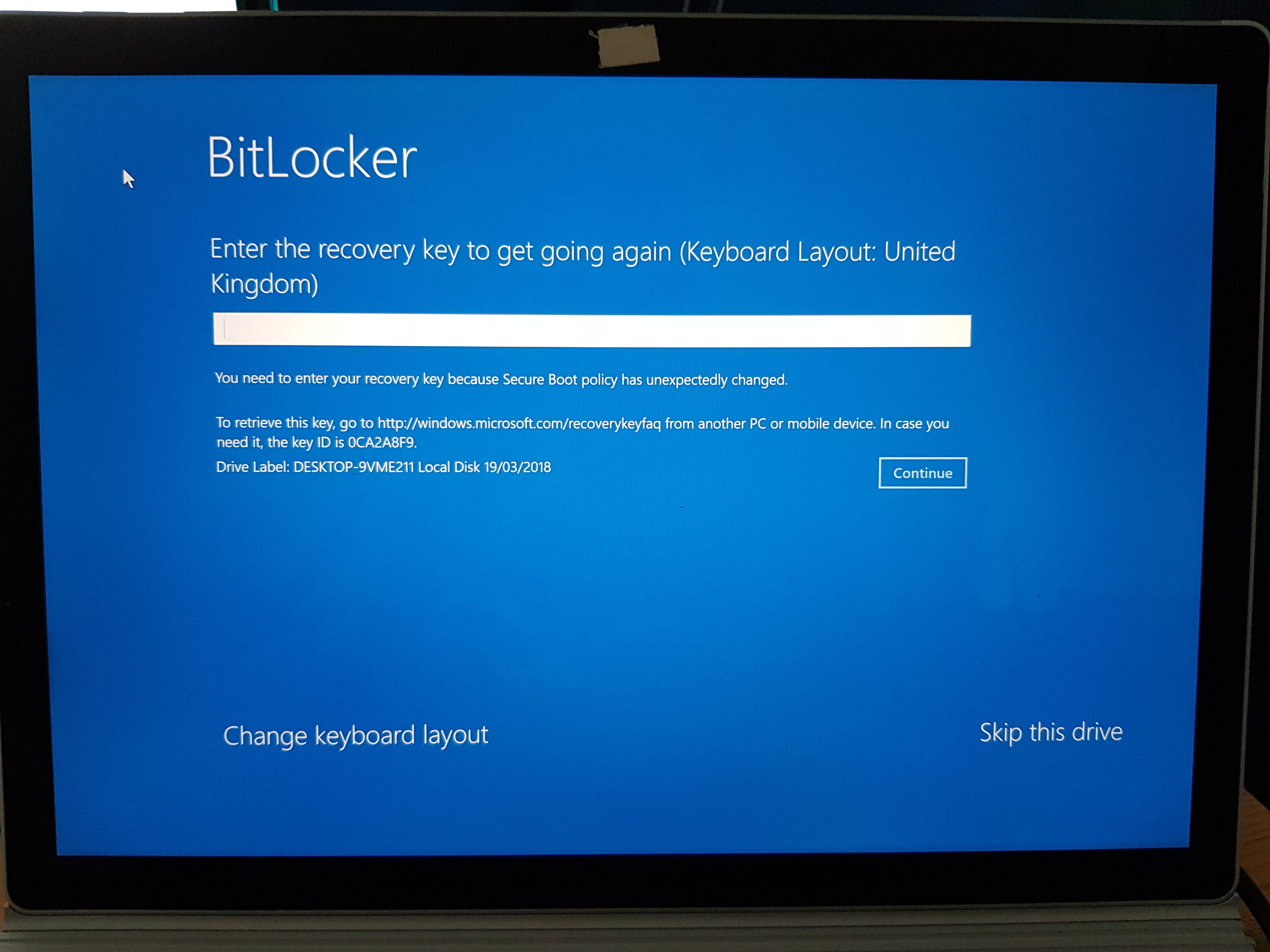
After installing and restarting I then had this issue: https://answers.microsoft.com/en-us/surface/forum/surfbook2-surfupdate/surface-book-2-bricked-after-latest-firmware/06fb11b2-4eb2-4141-9cd1-1e02d54afd78 - A blue screen with a prompt to enter the BitLocker key. Well, I looked it up and seemed to have recovered the key in my MS account (luckily! as other users seemed not to be so lucky as can be read in the link above). The (almost funny by now) thing is, that my keyboard does not work. My touchpad works just fine, I can "change keyboard layout" or "skip this drive" (obviously of little use, as this drive is my system drive with my Windows installation on it). But when I click into the blank field to enter the key, my keyboard does not respond at all and I cannot enter a key.
3. Excel Pixelated Issue with Surface Dock

Did I already mention how much I like the idea to have my two 1080p monitors hooked up to my laptop via Surface Dock with just one magnetic cable? Well, Excel becomes almost unreadable and in general the (text) image quality is poor compared to my old Dell, which has a HDMI and a Mini Display port so that I can hook up the two displays directly. This is sad...

Microsoft, seriously? I had such high hopes that (after investing 3,000 EUR) I would finally get a machine that would give me the same reliability as my Mac Book Pro. You cannot ask these prices, offer a super fancy top of the nodge notebook and then have issues like this. I mean, my laptop is bricked! I am having nothing but issues with the thing, can't even close the lid (to slee or hibernate) without recovering all my files as the bloody thing goes into a sleep of death. WTF is wrong with this thing ... I thought the old days of bootable CDs (or USB sticks nowaday) were kind of over by now... especially after paying this price!

Any ideas how to get around this w/o investing half a day to re-install Windows and all my programs?

Had I not started to like the new Windows 10 and have many programs that need Win, I think I'd already be back to a Mac Book. 

Thanks for your help in advance.

Moved from: Windows 10  / Windows update, recovery, & backup

Surface | Surface Book | Install and update

Locked Question. This question was migrated from the Microsoft Support Community. You can vote on whether it's helpful, but you can't add comments or replies or follow the question.

0 comments No comments

Answer accepted by question author

Anonymous
2018-08-22T15:41:28+00:00

The Surface BitLocker Protector Check tool is now available to verify that the BitLocker settings are properly configured on your Surface Book 2 13” NVIDIA® GeForce® GTX 1050 and to help ensure that future updates go smoothly on your device.

For more information, please view our Known issues and additional information about Surface Book 2 article.

Updated 11/2/2018

Was this answer helpful?

9 people found this answer helpful.
0 comments No comments

98 additional answers

Sort by: Most helpful
  1. Anonymous
    2018-09-03T05:34:17+00:00

    Dear Nick,

    By chance was your Surface Book 2 an opened box or previously returned item when you bought it?  I purchased one in February from Best Buy.  Originally I could not setup it using my GoDaddy Microsoft 365 Account.  Then they reformatted the drive.  When they reformatted the drive, I was asked give them another Microsoft Account, which is attached to my Mac Book Pro on account that it runs Parallels and has Windows 10 setup.  

    While traveling for business this past August, I was working on my computer and then a series of updates were asked to be installed.  Afterwards, it restarted and ended up at the bitlocker recovery screen.  I checked my account.  I was surprised to see that Bitlocker was activated.  I never set it up. Secondly there were no recovery keys or key.  The issue as you listed is the same for me.  Best Buy said they set it up using a local id.  That doesn't make sense as it was registered on my online account when they had it.  I am wondering two things:  1) If this was owned by a previous customer who activated the bitlocker and setup the recovery key with his or her own account and then Best Buy tried to reformat the drive, is it possible that the bitlocker protection was never removed or the recovery key reset?  and 2) What if they just set up with a local non-Microsoft account?  Could that hide the problem on the device rather than backing up the recover key to your online file, which is the first option?  

    I am equally frustrated.  I have important company financial information that I was getting ready to backup when this happened.  I paid an outside consultant a fair amount to do some work on the files and now I cannot access them.  It will be costly to do the work over.  Microsoft staff and Best Buy are useless in terms of helping to resolve problems.  I believe this was caused by both of them.  Microsoft has yet to acknowledge that there were problems caused by August updates.  I appreciate any insights.  I really cannot lose my data.  I need it back.

    Was this answer helpful?

    0 comments No comments
  2. Anonymous
    2018-08-29T07:54:49+00:00

    Thank you for your feedback We are actively investigating this issue and working on a resolution to ensure our customers have the best possible experience on their Surface device. In the meantime, If you hit the BitLocker recovery Key Entry screen you choose either of the these options below until we release a fix via Windows Update.

    Quick Workaround: Restart your surface without clipboard

    1.       Please detach your Clipboard by Pressing the Detach key and detach your Clipboard once the Detach light turns green. 

    2.       Choose “Skip this drive” 

    3.       Choose “turn off your PC”

    4.       Turn on your Surface and you should be able to boot to windows without seeing a Bitlocker prompt. 

    Note: You will have to do this whenever you power on or Restart your device

    Permanent workaround: Change the Secure Boot configuration.

    Please use this workaround only if you are not using any 3^rd^ party disk encryption Software on your Surface

    Before you start, please use Quick workaround to boot into windows and back up your data.

    1.       Once you are in Windows, Suspend the BitLocker protection by going to Control Panel\System and Security\BitLocker Drive Encryption – Select Suspend protection.

    2.       Restart your device and boot to UEFI(Refer to this article https://support.microsoft.com/en-us/help/4023531/surface-how-to-use-surface-uefi)

    a.            Press and hold the volume-up button on your Surface, at the same time press and release the power button.

    b.            The Microsoft or Surface logo appears on your screen. Continue to hold the volume-up button. Release the button once the UEFI screen appears.

    3.       When you are in surface UEFI>go to Security>Under Security> Change Configuration > Choose Microsoft only and hit ok.

    4.       Go to Exit tab and click Restart your device.

    Note: This action is needed only until we release a fix via Windows Update.

    I got the same issue again despite having followed all abovementioned steps! Blue screen with prompt to enter BL recovery key. At least this time the touch keyboard worked so that I could enter the info retrieved from my MS account. When will this be fixed for good?!

    Was this answer helpful?

    0 comments No comments
  3. Anonymous
    2018-08-26T19:08:13+00:00

    Thank you for your feedback We are actively investigating this issue and working on a resolution to ensure our customers have the best possible experience on their Surface device. In the meantime, If you hit the BitLocker recovery Key Entry screen you choose either of the these options below until we release a fix via Windows Update.

    Quick Workaround: Restart your surface without clipboard

    1.       Please detach your Clipboard by Pressing the Detach key and detach your Clipboard once the Detach light turns green. 

    2.       Choose “Skip this drive” 

    3.       Choose “turn off your PC”

    4.       Turn on your Surface and you should be able to boot to windows without seeing a Bitlocker prompt. 

    Note: You will have to do this whenever you power on or Restart your device

    Permanent workaround: Change the Secure Boot configuration.

    Please use this workaround only if you are not using any 3^rd^ party disk encryption Software on your Surface

    Before you start, please use Quick workaround to boot into windows and back up your data.

    1.       Once you are in Windows, Suspend the BitLocker protection by going to Control Panel\System and Security\BitLocker Drive Encryption – Select Suspend protection.

    2.       Restart your device and boot to UEFI(Refer to this article https://support.microsoft.com/en-us/help/4023531/surface-how-to-use-surface-uefi)

    a.            Press and hold the volume-up button on your Surface, at the same time press and release the power button.

    b.            The Microsoft or Surface logo appears on your screen. Continue to hold the volume-up button. Release the button once the UEFI screen appears.

    3.       When you are in surface UEFI>go to Security>Under Security> Change Configuration > Choose Microsoft only and hit ok.

    4.       Go to Exit tab and click Restart your device.

    Note: This action is needed only until we release a fix via Windows Update.

    I found this method in one of the posts listed earlier. Tried it and it worked. Had also tried some of the other options mentioned prior to finding this option but none of them worked. The whole thing took an agonizing 3 days to be sorted out!

    By the way, despite trying the option of storing Bit locker key on the Onedrive cloud, it doesn't happen. You need to have this checked! This is a clear let down on an important feature set.

    Surface Book 2 is one of your premium devices and we expect that the experience should be error free. If however, an issue arises, its basic to expect that the MS team comes out with a solution pronto. Sorry to mention, you guys have failed on that count.

    Was this answer helpful?

    0 comments No comments
  4. Anonymous
    2018-08-24T02:00:23+00:00

    Thank you for your feedback We are actively investigating this issue and working on a resolution to ensure our customers have the best possible experience on their Surface device. In the meantime, If you hit the BitLocker recovery Key Entry screen you choose either of the these options below until we release a fix via Windows Update.

    Quick Workaround: Restart your surface without clipboard

    1.       Please detach your Clipboard by Pressing the Detach key and detach your Clipboard once the Detach light turns green. 

    2.       Choose “Skip this drive” 

    3.       Choose “turn off your PC”

    4.       Turn on your Surface and you should be able to boot to windows without seeing a Bitlocker prompt. 

    Note: You will have to do this whenever you power on or Restart your device

    Permanent workaround: Change the Secure Boot configuration.

    Please use this workaround only if you are not using any 3^rd^ party disk encryption Software on your Surface

    Before you start, please use Quick workaround to boot into windows and back up your data.

    1.       Once you are in Windows, Suspend the BitLocker protection by going to Control Panel\System and Security\BitLocker Drive Encryption – Select Suspend protection.

    2.       Restart your device and boot to UEFI(Refer to this article https://support.microsoft.com/en-us/help/4023531/surface-how-to-use-surface-uefi)

    a.            Press and hold the volume-up button on your Surface, at the same time press and release the power button.

    b.            The Microsoft or Surface logo appears on your screen. Continue to hold the volume-up button. Release the button once the UEFI screen appears.

    3.       When you are in surface UEFI>go to Security>Under Security> Change Configuration > Choose Microsoft only and hit ok.

    4.       Go to Exit tab and click Restart your device.

    Note: This action is needed only until we release a fix via Windows Update.

    I found this method in one of the posts listed earlier. Tried it and it worked. Had also tried some of the other options mentioned prior to finding this option but none of them worked. The whole thing took an agonizing 3 days to be sorted out!

    By the way, despite trying the option of storing Bit locker key on the Onedrive cloud, it doesn't happen. You need to have this checked! This is a clear let down on an important feature set.

    Surface Book 2 is one of your premium devices and we expect that the experience should be error free. If however, an issue arises, its basic to expect that the MS team comes out with a solution pronto. Sorry to mention, you guys have failed on that count.

    Was this answer helpful?

    0 comments No comments