Share via

Surface Book 2 - Surface System Aggregator firmware will not update

Anonymous
2020-12-31T01:37:20+00:00

The surface book kept on restarting itself randomly within 5 minutes of logging in. After a complete reinstall and tracking the windows updates I found that the error seems to be caused by the Surface System Aggregator firmware failing to install.

The computer gets stuck in a loop where:

  • It says that the system must be restarted to install updates.
  • The computer is restarted
  • At boot it says to wait while it performs a system install. Then it says the same message but puts a red/orange underline under the windows boot logo. I'm assuming this means failed to install.
  • Once complete and logged in we are prompted that the system must be restarted to install updates.

In device manager there is a yellow exclamation on the Surface System Aggregator in Firmware.

If I uninstall the software and reboot it looks like it reverts to an earlier driver (182.512.137.0).

The driver it appears to be stuck in the loop trying to update to is 182.2107.139.0

When I reboot after the uninstall in device manager I get the red underline on the Windows boot logo and the yellow exclamation mark in device manager once again.

Windows update is showing a failed attempt at updating the driver again.

Does anyone have any ideas on how I can force the firmware to update, or otherwise solve the issue of the firmware not upgrading past version 182.512.137.0?

Surface | Surface Book | Install and update

Locked Question. This question was migrated from the Microsoft Support Community. You can vote on whether it's helpful, but you can't add comments or replies or follow the question.

0 comments No comments

12 answers

Sort by: Most helpful
  1. Anonymous
    2021-01-03T02:49:37+00:00

    I hadn't noticed but you are right, the firmware tab is missing. I looked at another Surface Book 2 and it has a firmware tab on the Surface System Aggregator properties in the Device Manager.

    I have just run the Surface Diagnostic Toolkit as suggested. It found nothing and there is no change to the issue!

    If it is a hardware problem not sure what the next move is. The laptop is out of warranty and we are in New Zealand where there is no Microsoft Store. There should be plenty of life in the laptop and I don't want terminate it due to what appears to be a minor (but crucial) issue.

    Do Microsoft hardware engineers frequent this section? If it is a hardware fault it would be good to get an opinion or options from somebody at Microsoft. It looks like we are starting to exhaust the software options. Thank you for all of your assistance so far.

    Was this answer helpful?

    2 people found this answer helpful.
    0 comments No comments
  2. Anonymous
    2021-01-01T19:11:44+00:00

    I performed a full recovery using the USB recovery image for the Surface Book 2 where I had to provide my serial number. At the recovery option where you can fully remove all files (like when selling your computer to a new user), I chose that option.

    Was this answer helpful?

    0 comments No comments
  3. Anonymous
    2021-01-01T08:43:33+00:00

    You mention that you reinstalled Windows. Did you do a full reset including your files or did you download a USB recovery image by serial number?

    Was this answer helpful?

    0 comments No comments
  4. Anonymous
    2021-01-01T05:46:09+00:00

    Hi John Neil_J

    Thanks for getting back to me. I had already reinstalled/recovered Windows in the past couple of days to try and fix this problem but the original problem still occurred even after a reinstall.

    So, I have installed it again today following your instructions. I have also logged all of my actions in a text document so I can remember everything that has happened should you need more information.

    I performed a recovery with the USB recovery drive with the total wipe option.

    After complete and restarting I performed the Windows Update.

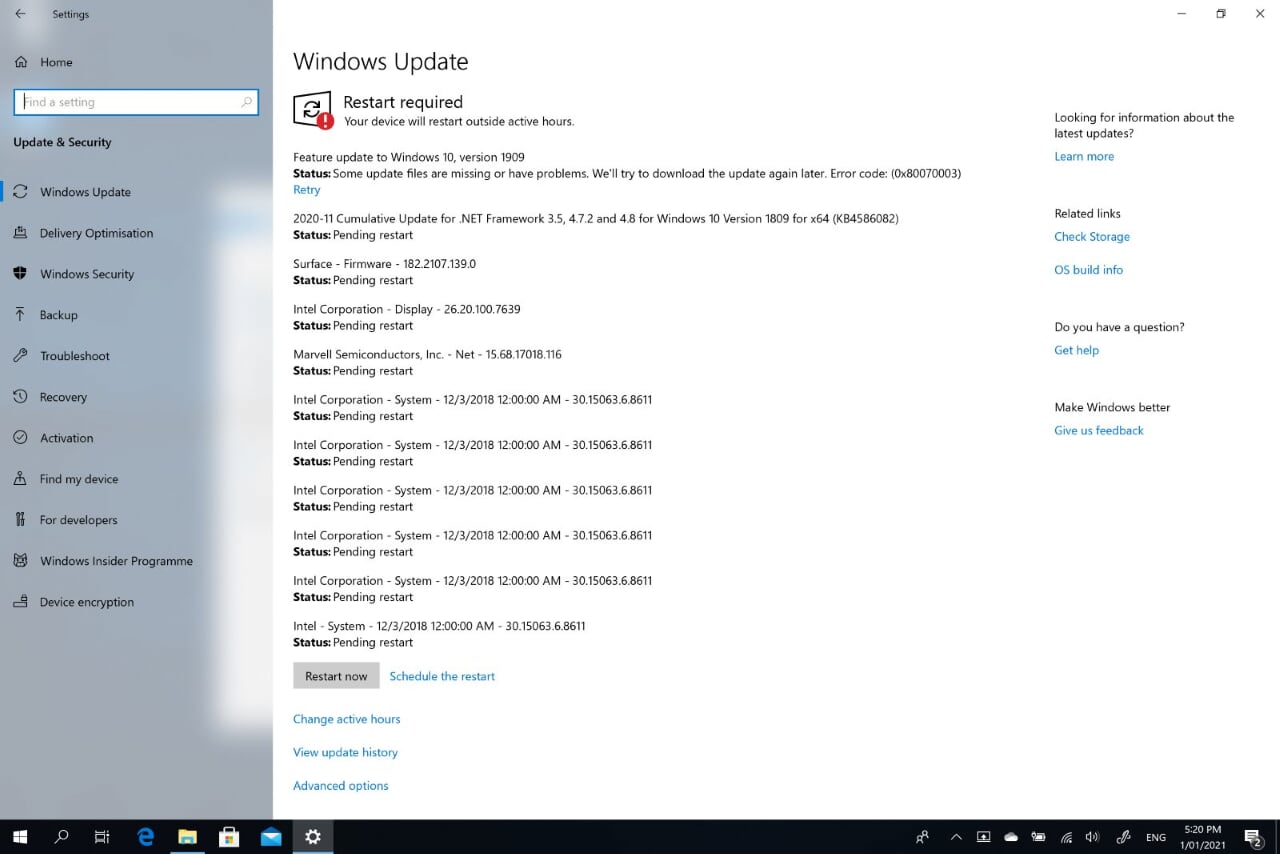
    There have been a couple of restarts but I seem to be stuck in a loop where there is a problem updating. Here is a snapshot of what I saw.

    Many other updates were installed during the previous hour, but prior to the restart you can see which updates are pending restart.
    Image

    After this restart I noticed, for the first time since the reinstall/recovery, the message at boot about please wait while it installs a system update, and then the message a second time with a red/orange underline under the windows logo (as in my original post).

    After the restart the update appears to have failed.
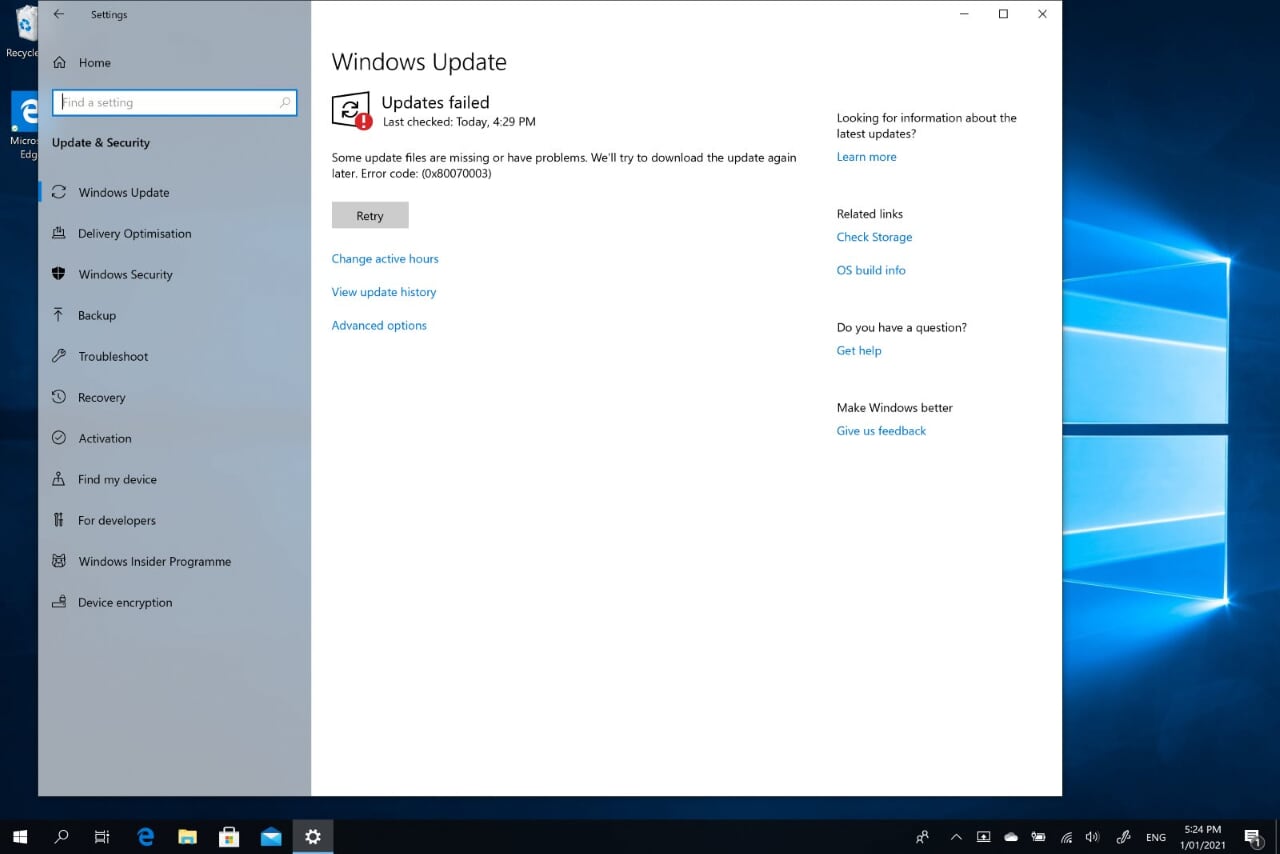
    Image

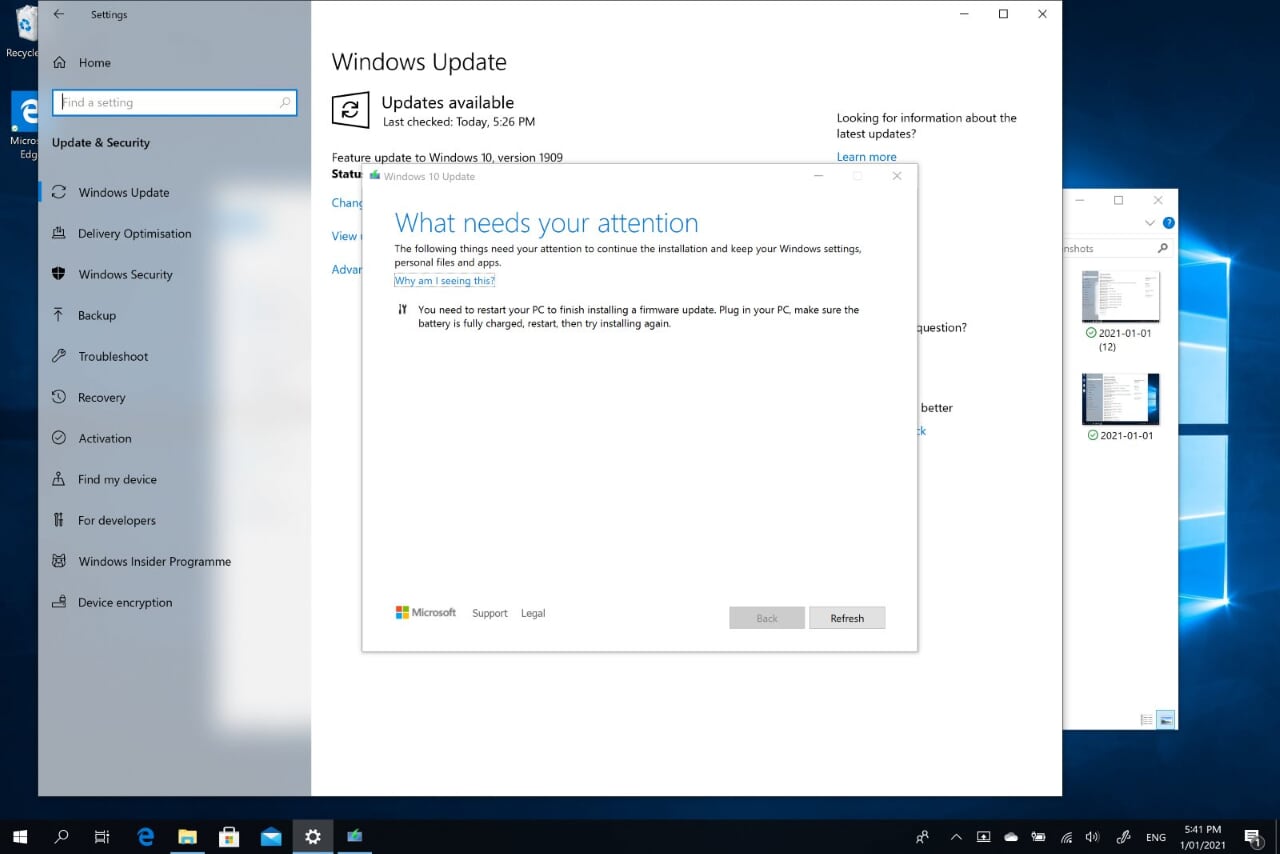
    Each time I restart and then go to Windows Update I get stuck in a new loop where it needs my attention as update requires a restart. But the restart never fixes the problem. I suspect it is the same firmware failing to update as in my original message.
    Image

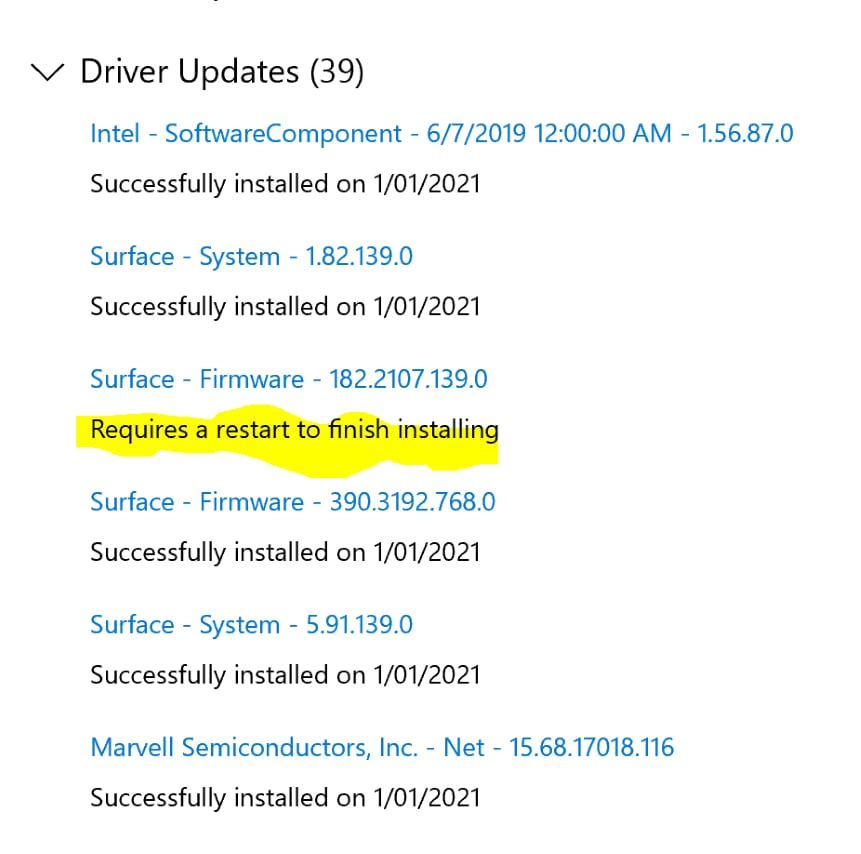
    You can see in the update history that the same firmware requires a restart. But it never installs after a restart. I expect that the red underline during boot is an error where the firmware fails to update.
    Image

    It doesn't matter how many times I restart I seems to be stuck in the loop.

    Any ideas in what I should try next?

    Thank you, Andrew

    Was this answer helpful?

    0 comments No comments
  5. Anonymous
    2020-12-31T18:31:59+00:00

    Hi Andrew Reid MB,

    Thanks for reaching out to Microsoft Community and posting your inquiry.  We appreciate the effort in providing clear photos of the issue.  

    The issue could be related to a Windows system corrupted files. We suggest performing the USB recovery image and update the firmware after. 

    This process will wipe everything out on your device and install a fresh operating system. Please make sure that you have back up your files and data either in an External Hard drive or use your OneDrive app. You’ll need a USB with at least 16GB/32 GB and format it clean (make sure that you have chosen FAT32 as the file system while formatting the USB). You'll need a PC running Windows 10 or Surface Device to download the system files/recovery image on the Microsoft Website.

    Note: USB/Flash drives are the only required device for you to perform the follow steps below successfully.

    • Download the System Files or Recovery Image:

    1. Go to the Download a recovery image for your Surface.
    2. If you’re signed in with your Microsoft account, you will be prompt to choose the device from the list of devices on your Microsoft Account. If you’re not signed in, choose a product on the drop-down menu and provide the Serial Number of the device. 
    3. Once the download is finished, go to the file, right-click and choose Extract all then choose the USB/Flash drive.

    • Perform the USB recovery:

    1. Shutdown the device by pressing/holding the power button for 10 seconds until it’s off. 
    2. Insert the USB recovery drive into the USB port. 
    3. Press and hold the volume-down (-) rocker. 
    4. Press and release the power button. 
    5. When the Surface logo appears, release the volume-down (-) rocker. 
    6. Choose your language options and keyboard layout. 
    7. Select Troubleshoot. 
    8. Select Recover from a Drive. Choose Remove Everything and Fully Clean the Drive. Recovering this PC. If prompted for BitLocker Key, tap Skip this Drive. 
    9. Select “Recovery”.

    Please keep us updated about the issue by replying on this thread.

    Kind regards,

    John Neil_J

    Was this answer helpful?

    0 comments No comments