Share via

How to fix error code 0xc0e90001 when trying to get into the bios?

Anonymous
2025-01-27T20:57:47+00:00

I am trying to access the bios through settings>system>recovery>Advanced startup. When it restarts, it goes to the repair screen instead of allowing me to enter the bios setting. The error code 0xc0e90001 pops up, and when I also try to press the Windows key for Uefi firmware settings, nothing happens either.

Surface | Surface Laptop | Display and screen

Locked Question. This question was migrated from the Microsoft Support Community. You can vote on whether it's helpful, but you can't add comments or replies or follow the question.

0 comments No comments
Answer accepted by question author
  1. Anonymous
    2025-02-26T14:57:55+00:00

    Thank you for reporting the issue. A fix is available through Windows Update.  For more information about this update see KB5053117: Safe OS Dynamic Update for Windows 11, version 24H2 and Windows Server 2025: January 28, 2025

    Update April 25, 2025: This update replaces the previously released update. KB5057781: Safe OS Dynamic Update for Windows 11, version 24H2 and Server 2025: April 25, 2025 - Microsoft Support

    5 people found this answer helpful.
    0 comments No comments

7 additional answers

Sort by: Most helpful
  1. Anonymous
    2025-04-14T21:55:08+00:00

    Hello, I have the same error on my Samsung Galaxy Book 4 Edge whenever I try accessing any recovery environment, and I can't do a clean-install as it has a Snapdragon X Plus CPU...

    2 people found this answer helpful.
    0 comments No comments
  2. Anonymous
    2025-01-28T03:00:56+00:00

    Hello, Jose Mauricio-Cruz.

    Welcome to Microsoft Community!

    Typically we would recommend that users access the BIOS/UEFI setup for recovery in the following ways:

    You can adjust the UEFI settings only during system startup. To load the UEFI firmware settings menu:

    1. Shut down your Surface and wait about 10 seconds to make sure it's off.
    2. Press and hold the volume-up button on your Surface, and, at the same time, press and release the power button.
    3. The Microsoft or Surface logo appears on your screen. Continue to hold the volume-up button. Release the button when the UEFI screen appears.

    How to use Surface UEFI - Microsoft Support

    Perhaps you can let me know what problems you are experiencing with your device to warrant going into UEFI to fix it and I can share more ideas with you.

    And from the pictures you have provided so far, your device may need to be restored. For your possible needs, I will share the steps to recover your device here:

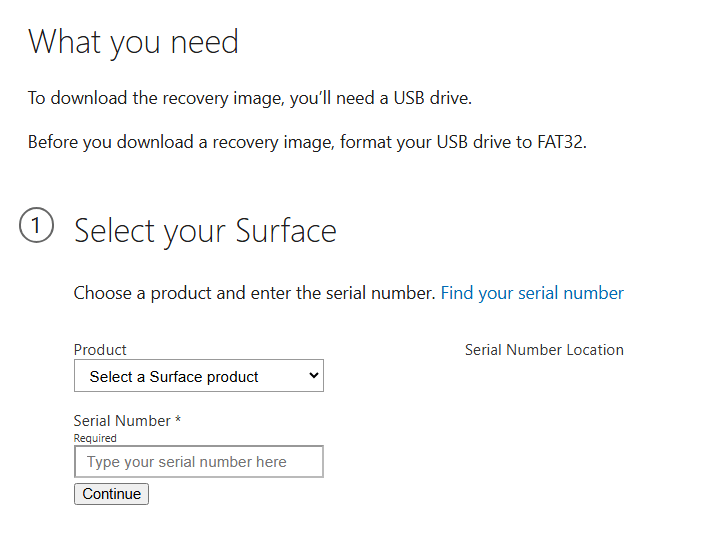
    We need to access the following site to get a dedicated image file for the Surface to create the recovery drive:

    Surface Recovery Image Download - Microsoft Support

    Get it by logging into your account and entering your device's serial number:
    Image

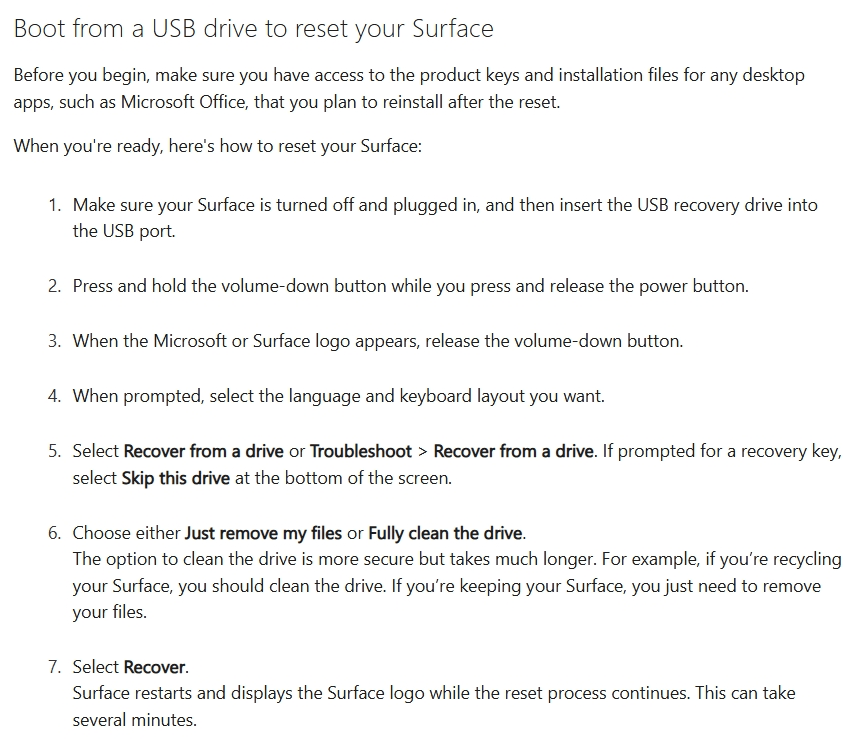
    After completing the creation of the recovery drive, continue to refer to the guidelines in the following link to complete the recovery operation:

    Creating and using a USB recovery drive for Surface - Microsoft Support

    The link shows us a complete demo video and key textual guidelines:
    Image

    The above is a process to recover a device via USB recovery media.

    Of course, I would like to further confirm with you the current problem you are experiencing and provide you with further assistance.

    Best Regards.

    Leo.L - Microsoft Community Support Specialist

    2 people found this answer helpful.
    0 comments No comments
  3. Anonymous
    2025-05-12T18:55:14+00:00

    Can you advise how I get the new download to run once I have downloaded this. I cant get it to work .Its in my downloads

    0 comments No comments
  4. Anonymous
    2025-05-04T01:49:03+00:00

    I get identical recovery screen on my Surface Laptop 7 w/ Snapdragon X Plus. Brand new. Same error message. Windows key also does nothing. Should I be concerned? Does my device really need to be repaired?

    I was also trying to get into the bios via the recovery screen because I read somewhere that bios shows more information if accessed this way as opposed to volume up/power button method.

    Thanks.

    0 comments No comments