Share via

Surface Thunderbolt 4 Dock not supporting 2 4k monitors at 60hz

Anonymous
2024-01-03T22:33:10+00:00

Hi,

I recently upgraded to a Surface Pro 9, a thunderbolt 4 dock, and 2 Philips Creator Monitors. Per the thunderbolt 4 dock technical specs, I should be able to run dual monitors at 3840x2160 at 60hz using the USB4 thunderbolt connections (which I am). However, it will only let me run one monitor at 60hz at this resolution. It only lets me run them both at 60hz if I downgrade my resolution. How can I get them both running with the higher (and recommended) resolution at 60 hz?

Surface | Accessories | Surface Dock

Locked Question. This question was migrated from the Microsoft Support Community. You can vote on whether it's helpful, but you can't add comments or replies or follow the question.

0 comments No comments

12 answers

Sort by: Most helpful
  1. Anonymous
    2024-04-06T08:00:45+00:00

    I had the same problem with 60 Hz and 30 Hz limit on two identical monitors when I connected them to my Surface Dock 2 with USB-C to HDMI cables. I was able to solve it by switching to USB-C to DisplayPort cables. The cables must support at least 4K@60Hz.

    My setup:

    • Surface Laptop 4
    • Surface Dock 2
    • 2x Samsung LU28R55 4K monitors
    • 2x USB-C to DisplayPort cable Maxonar 8K@60Hz
    1 person found this answer helpful.
    0 comments No comments
  2. Anonymous
    2024-03-22T22:49:11+00:00

    Image

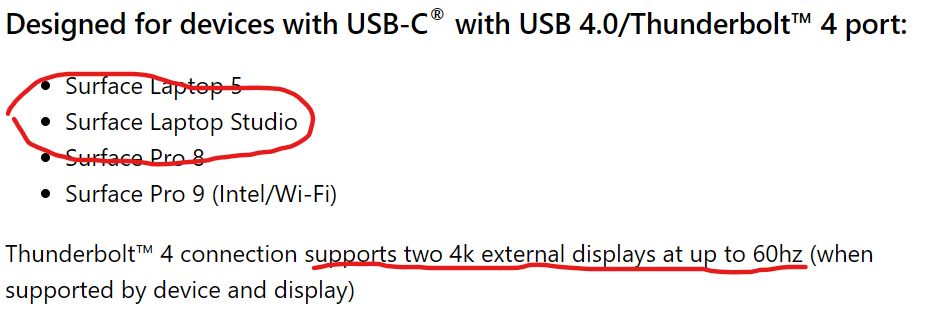
    For those experiencing the same issue, I’d like to share the resolution I got after speaking with customer service. The answer was, the Thunderbolt 4 dock cannot support two 4K monitors running at 60hz. You need a surface dock 2 if you want to run two 4K monitors at 60hz. Apparently the thunderbolt 4 dock doesn’t have thunderbolt ports.

    The technical specifications call out that the Surface Thunderbolt 4 Dock was specifically designed to do exactly this. Buy Surface Thunderbolt™ 4 Dock (Ports, Compatibility, Price) - Microsoft Store

    In my case, I have a Surface Laptop Studio, Surface Thunderbolt 4 Dock, and two 4k, 60Hz monitors. One of the monitors gets downgraded to 30Hz (or worse, its color format is compressed to YCbCr420, resulting in blurred red text). The thing is, the tech specs of the Thunderbolt 4 Dock *specifically* call out that the Surface Laptop Studio has Thunderbolt 4 ports and should be capable of two 4k, 60Hz displays.

    For you, did switching to the Surface Dock 2 help? I have had trouble with flickering screens and a Surface Dock 2.

    Another question, are you using HDMI to USB-C adapters or DisplayPort to USB-C adapters?

    1 person found this answer helpful.
    0 comments No comments
  3. Anonymous
    2024-01-11T02:08:55+00:00

    For those experiencing the same issue, I’d like to share the resolution I got after speaking with customer service. The answer was, the Thunderbolt 4 dock cannot support two 4K monitors running at 60hz. You need a surface dock 2 if you want to run two 4K monitors at 60hz. Apparently the thunderbolt 4 dock doesn’t have thunderbolt ports.

    1 person found this answer helpful.
    0 comments No comments
  4. Anonymous
    2024-01-04T01:08:31+00:00

    Hello,

    The specific model of Surface Pro 9 I have is "Surface Pro 9 Model 2038 i7." The model ID of the two monitors is 27E2F7901 (I got 2 of the same monitor). I checked in my Surface app to see if there were any updates for my Surface and Dock, and it said they're both up to date.

    I would also like to note, that one display will allow me to change the refresh rate to 60hz, but the other doesn't even show the option to go higher than 30hz when they are both plugged into my dock. However, if I plug the one at 30hz directly into my surface, then I can have both at 60hz at the resolution I want. It's not the most convenient to have both the USB ports on my surface in use all the time as my dock isn't the easiest to get to with my set-up, so I'd like to know why my dock doesn't seem to support dual monitors when it sounds like it should. Thanks!

    0 comments No comments
  5. Anonymous
    2024-01-04T00:19:21+00:00

    Hello Alex,

    Thank you so much for posting in Microsoft Community.

    I appreciate you raising this concern to us, and I understand that you have issues projecting displays. You got me here; we'll definitely sort this out together. Before anything else, allow me to ask few questions:

    • May I know what is the specific model or variant of your Surface Pro 9? Is it the Intel based Surface Pro 9 or the Arm Based Surface?
    • May I also know the specific model of the two external monitors you've used?

    If any case the Surface Pro 9 you have is an Arm based type, it can only project up to One 4K at 60Hz (8 bit color).

    If ever you have the Intel Based Surface Pro-9, yes it can definitely project up to Dual 4K at 60Hz. Additionally, the resolution 3840 x 2160 is the maximum display resolution thus, you cannot get a higher than that.

    You may check this link: Identify your Surface Dock and features - Microsoft Support

    If you are having issues projecting display with the current maximum display resolution, here are some steps you may try to fix the problem:

    1. Reinstall graphics driver. Go to device manager > expand Display Adapter > right click graphics driver > select Uninstall > Restart.
    2. Check your monitor settings: Make sure that both of your Philips Creator Monitors are set to 3840x2160 at 60Hz. You can check this by going to Start > Settings > System > Display > Advanced display settings.
    3. Try downloading a drivers and firmware of your thunderbolt 4: Download Surface Thunderbolt 4 Dock Firmware and Drivers. from Official Microsoft Download Center
    4. Also try downloading drivers and firmware to your Surface: Download Surface Pro 9 with Intel Processor Drivers and Firmware. from Official Microsoft Download Center

    You may also check this link for more: Troubleshoot connecting Surface to an external display - Microsoft Support

    Hoping to hear back from you soon. Hope it helps!

    Best regards,

    Rolando S.

    0 comments No comments