Hi Tils-Gee,
Error code 0x8007000a usually indicates a problem with the operating system installation, but it can also affect the installation of UWP apps.
To fix this issue, you can try installing the Microsoft.GamingServices app manually using PowerShell as an administrator. Here are the steps you need to follow:
- Open PowerShell as an administrator.
- Type the command get-appxpackage Microsoft.GamingServices | remove-AppxPackage -allusers and press Enter.
- Restart your PC and open PowerShell as an administrator again.
- Type the command start ms-windows-store://pdp/?productid=9MWPM2CQNLHN and press Enter.
- The Microsoft Store will open and prompt you to install Gaming Services. Click Install.
- After the installation is complete, try installing your desired game again.
Additionally, you may want to check your antivirus program settings and make sure it is not blocking the installation of UWP apps. Which Anti-virus are you using?
You may also want to run the DISM tool to repair any corrupted system files. You can learn how to use it here: Repair a Windows Image | Microsoft Learn
https://learn.microsoft.com/en-us/windows-hardware/manufacture/desktop/repair-aTils-Gee-windows-image?view=windows-11
No. my problem is in Microsoft.GamingApp , not the services one. and i know how to fix it. the problem is app basis. nor services/system basis. so.
for people who have same problem just like me in the future, i will tell you my "recipe"
step 0: download this script. it is useful to download msix / UWP files app directly from Microsoft server. plus, store.rg-adguard.net doesn't work anymore (Urgent: after click the GitHub link, remove "%EF%BF%BC%EF%BF%BCstep" from GitHub URL to resolve error 404):
https://github.com/MattiasC85/Scripts/blob/master/OSD/Download-AppxFromStore.ps1step 0.5: copy the store link for broken apps. by clicking "share" button on windows store and press "copy link". for example
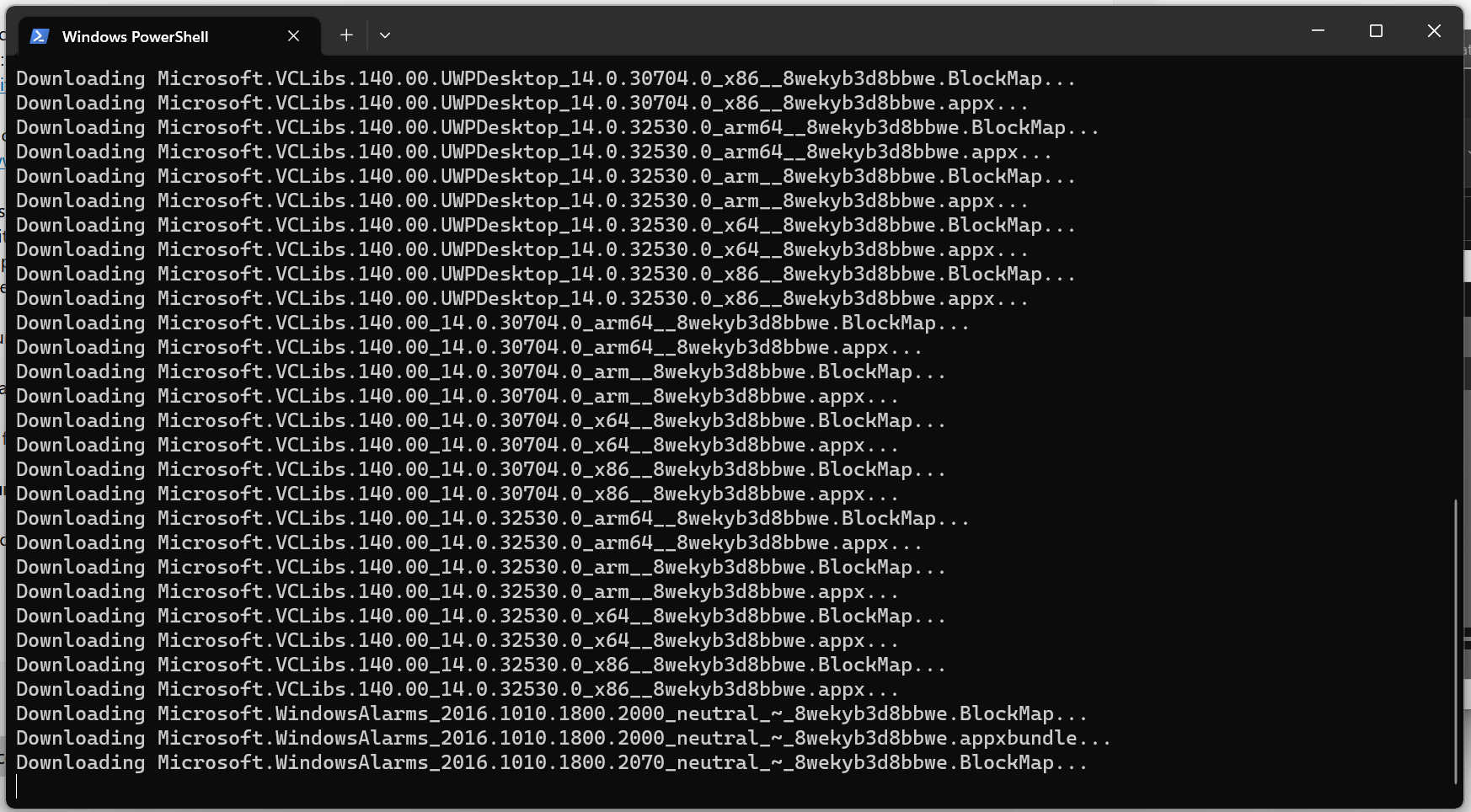
https://www.microsoft.com/store/productId/9MV0B5HZVK9Zstep 1: use that remove-AppxPackage command. but this time, replace "Microsoft.GamingServices" with "Microsoft.GamingApp" for my case. each app has its own unique install ID. if the problem occurs on Roblox, replace it with "ROBLOXCORPORATION.ROBLOX". you can check install ID for each broken application using "Get-AppxPackage –AllUsers | Select Name, PackageFullName" or "Get-AppxPackage –AllUsers" command. or check it on script after you did in step 3. for example, i found install ID for Windows Clock, which is "Microsoft.WindowsAlarm" by see picture below.
step 2: run the script from step 0 by Right Click -> Run WIth PowerShell
step 3: paste link that you get from step 0.5
step 4: a file explorer window will opened. double click the .msixbundle file ones and install it. it is literally the .apk for windows UWP apps.
Step 5 (urgent): to make sure there is no error will trigger again, remove any file inside SoftwareDistribution, %temp%, and catroot2 folder.
Step 6: now try to updating it again from windows store.
Pict: running script from step 0
' cx='32' cy='32' r='32' /%3E%3Ctext x='50%25' y='55%25' dominant-baseline='middle' text-anchor='middle' fill='%23FFF' %3EA%3C/text%3E%3C/svg%3E)
' cx='32' cy='32' r='32' /%3E%3Ctext x='50%25' y='55%25' dominant-baseline='middle' text-anchor='middle' fill='%23FFF' %3EB%3C/text%3E%3C/svg%3E)