Microsoft Edge | Tabs, address bar, and search | Windows 11
Managing tabs, address bar, and search settings in Edge on Windows 11

This browser is no longer supported.
Upgrade to Microsoft Edge to take advantage of the latest features, security updates, and technical support.
' cx='32' cy='32' r='32' /%3E%3Ctext x='50%25' y='55%25' dominant-baseline='middle' text-anchor='middle' fill='%23FFF' %3EA%3C/text%3E%3C/svg%3E)
I've always used google as my preferred search engine on edge, but recently edge decided to change that to bing. I already checked the settings, and the search engine is set to google, but whenever I search for something on a new tab, bing is used.
This is very annoying, and I don't know what to do
Managing tabs, address bar, and search settings in Edge on Windows 11
Locked Question. This question was migrated from the Microsoft Support Community. You can vote on whether it's helpful, but you can't add comments or replies or follow the question.
None of the suggested fixed work. Suspect this is happening as a result of the latest Edge update.
It is so frustrating that I have elected not to use Edge and will use a competitor's search engine until it is fixed.
Hopefully, one day I can return to Edge. Who knows, I may find that I like a competitor's search engine better.
If Microsoft, one day, since it currently doesn't seem that anything is being done, fixes the problem - would like to be contacted that I can again use Edge.
Charles W Smith Jr
******@comcast.net
717-244-6676
I've always used google as my preferred search engine on edge, but recently edge decided to change that to bing. I already checked the settings, and the search engine is set to google, but whenever I search for something on a new tab, bing is used.
This is very annoying, and I don't know what to do
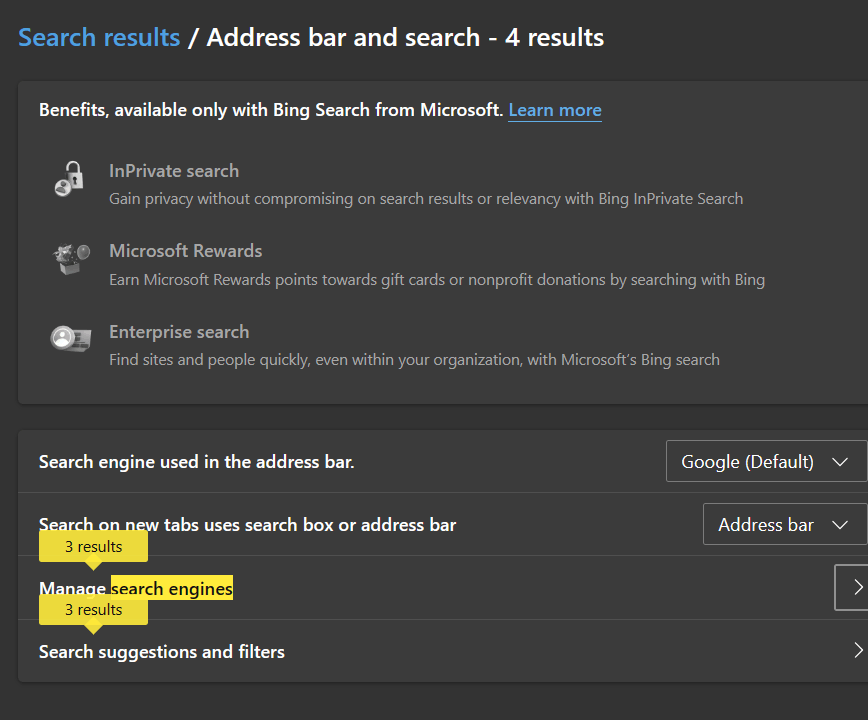
It won't work
Hello Pedro David Morales Guzman,
Welcome to the Microsoft Community!
I understand that your search engine is always automatically switched to bing in edge, but you set it to Google in your settings. I understand your doubts and troubles in this situation.
Clear your browser's cache and cookies: Sometimes your browser's cache and cookies can cause some strange behavior, including search engine changes. Try clearing your browser's cache and cookies, then restart your browser to see if the problem is resolved.
Click "..." --- in the upper right corner of Edge, find the "Clear Browsing Data" option in the settings, and select Clear Cache and Cookies.
Disclaimer: Your browser automatically saves temporary internet files to help pages load faster. Clearing this cache will sometimes fix website issues. Please back up all your personal files first, such as Favorites, to ensure you do not lose data.
Then perform the reset operation, click "..." --- Settings --- Reset --- in the upper right corner of Edge to restart the browser.
Sometimes browser caches and cookies can cause problems, try to clear them and reload the Outlook webpage
Click "..." --- in the upper right corner of Edge, find the "Clear Browsing Data" option in the settings, and select Clear Cache and Cookies.
Disclaimer: Your browser automatically saves temporary internet files to help pages load faster. Clearing this cache will sometimes fix website issues. Please back up all your personal files first, such as Favorites, to ensure you do not lose data.
Hope you are all well,If the problem persists, you can also click "..." --- Help and Feedback --- in the upper right corner of Edge to send feedback and share the situation with the edge open team.
please feel free to reply me if anything is unclear or if there are any further updates, thanks.
Best Regards ,
Morning | Microsoft Technical Support Community