Share via

D-link DWA-110 stopped working(Dsiabled)

Anonymous
2010-02-23T14:43:07+00:00

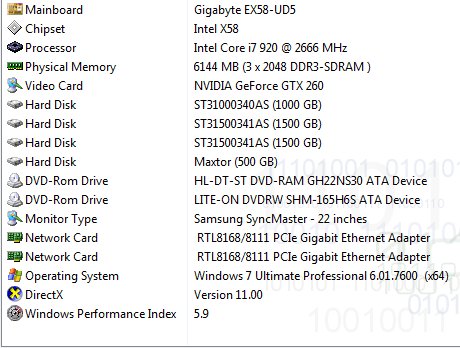
Windows 7 64bit.

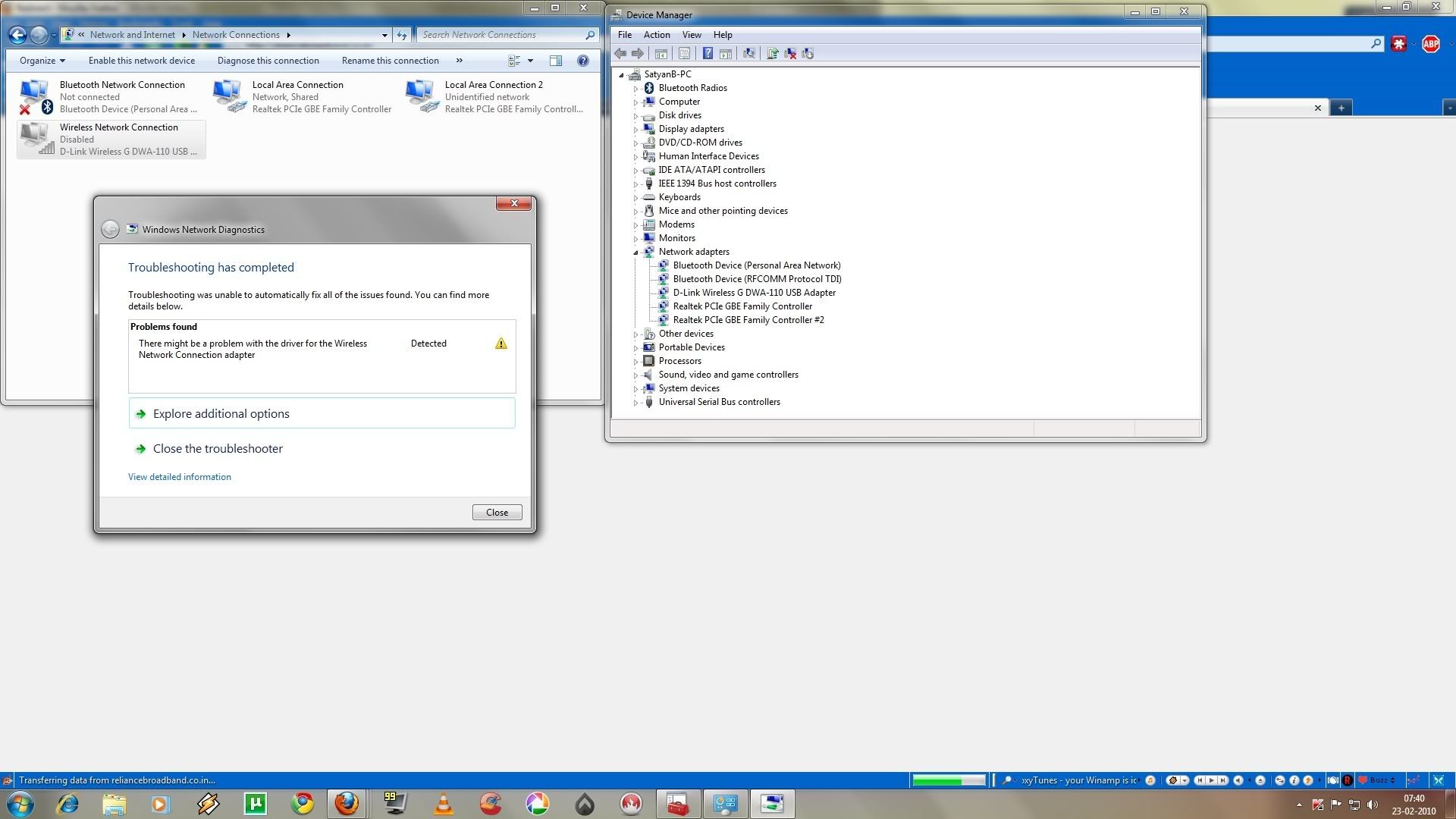
Had a power failure, but using a UPS backup solution. After switching on my PC, the DWA-110 stopped working completely as in my Ad-Hoc network stopped working. SO I had to uninstall, reboot & reinstall the driver.

After re-installing, the adapter stopped working completely.

Checked on different USB ports.

Also did an SFC

It shows the adapter is disabled, even after trying to enable.

Tried checking the adapter in another PC with Vista 64bit: WORKS

Tried adapter in laptop with Vista 32Bit                            WORKS

So basically the problem is with the driver and not with the Adapter.

Some help here please.

Screenshot of problem

http://i210.photobucket.com/albums/bb228/Jaxx89/networkadapterproblem1.jpg

System Info

http://i210.photobucket.com/albums/bb228/Jaxx89/Sysinfo-1.png

Windows for home | Previous Windows versions | Internet and connectivity

Locked Question. This question was migrated from the Microsoft Support Community. You can vote on whether it's helpful, but you can't add comments or replies or follow the question.

0 comments No comments

2 answers

Sort by: Most helpful
  1. Anonymous
    2010-02-24T14:09:33+00:00

    I have already tried Uninstall an reinstall and now the drivers from the link you specified as well

    Nope it isnt helpful at all because here is the result

    http://i210.photobucket.com/albums/bb228/Jaxx89/dwa110\_update.jpg

    EDIT: give me a registry method to fix this.......the regular method isn't going to work.

    0 comments No comments
  2. Anonymous
    2010-02-24T05:17:15+00:00

    Hi Jaxx89,

    The troubleshooter returns with the message that there might be a problem with the driver for the Wireless Network Adapter.  You might need to download the updated driver for the D-Link Network Adapter. Follow the link given below, download the driver and install it.

    ftp://files.dlink.com.au/products/DWA-110/REV\_A/Drivers/

    Uninstall the present driver and then try reinstalling the same. You may also try installing the drivers manually selecting the location.

    To install manually

    1.       Open Device Manager

    2.       Expand the tab  for the Camera Driver

    3.       Click on Update Driver Software

    4.       Next Window select ‘Browse my computer for driver software’

    5.       In the next window select ‘Let me pick from a list of device drivers on my computer’

    6.       Browse through the computer and add the driver and let it update.

    Now check if you are able to connect.

    Hope this information is helpful.

    Amrita M

    Microsoft Answers Support Engineer

    Visit our Microsoft Answers Feedback Forum and let us know what you think.

    0 comments No comments