' cx='32' cy='32' r='32' /%3E%3Ctext x='50%25' y='55%25' dominant-baseline='middle' text-anchor='middle' fill='%23FFF' %3EA%3C/text%3E%3C/svg%3E)

You tap the F8 Key, not press and hold it.
http://www.bleepingcomputer.com/tutorials/tutorial61.html
Read the above > table of contents > Vista > Second Method:
Using the F8 Method:
- Restart your computer.
- When the computer starts you will see your computer's hardware being listed. When you see this information start to gently tap theF8 key repeatedly until you are presented with theWindows Vista Advanced Boot Options.
- Select the Safe Mode option using the arrow keys.
- Then press the enter key on your keyboard to boot into Vista Safe Mode.
- When Windows starts you will be at a typical logon screen. Logon to your computer and Vista will enter Safe mode.
- Do whatever tasks you require, and when you are done, reboot to go back into normal mode.
Using the System Configuration Tool Method:
Note: If you are having trouble entering Safe Mode via the F8 method, you should not use this method to force it to startup into safe mode. For reasons why, you should**read this**.
- Close any running programs and open Windows so you are back at the desktop.
- Click on the Start (
 ) button.
 - In the Start Menu Search Box (
 ) typemsconfigand press
enter on your keyboard.
) typemsconfigand press
enter on your keyboard. - The System Configuration utility will open and you will see a screen similar to the one below.
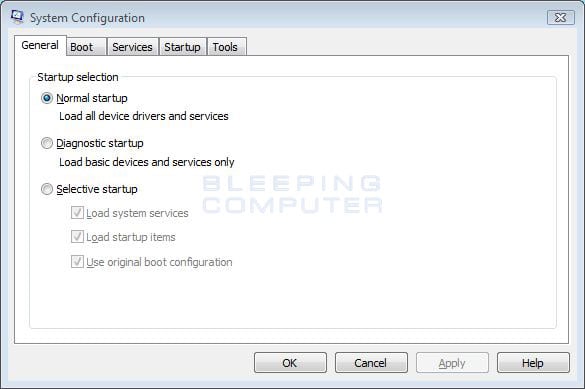
Figure 8. Vista System Configuration Utility
Click on the Boot tab. 5. You will now be at the Boot options screen as shown below.
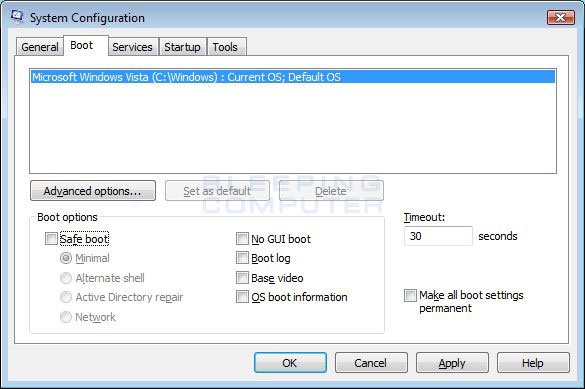
Figure 9. Vista Boot tab in the System Configuration utility
Put a checkmark in the checkbox labeled Safe boot 6. Press the Apply button and then press the OK button. 7. You will now be presented with a prompt stating that you need to reboot the computer to apply the change.
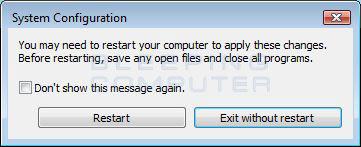
Figure 10. Restart Prompt
Click on the Restart button to reboot your computer. 8. Your computer will now restart directly into Safe Mode. When you get to the Vista logon screen, log on to the computer and perform any necessary tasks. 9. When done with your tasks, from within Safe Mode, start msconfig. 10. When the program is open, and you are on the General tab, select the option labeledNormal Startup. 11. Then press the Apply button and then the OK button. 12. When the programs prompts you to reboot, allow it to do so, and you will boot back into Windows Vista in normal mode.
Cheers.
Mick Murphy - Microsoft Partner