' cx='32' cy='32' r='32' /%3E%3Ctext x='50%25' y='55%25' dominant-baseline='middle' text-anchor='middle' fill='%23FFF' %3EA%3C/text%3E%3C/svg%3E)

Hi matt13021,
Does the error message pops up while installing any particular program or with all programs?
What is the complete error message?
Error code 2203 basically pops up when the user does not have sufficient permissions to install the program to the folder that contains the installation point or the temp folder. Make sure that you are logged in as an Administrator to install the programs on the computer.
Step 1:
Run the program’s setup file as administrator and check if that helps.
1. Right click on the program’s setup file and select “Run as Administrator”.
2. When the UAC message is displayed, click Yes to start the installation.
Step 2:
Take ownership of the temp folder and check if that helps:
Part A:
1. Click Start, in the Start Search box type %temp% and press enter.
2. At the top of the Explorer window, in the address bar, click the folder to the left of Temp in the folder path (“Local” by default).
3. Right click on file or folder and select “Properties” from Context Menu.
4. Click on Security tab.
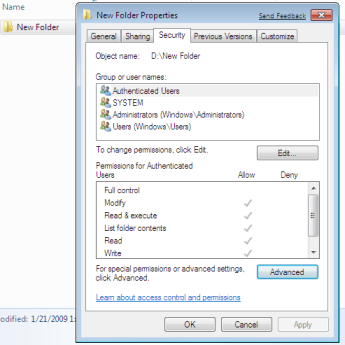
5. Click on “Advanced”.
6. Now click on Owner tab in Advance Security Settings for User windows
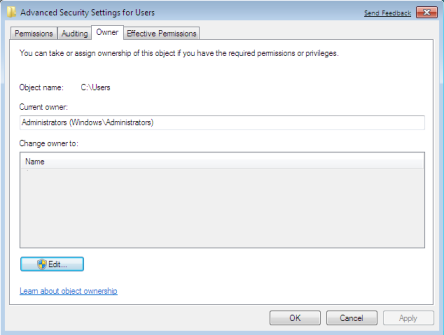
7. Click on Edit Button and select user from given Change Owner to list if user or group is not in given list then click on other users or groups. Enter name of user/group and click ok.
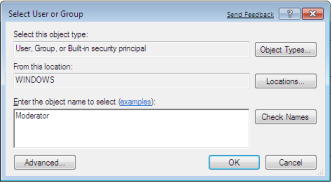
8. Now select User/group and click apply and ok. (Check “Replace owner on subcontainers and objects” if you have files and folder within selected folder)
9. Click ok when Windows Security Prompt is displayed
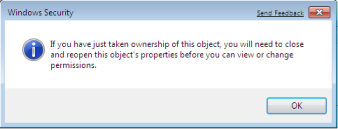
10. Now Owner name must have changed.
11. Now click Ok to exist from Properties windows.
Part B:
Once you have taken the ownership of file or folder next part comes is Granting Permissions to that file/folder or object.
How to Grant Permissions in Windows 7
1. Locate the file or folder on which you want to take ownership in windows explorer
2. Right click on file or folder and select “Properties” from Context Menu
3. Click on Edit button in Properties windows Click ok to confirm UAC elevation request.
4. Select user/group from permission windows or click add to add other user or group.
5. Now under Permission section check the rights which you want to grant i.e check “Full Control” under the “Allow” column to assign full access rights control permissions to Administrators group.
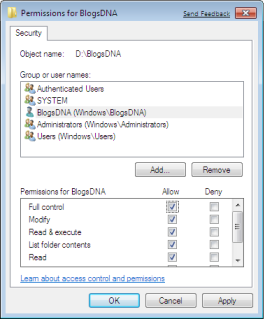
6. Click Ok for changes to take effect and click ok final ok to exit from Properties window.
Try installing the program and check if you are able to install without any errors.
For more information:How do I open a file if I get an access denied message?
Hope this helps. Let us know if you need further assistance.
Thanks and Regards, Santosh Y – Microsoft Support
Visit our **Microsoft Answers Feedback** Forum and let us know what you think.