
I want without format solution can you give me.
This browser is no longer supported.
Upgrade to Microsoft Edge to take advantage of the latest features, security updates, and technical support.
' cx='32' cy='32' r='32' /%3E%3Ctext x='50%25' y='55%25' dominant-baseline='middle' text-anchor='middle' fill='%23FFF' %3EA%3C/text%3E%3C/svg%3E)
How to convert 64 bit to 32 bit windows 7 pc ?
os windows 7 professional
Locked Question. This question was migrated from the Microsoft Support Community. You can vote on whether it's helpful, but you can't add comments or replies or follow the question.
I want without format solution can you give me.
The main consideration with using a 64bit OS is the amount of RAM the machine has installed.
If you have 4GB or more RAM then a 64bit OS is the best option.
You need to reformat the HDD for a 'clean' install.
Boot from the 32-bit Windows 7 installation DVD.
Follow through the installation steps and enter your product key for the 32-bit Windows 7 installation DVD.
~
The current time and date right now in Baja California, Mexico is
6:51 AM
Friday, July 26, 2013
DST -0700 UTC
UTC/GMT is 13:51 on Friday, July 26, 2013
Current Weather Conditions in San Felipe
Mostly Cloudy 86°F / 30°C
I will do it then I will answer you is this running or no & thanks for your valuable answer to my query
Sorry, is not other way.
~
PS
What do you hope to gain from using 32 bit software? ?
The current time and date right now in California, United States is
7:02 AM
Friday, July 26, 2013
Pacific Daylight Time (PDT) -0700 UTC
UTC/GMT is 14:02 on Friday, July 26, 2013
Current Weather Conditions in Los Angeles
Light Rain 64°F / 18°C
Windows does not support upgrade between architectures. Therefore, only clean install is possible. You can format the hard drive and install Windows x64 or install it parallely or you can use a set of commands to edit bcd store and perform clean installation just like in a new hard drive.
For installing without formatting:
Insert the Windows 7 x64 installation media and boot from the media.
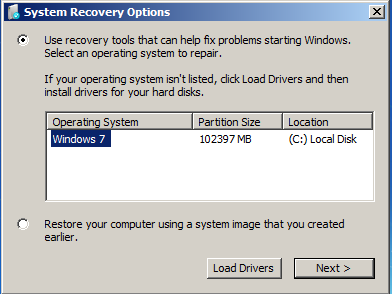
Click on Repair your computer. You can then see System Recovery Options dialog (second image). Once the desired Windows installation is selected, you can see System Recovery Options dialog (first image). Click on Command Prompt.
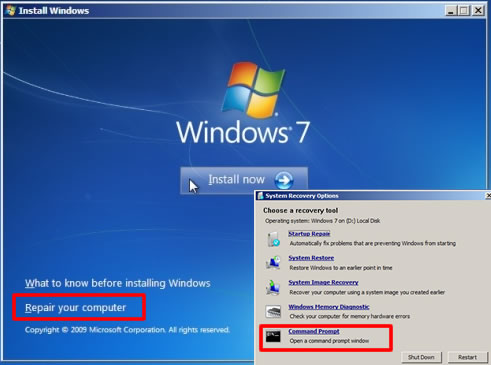
Once done, type bcdedit and press enter.
You can find a set of options like this:

Note the identifier value under Windows Boot Loader.
Type Bcdedit /delete {boot loader identifier} and press Enter.
Note that the identifier must be entered inside { }. If it is mentioned as current, enter current.
Once done, type the following commands and press enter, after each command: <if the 32-bit Windows installed drive is C:, enter C: otherwise, enter the suitable drive letter>
C:
*cd*
rename Windows Windows.old
rename "Program Files" "Program Files.old"
rename Users Users.old
del pagefile.sys
del hiberfil.sys
Once done, you can start installing Windows 7 x64 in the same partition where Windows x86 was installed. You can delete the folders Windows.old and Program Files.old later. You can also delete users.old folder later after taking a backup copy of your personal/important files from the folder.