Share via

steps to create hotspot connection in windows8

Anonymous
2013-07-11T06:08:29+00:00

i want to create a hotspot connection my operating system is windows8 and by creating hotspot connection on my laptop i want to share my internet connection

Windows for home | Previous Windows versions | Internet and connectivity

Locked Question. This question was migrated from the Microsoft Support Community. You can vote on whether it's helpful, but you can't add comments or replies or follow the question.

0 comments No comments
Answer accepted by question author
  1. Anonymous
    2013-07-13T08:23:14+00:00

    Hi again,

    Just like my first reply. I'm sorry if my first reply was hard to understand. There's more detail steps below:

    Step 1: Launch an elevated command prompt under Windows 8 (one with administrator privileges).

    Step 2: Run the following command to verify that your network interface supports virtualization:

    netsh wlan show drivers
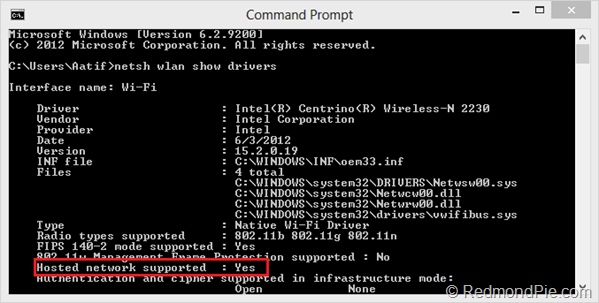
    If Hosted network supported says Yes, you’re all set. Otherwise, you need to upgrade your hardware, if the software update doesn’t fix it.

    Step 3: Now, set up the ad hoc wireless network using this command. Replace the parts in markup tags with your own choices

    netsh wlan set hostednetwork mode=allow ssid=<enter_network_name_here> key=<enter_password_here>
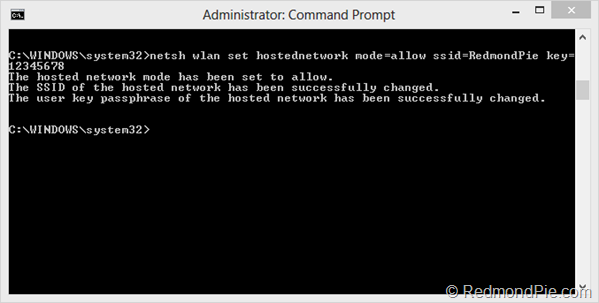
    Step 4: Until now, your hosted network has been created. Now, you need to start it. Use the command below:

    netsh wlan start hostednetwork
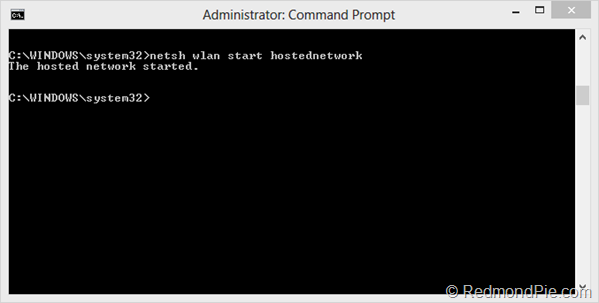
    Step 5: You’re all set, with just one thing remaining. If it’s not already enabled, you need to allow Internet Connection Sharing (ICS) for your currently-active internet connection. Simply head over to Network & Sharing Center, and in the properties for the current internet connection, enable ICS. Make sure to select the ad hoc connection under Home networking connection.
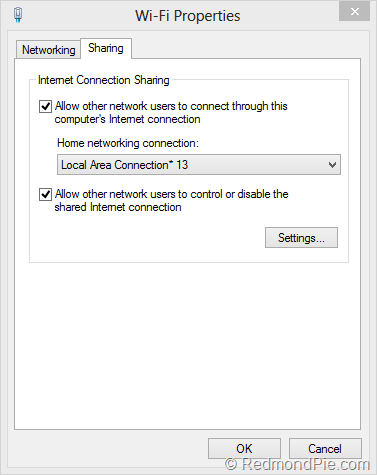
    Now you can connect any device to the internet using the ad hoc wireless network with internet connection sharing that you just created on your Windows 8 PC.
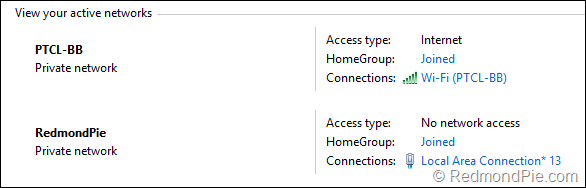
    Thank you.

    20+ people found this answer helpful.
    0 comments No comments

45 additional answers

Sort by: Most helpful
  1. Anonymous
    2013-07-11T15:15:23+00:00

    Hi shivamsingh

    FIRST - SET UP YOUR HOTSPOT

    You must run a command line with admin rights.

    Type in:

    netsh wlan set hostednetwork mode=allow ssid="YourHotspotName" key="YourHotspotPassword" keyUsage=persistent

    Leave the commanline-window open

    SECOND - SHARE YOUR INTERNET SOURCE

    Open control panel > Network and Internet > View network status and task (below 'Network and Sharing Center') > At the left pane, select 'Change Adapter Settings'.

    Right click your internet source that you want to share > Properties > Sharing > checklist "Allow other network users to connect through this computer's Internet connection" > Select your Hotspot connection that you made at first step.

    LAST - START YOUR HOTSPOT

    Go back to the admin-rights command shell and type in:

    netsh wlan start hostednetwork

    do this last step every you want to start sharing connection.

    Thank You

    2 people found this answer helpful.
    0 comments No comments
  2. Anonymous
    2013-07-15T00:13:39+00:00

    can you tell me how files are shared between two computers through wifi

    1 person found this answer helpful.
    0 comments No comments
  3. Anonymous
    2013-07-13T07:51:46+00:00

    thank you sir now can you tell me that how can i share my internet from my laptop to other devices

    i m connecting my pc to internet through modem and to share it via my wifi as i have created the hotspot

    please provide the steps

    1 person found this answer helpful.
    0 comments No comments
  4. Anonymous
    2013-07-12T03:31:48+00:00

    Hi shivamsingh

    Try to go to your "device manager", find your "network adapters", then find the virtual wifi adapter, after that right click it and enable it. Finally, start your cmd with admin previlige, and try "netsh wlan start hostednetwork" again.

    Thank You

    1 person found this answer helpful.
    0 comments No comments
