Share via

Silhouette Cameo - Computer wont recognise device

Anonymous
2013-11-02T23:56:18+00:00

I'm trying to connect my Silhouette Cameo to my computer but no matter what USB port I plug it into, it cannot be found.  (I've tried every single available port and not one will recognise this device even though they'll find the mouse/keyboard/printer with no issues when I swap them out).

I've installed the latest software for the Cameo from the supplier but it still cant be found.  In the Device Manager there is a "!"next to USB Printing Support - I've tried updating the drivers but it tells me its up to date.

I've run FixIt and it tells me to reinstall the USB Printing Support, so I click on resolve the issue and it comes back saying it was unable to complete (big red cross!).

I have contacted Silhouette to see if they've had customers with similar issues but posting here incase there is a easy answer that I'm oblivious to.

Thanks in advance.

Windows for home | Previous Windows versions | Devices and drivers

Locked Question. This question was migrated from the Microsoft Support Community. You can vote on whether it's helpful, but you can't add comments or replies or follow the question.

0 comments No comments

35 answers

Sort by: Most helpful
  1. Anonymous
    2013-11-04T05:52:37+00:00

    Hi Emma,

    • Does Silhouette Cameo detect on other computers?

    I would suggest you to uninstall and reinstall the USB controllers and check if it helps.

    a. Press Windows Key + R, type devmgmt.msc and press enter.

    b. Expand Universal Serial Bus controllers. Right click a device and click Uninstall. Repeat for each device.

    c. Once complete, restart your computer. Your USB controllers will automatically install.

    d. Check the issue.

    If the issue persists, you may install the latest chipset drivers and Silhouette Cameo software from the manufacturer’s website and check if it helps in fixing the issue.

    Please update us with the results. We will be happy to assist you further.

    200+ people found this answer helpful.
    0 comments No comments
  2. Anonymous
    2016-06-01T21:35:23+00:00

    November 20, 2016: Please see edit at the end BEFORE doing any of this!!

    I have been having the same issue with my Silhouette since I did my Windows 10 update. I was able to get it to work again with the following steps:

    Follow Sharief K's first two instructions (you'll have to have your Silhouette plugged in and turned on for this):

    a. Press Windows Key + R, type devmgmt.msc and press enter.

    b. Expand Universal Serial Bus controllers. Right click on the USB Printing Supportdevice and click Uninstall.

    Now, do the following:

    c. Unplug your printer and turn it off.

    d. Uninstall Silhouette Studio.

    e. Restart your computer.

    f. Download the latest version of Silhouette Studio.

    g. Right-click on the downloaded exe and click Properties. Click on the Compatibility tab. Choose Windows 8 from the drop down menu. I also clicked the Run this program as administrator checkbox for good measure. Click OK. (This step is important because it allows the drivers to be installed Win8 style. At least that's my theory)
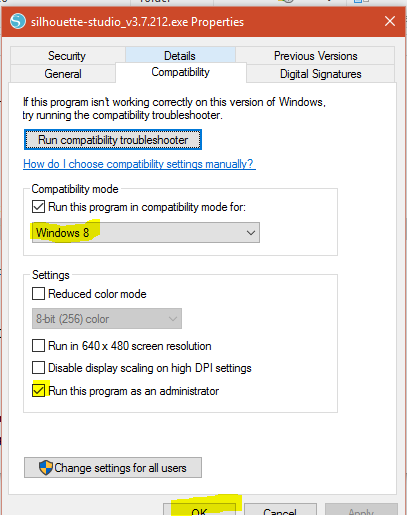
    h. Double-click on the exe to install Silhouette Studio. Do NOT open Silhouette Studio at the end.

    I. Open the folder where you installed Silhouette Studio. It should be in a directory like this: C:\Program Files (x86)\Silhouette America\Silhouette Studio. Right-click on Silhouette Studio.exe and click Properties. Follow the instructions in step g to run Silhouette Studio in compatibility mode. This step may not be necessary, but I figured it wouldn't hurt.\

    J. Startup Silhouette Studio.

    K. Connect your Silhouette printer to your computer via USB and turn it on. You should be able to connect from Silhouette Studio. If you like, open Device Manager again (see step a above). You should see USB Printing Support this time WITHOUT the yellow exclamation point. Yay!!!

    November 20, 2016 Update:

    The last time I tried to use my Silhouette, I had the USB Connection problem again, even after having done everything above. I think I must have just gotten lucky. This sequence posted on the FAQ on the Silhouette America site ultimately solved my problem:

    • Close the Silhouette Studio® software Power off the Silhouette cutting machine
    • Disconnect the USB cable from both the Silhouette cutting machine and the computer
    • Disconnect the power cable from the Silhouette cutting machine
    • Re-open the Silhouette Studio® software
    • Select the Send to Silhouette button
    • Firmly plug in and power on the Silhouette cutting machine
    • Firmly connect the USB cable directly to the machine AND directly to the computer (bypassing any USB hubs) NOTE: All connections should be made using Silhouette cables. Other cables are not guaranteed to be compatible with the Silhouette cutting machines
    • If a proper connection is achieved, the Send to Silhouette screen should shortly show a READY status.

    Happy cutting!

    100+ people found this answer helpful.
    0 comments No comments
  3. Anonymous
    2018-02-11T20:50:33+00:00

    Bottom line:  Silhouette America needs to fix this problem. It is widespread, and they need to make their software/devices compatible with Windows 10.  I am at the point where I am going to look for another cutting device.  This is really bad.

    20+ people found this answer helpful.
    0 comments No comments
  4. Anonymous
    2016-11-20T19:10:40+00:00

    Sounds so frustrating...

    I've updated my post with the following. Hope it helps!

    The last time I tried to use my Silhouette, I had the USB Connection problem again, even after having done everything above. I think I must have just gotten lucky. This sequence posted on the FAQ on the Silhouette America site ultimately solved my problem:

    • Close the Silhouette Studio® software Power off the Silhouette cutting machine
    • Disconnect the USB cable from both the Silhouette cutting machine and the computer
    • Disconnect the power cable from the Silhouette cutting machine
    • Re-open the Silhouette Studio® software
    • Select the Send to Silhouette button
    • Firmly plug in and power on the Silhouette cutting machine
    • Firmly connect the USB cable directly to the machine AND directly to the computer (bypassing any USB hubs) NOTE: All connections should be made using Silhouette cables. Other cables are not guaranteed to be compatible with the Silhouette cutting machines
    • If a proper connection is achieved, the Send to Silhouette screen should shortly show a READY status.

    Happy cutting!

    20+ people found this answer helpful.
    0 comments No comments
  5. Anonymous
    2013-11-04T10:30:18+00:00

    Hi

    Thanks for replying!  I thought the issue was fixed but unfortunately it was short-lived.

    As instructed I uninstalled/reinstalled the USB controllers and the machine worked.  But I turned the Cameo off and I cant get it to connect again.  I've followed the same steps I did before, plus I've updated chipset drivers and uninstalled/reinstalled the Silhouette Cameo software but I cant get it to connect to this machine.

    I've had the Cameo working on an old laptop with no problems at all. 

    Thanks in advance again.

    10+ people found this answer helpful.
    0 comments No comments
