That's difficult without a keyboard or mouse. I believe what you'll need to do is call up the on-screen keyboard (run OSK.exe or make a shortcut icon to it) and then click
, Shift, Right-Arrow to send the keyboard commands of "move to right monitor" to the active program.
Move app onto 2nd screen with touch gestures
Hello,
I have a touch screen all in one pc and a projector (non touch). I have setup the projected screen as an extended desktop rather than replicated. We do not have a keyboard or connected. What I would like to be able to do is to open an app (video) from the touch screen and then move it over to the projected screen. Then my son can watch a video and I can continue to use the other screen. Is there a touch gesture to move an app from one screen to the other?
Thanks in advance
Matthew
Windows for home | Windows 11 | Devices and drivers
Locked Question. This question was migrated from the Microsoft Support Community. You can vote on whether it's helpful, but you can't add comments or replies or follow the question.
5 answers
Sort by: Most helpful
-
@CmdrKeene 90,621 Reputation points Volunteer Moderator2013-12-23T18:29:03+00:00 -
Anonymous
2014-12-30T02:23:53+00:00 I tried your response and it does not work. The on screen keyboard has no Windows key, and hitting the physical Windows key on my tablet closes the keyboard and takes me back to the Metro start menu.
I would like to know how to do this for playing content on my TV using the Miracast function. If I simply duplicate displays, due to the different resolutions between TV and tablet, the picture is shrunk on both devices, adding black bars all around. By extending the display, each screen can run at its native resolution, but I have no way of moving content to the second display (TV) without a physical keyboard.
-
Anonymous
2014-12-30T13:38:07+00:00 Thanks for the clarification. The OSK.exe keyboard looks similar to the "standard layout" on-screen keyboard, but I suspect OSK.exe has the advantage of always being visible, as opposed to the on-screen keyboard that keeps disappearing on me.
What would really be the icing on the cake here would be a virtual track pad. A region on the tablet screen could be redefined as a track pad for a pointer, and then that would enable operation of applications on secondary screens by touch via the track pad. I just did a quick web search and found this freeware program: http://www.lovesummertrue.com/touchmousepointer/en-us/ All the screenshots show it being used in desktop mode, however, so I wonder if it will work in Metro mode... I will try it out soon!
-
@CmdrKeene 90,621 Reputation points Volunteer Moderator2014-12-30T03:26:48+00:00 Take another look my original instructions, I told you to run the program OSK.exe, which is different than the on-screen keyboard you are using. It looks like this, plus you can resize it to any size, and even has many options you can customize, for example, hiding the number pad on the right side.
Click here for a larger view of the picture below...
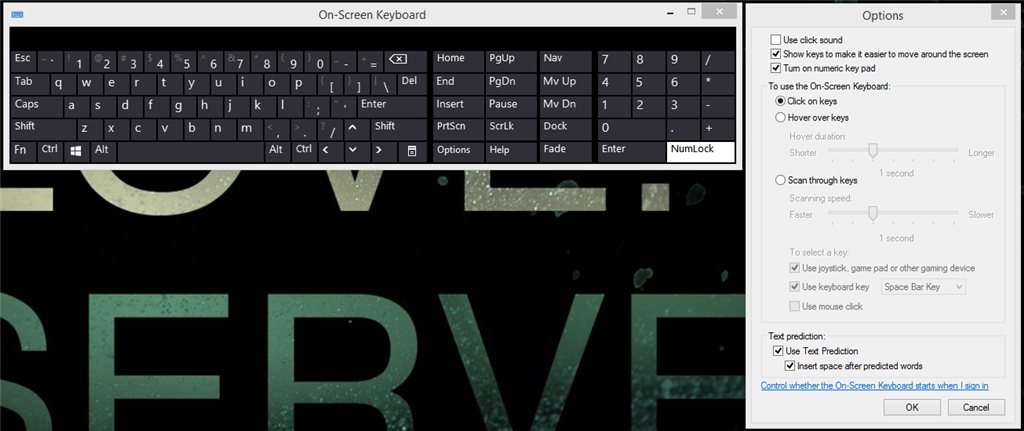
As for "how to operate an app on the other screen", you can't use touch of course. You'll have to use a mouse pointer or keyboard. But at least this keyboard is less intrusive and doesn't have to be as much of an obstruction.
If you use it often, you can even "pin" the icon to your taskbar so it's never more than 1 click away.
-
Anonymous
2014-12-30T02:36:23+00:00 My apologies, I stand corrected. Under keyboard settings, I enabled "show standard keyboard option". Now I can choose to use an on-screen keyboard that looks just like a physical one with the Windows key. That allows me to move apps to the second screen as you said.
This leads to another problem, though, which is how to operate an app on the second screen (TV) by touch! As long as the app is active I guess I can continue to use keyboard commands but I think that is about the extent of it... So that really limits what can be done.
