
THE QUESTION WAS - What is a wireless network manager, and where is it?
have you read your answer - actually it is not an answer at all - typical for microsoft to be so unhelpful!!!!
NO IT DIDNT HELP AT ALL - RUBBISH, GET A NEW JOB
This browser is no longer supported.
Upgrade to Microsoft Edge to take advantage of the latest features, security updates, and technical support.
' cx='32' cy='32' r='32' /%3E%3Ctext x='50%25' y='55%25' dominant-baseline='middle' text-anchor='middle' fill='%23FFF' %3EA%3C/text%3E%3C/svg%3E)
I want to install a wireless extender & need to use a wireless network manager to connect the NETGEAR_EXT wireless network. What is a wireless network manager, and where is it? How do I access it?
My Brother got this for me. He said it was "simple! All you have to do is plug it in!" WRONG. It may be simple if I knew what a wireless network manager was, and if I had one, and if I knew where it was, and ... lol! However, I don't know. HELPplease. Thank you.
Locked Question. This question was migrated from the Microsoft Support Community. You can vote on whether it's helpful, but you can't add comments or replies or follow the question.
THE QUESTION WAS - What is a wireless network manager, and where is it?
have you read your answer - actually it is not an answer at all - typical for microsoft to be so unhelpful!!!!
NO IT DIDNT HELP AT ALL - RUBBISH, GET A NEW JOB
To set up your extender:
Note: Proximity to the WiFi router is required only during the initial setup process. 2. Plug the extender into an electric outlet and wait one minute
The Status LED  lights
green
3. Use a WiFi network utility on a computer or mobile device to find and connect to the NETGEAR_EXT (SSID) WiFi network.
lights
green
3. Use a WiFi network utility on a computer or mobile device to find and connect to the NETGEAR_EXT (SSID) WiFi network.
Note: NETGEAR_EXT is the default name of your extender's wireless network, and by default it is unsecured. If you changed the wireless name or security in the past, connect to the new name or enter the passphrase when prompted.
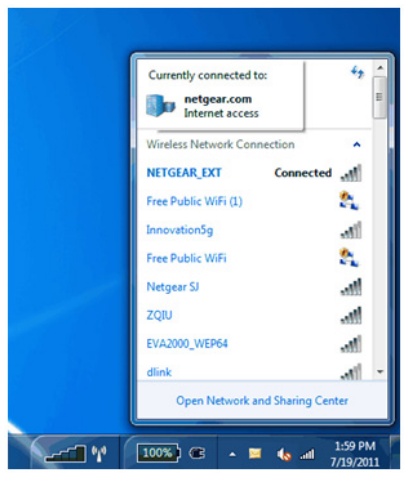
After the wireless connection with the computer or mobile device is established, the PC to Extender LED  turns
green.
4. Open a web browser window from the same computer or mobile device.
turns
green.
4. Open a web browser window from the same computer or mobile device.
The browser takes you directly to NETGEAR genie Smart Setup.
Note: If you are not automatically directed to NETGEAR genie, launch an Internet browser and type www.mywifiext.net in the address field of the browser. Enter admin for the user name and password for the password. 5. Select an existing WiFi network to extend and click the Continue button. 6. Type the network passphrase (also called password or security key) in the PassPhrase field and click the Continue button. 7. Type the name (SSID) for your WiFi booster network in the 2.4GHz Network Name (SSID) field and click the Continue button.
Note: You can use the same security settings as your existing network by selecting the Use the same security mode check box.
The WiFi booster settings are applied. 8. Use a WiFi network manager on a mobile device or computer to connect to the WiFi booster's newly created WiFi network.
Repeat this step for all of your mobile devices or computers. 9. Select the My wireless devices are connected to the Extender network check box and click the Continue button. 10. Unplug the WiFi booster and move it to a new location closer to the area with a poor WiFi signal.
The location you choose must be within the range of your existing WiFi router network. 11. Plug the WiFi booster into an electracl outlet and wait one minute.
The Status LED lights
green.
Use the Link Rate LED to help you choose a spot where the WiFi extender-to-router connection is optimal.
Hi Jan,
Welcome to the Microsoft Community.
Based on the information, want to install a wireless extender and to use a wireless network manager to connect the NETGEAR_EXT wireless network.
Wireless network manager is a program that helps to detect and configure systems to a wireless device or networks.
For further information, you may refer to the NETGEAR Support link:
If you need further assistance to setup the Wireless extender, you may get in touch with NETGEAR support.
Hope it helps.
Let us know if you need further assistance with Windows related issues. We will be happy to help.
The Netgear Support Link "Network Management Software:" does not work. You have not stated where a person may find this "Network Manager" other than on the website from the manufacturer whose link does not work. You are making me very sorry that I bought this extender and more sorry yet that I did not bite the bullet and but a Mac.
Manage wireless network profiles
Applies to Windows 8.1, Windows RT 8.1
If you need to change a wireless connection profile, you can usually do it by following these steps:
(If you're using a mouse, point to the upper-right corner of the screen, move the mouse pointer down, click Settings, and then click Change PC settings.) 2. Tap or click Network, tap or click Connections, and then tap or click the connection you want to change. 3. On the page that appears, make the changes you want.
Some tasks, such as deleting a profile, must be done at the command prompt. To do these tasks, open Command Prompt, and then type the appropriate command from the following table.
| Task | Instructions |
|---|---|
| <br>Delete a profile | <br>At the command prompt, type:<br><br><br><br>netsh wlan delete profile name="ProfileName" |
| <br>Show all wireless profiles on the PC | <br>At the command prompt, type:<br><br><br><br>netsh wlan show profiles |
| <br>Show a security key | <br>At the command prompt, type:<br><br><br><br>netsh wlan show profile name=“ProfileName” key=clear |
| <br>Move a network up in the priority list | <br>Connecting to a new network and choosing Connect automatically will place it at the top of the list. |
| <br>Stop automatically connecting to a network within range | <br>Tap or click the network in the network list, and then clickDisconnect. |
| <br>Stop automatically connecting to a network that's out of range | <br>At the command prompt, type:<br><br><br><br>netsh wlan set profileparameter name=”ProfileName” connectionmode=manual |
How Windows determines connection priority
Windows usually connects to networks in this order:
When you connect to a new Wi‑Fi network, it’s added to the list, and Windows will connect to that network while it’s in range. If you connect to another Wi‑Fi network while in range of the first network, Windows will prefer the second network over the first one.
Mobile broadband networks are treated differently. If you manually connect to a mobile broadband network when there is a Wi‑Fi network in range, the mobile broadband network is preferred just for that session. The next time you’re in range of both networks, the Wi‑Fi network is preferred. This is because mobile broadband networks typically are metered.
If you want to force your PC to prefer a mobile broadband network over Wi‑Fi, tap or click the Wi‑Fi network in the list of networks, and then click Disconnect. Windows won’t automatically connect to that Wi‑Fi network