' cx='32' cy='32' r='32' /%3E%3Ctext x='50%25' y='55%25' dominant-baseline='middle' text-anchor='middle' fill='%23FFF' %3EA%3C/text%3E%3C/svg%3E)

Hi friends i tried with the below procedure and it worked .. so am posting this for future reference..:)
1. Insert IP address in both computer .
- Open control panelwindow**.**
- Choose Network and Sharing Center button.
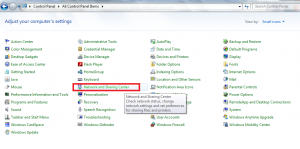
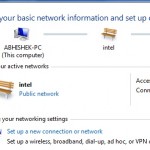
- Then you find a pop up box of Network and Sharing Center. Here, click on Change adapter setting.
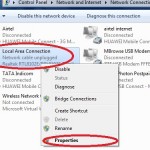
- In Network Connections Pop –up Window, right click on correctly installed LAN Card hardware adapter in your computer and select its properties.
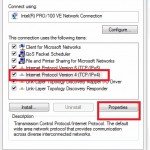
- Then Local Area Connection (LAN) properties window is appearing. Choose Internet protocol Version 4 (TCP/IPv4) button and click on properties option.
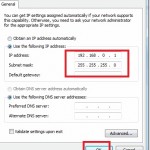
- Now enter IP (Internet protocol) address in both computers manually according to below and select OK Option.
First computer (computer name – NAVIN – PC)
Enter IP Address: – 192.168.0.1
Enter Subnet mask: – 255.255.255.0
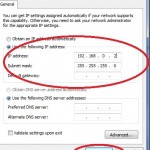
Second computer (computer name- ABHISHEK – PC)
Enter IP Address: – 192.168.0.2
Enter Subnet mask: – 255.255.255.0
- After inserting IP address in both computer properly, restart it.
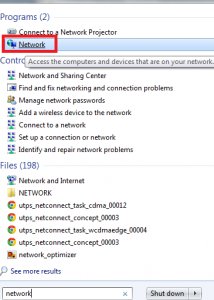
- when computer will load windows 7, click on start search box and type network. click on this link.
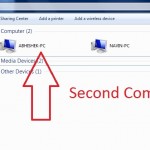
- In network tab, you find all connected computers in networking under similar workgroup.
How to share computer drives to transfer files over network ?
When both computers are showing in network tab and want to share computer drives
- At first, open computer explorer window of the first computer, press right click on opted drive partition which we want to share with another computer over network.
- From drop down menu list, choose share withoption.
- Now select Advance Sharing button.
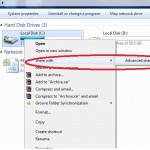
- A new tab of opted drive properties is appearing. click on Advance Sharing option.
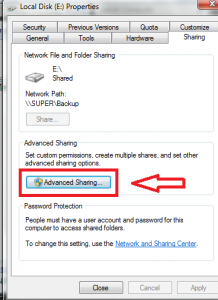
- check this box – share this folder option and now click on ok button.
Now we have done drive sharing in LAN networking successfully.