Share via

Windows 8.1 - How can I tell if I am running the 32bit or the 64bit version!!!

Anonymous
2014-06-26T11:16:09+00:00

Can someone please help with this?

Thanks,

John

Windows for home | Previous Windows versions | Install and upgrade

Locked Question. This question was migrated from the Microsoft Support Community. You can vote on whether it's helpful, but you can't add comments or replies or follow the question.

0 comments No comments

Answer accepted by question author

  1. Anonymous
    2014-06-26T14:06:29+00:00

    Is my computer 64 bit capable?

    Before you can start the process to migrate to 64 bit Windows, you need to find out if your system is 64 bit capable. If you are already running a 32 bit version of Windows 8 on you system, you can find out by doing the following:

    Press Windows key + X on your keyboard

    ![](http://techingiteasy.files.wordpress.com/2013/02/image_thumb3.png?w=396&h=383)

    Click System

    ![](http://techingiteasy.files.wordpress.com/2013/02/image_thumb4.png?w=414&h=169)

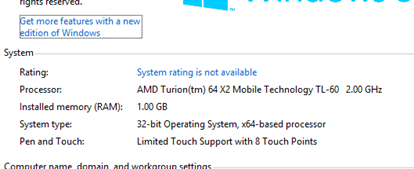
    Look under System > System type:

    There it will list whether the processor is x64 based processor or not. In my case I have 64 bit capable processor. Once you have confirmed this, you can move on to the next step.

    1 person found this answer helpful.
    0 comments No comments

Answer accepted by question author

  1. btbt 11,826 Reputation points Volunteer Moderator
    2014-06-26T11:51:38+00:00

    right-click the lower left corner of your screen and choose "System" from the menu that appears. There's a line on the System screen called "System type" that tells you.

    For example, if it says "32-bit operating system, x64-based processor", it means you have 32-bit Windows, but your computer is capable of running 64-bit Windows.

    0 comments No comments

0 additional answers

Sort by: Most helpful