Share via

Device driver was not successfully installed (no driver found) on Windows 7 x64

Anonymous
2014-07-23T15:44:09+00:00

I have had this problem for quite some time now, but tried to fix it on and off.

I knew I had problems with USB devices. Not even a standard keyboard will install.

Here is what I have found out:

I have a standard keyboard which I have used on this computer before.

Now it ONLY works if I plug it into the port I installed it on originally.

ALL other USB ports fail.

I then started trying moving other devices around.

They all ONLY work in the ports they were installed on originally.

ALL report a "no driver found" message when trying to use another port.

I then decided to check with a webcam that I never installed on this computer.

It fails on ALL ports.

So it's not only one port or one device.

I now want to move a 3TB harddisk from another computer of mine.

I have a USB3.0 dock that I KNOW supports 3TB drives as it already run one, but on another pc.

On this one I get the same error as in the title, no matter what port I try.

I then decided to pull the drive from the USB dock and mount it internally.

It STILL gives the above error as shown here:
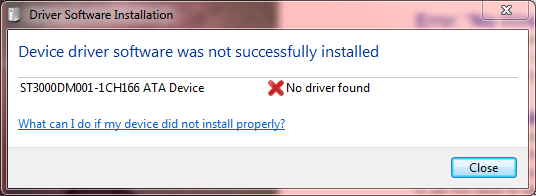
It's almost as if Windows have lost ALL drivers for ALL devices??!?

I have tried the following:

commandline as admin > SFC /SCANNOW

That reports that eveything is fine.

I ran CHKDSK on all drives

No errors.

I tried running the following antispyware:

superantispyware

Malwarebytes Anti-Malware

AdwCleaner

CCleaner

All gives a clean bill of health.

I read other people went into the device manager and deleted all the USB devices, so I tried that.

That made my mouse and keyboard die. Forced shutdown. Boot.

Then Windows showed me I needed USB drivers, but I could not get them as mouse and keyboard didn't work.

I had to boot on my Recovery Disc, and do a system restore.

I don't know if it's any help but I have this from an attempt to run a repair:
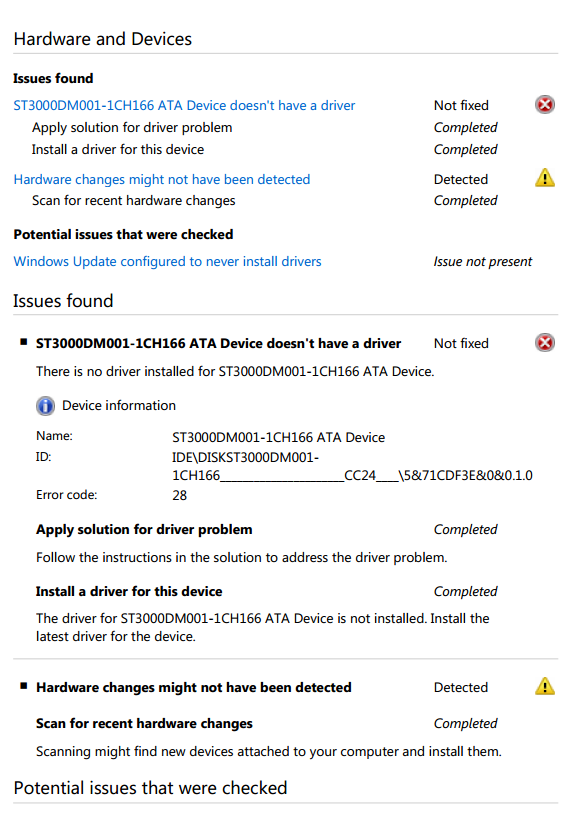
I am really getting deperate.

Oh, as a sidenote. Reinstalling/resetting Windows is NOT an option!

Windows for home | Previous Windows versions | Devices and drivers

Locked Question. This question was migrated from the Microsoft Support Community. You can vote on whether it's helpful, but you can't add comments or replies or follow the question.

0 comments No comments

54 answers

Sort by: Most helpful
  1. Anonymous
    2014-08-10T14:05:56+00:00

    I did as you asked.

    At first I removed all the device driver installers that was present to make sure they didn't affect it.

    Then I went into the manager and started removing usb bus controllers.

    I stopped when my keyboard stopped working.

    I rebooted and got this:

    I had to do a system restore to get my devices back.

    It's as if Windows is looking in the wrong folder for the drivers, yet even when I have the correct drivers for a device and I install it and point to it manually, Windows STILL claims there are no drivers.

    5 people found this answer helpful.
    0 comments No comments
  2. Anonymous
    2014-07-23T16:04:00+00:00

    To troubleshoot most computer problems it helps to look at available clues in the System Information file and the Event Viewer logs. An experienced eye can pick out the needles in the haystack and see more clearly the precise nature of the problem or problems.

    Please provide a copy of your System Information file. Type System Information in the Search Box above the start Button and press the ENTER key (alternative is Select Start, All Programs, Accessories, System Tools, System Information). Select File, Export and give the file a name noting where it is located. Do not place the cursor within the body of the report before exporting the file. The system creates a new System Information file each time system information is accessed. You need to allow a minute or two for the file to be fully populated before exporting a copy. Please upload to your OneDrive (formerly Sky Drive), share with everyone and post a link here. Reports in normal mode preferred. Please say if the report has been obtained in safe mode.

    Please upload and share with everyone copies of your System and Application logs from your Event Viewer to your OneDrive and post a link here.

    To access the System log select Start, Control Panel, Administrative Tools, Event Viewer, from the list in the left side of the window expand Windows Logs and select System. Place the cursor on System, select Action from the Menu and Save All Events as (the default evtx file type) and give the file a name. Do the same for the Applications log. Do not provide filtered files. Do not place the cursor in the list of reports before selecting Action from the menu. Do not clear logs whilst you have a continuing problem.

    For help with OneDrive see paragraph 9.3:

    http://www.gerryscomputertips.co.uk/MicrosoftCommunity1.htm

    General notes on Event Viewer

    http://www.gerryscomputertips.co.uk/syserrors5.htm

    3 people found this answer helpful.
    0 comments No comments
  3. Anonymous
    2014-08-10T15:29:10+00:00

    Hi,

    Thank you for providing an update on the issue.

    Are you still facing the same issue when you connect any USB device after performing as system restore?

    If you still find the same issue, you may proceed further. 

    As all the USB devices fail to work or the drivers for the devices would fail to install, let's find out if USB.inf file exist. When the device is connected to the computer, Windows will search for the file and install the drivers. Can you verify if the .inf file exist under the following location?

    C:\Windows\inf\usb.inf

    "C" is the operating system drive.

    If it's not there, you can copy the same file from another working computer and paste it in the location mentioned above.

    If the issue still persists, let's run SFC scan and find out if there are missing or corrupt system files causing such issues. Refer to the link to know how to run the scan on Windows 7:

    http://support.microsoft.com/kb/929833/en-us

    Please let us know the results.

    2 people found this answer helpful.
    0 comments No comments
  4. Anonymous
    2014-08-09T16:37:26+00:00

    Hi,

    Please provide the following information related to the issue:

    What is the Make and Model of the computer?

    When the external devices connected to the USB port don't work, it means either the driver is not installed properly or the devices are faulty. In your case, it happens with multiple devices. So, faulty device can't be taken into consideration. Now, I would suggest you to uninstall all the USB device drivers and restart the computer as Windows will reinstall the drivers. Check if the keyboard, camera or an external hard drive is getting detected or not. Follow the steps to do so:

    • Press Windows+X keys and select Device Manager.
    • Locate the Universal Bus Controllers driver and right click on them. Select Uninstall.
    • Restart the computer. Windows will install the generic drivers. Connect the devices again and check if it helps.

    If this doesn't fix the issue, I would suggest you to download and install the latest chipset driver for Windows 7 from the manufacturer's website of the computer. Here's an article that shows how to update the drivers on Windows 7

    http://windows.microsoft.com/en-in/windows/update-driver-hardware-isnt-working-properly#update-driver-hardware-isnt-working-properly=windows-7

    Please let us know if the issue still persists.

    2 people found this answer helpful.
    0 comments No comments
  5. Anonymous
    2014-07-25T20:55:52+00:00

    I don't use OneDrive, but I put the files on my personal site in a temporary folder.

    The event logs are zipped together with the locales.

    http://snowmans.dk/tmp/Events.zip

    http://snowmans.dk/tmp/SysInfo.txt

    2 people found this answer helpful.
    0 comments No comments
