Hi and thank you for your efforts to solve my problem. I was able to go to my games via Google but they would not run. I tried over and over. Tonight I did a regular search for MSN Games and got to my games just fine and they worked just fine. So my problem is solved but I have no idea why I was unable to do the process before. I will no longer have the games icon but can search for MSN Games and get to them it seems just fine. Thank you very much for your efforts to help me.
Microsoft free games
I have played Microsof free card games for years by clicking on an icon next to the Bing icon which took me to a menu of games from which I could select the game I would like to play. On the night of Sept 30, the icon was removed and after hours of tech support attempts to get games restored to my computer, tech Support has thrown in the towel and sent me here to ask other users how to solve the problem. HELP PLEASE HELF I have spent many hours with Tech Support trying to get my games back.
Windows for home | Other | Apps
Locked Question. This question was migrated from the Microsoft Support Community. You can vote on whether it's helpful, but you can't add comments or replies or follow the question.
Answer accepted by question author
12 additional answers
Sort by: Most helpful
-
Anonymous
2014-10-05T05:29:00+00:00 Community member Gregfn posted a great answer in another thread.
Select Entertainment on the new MSN main page.
And then you will find the games link on the Entertainment page:
Thanks, Gregfn.
-
Anonymous
2014-10-04T18:02:43+00:00 I have played Microsof free card games for years by clicking on an icon next to the Bing icon which took me to a menu of games from which I could select the game I would like to play. On the night of Sept 30, the icon was removed and after hours of tech support attempts to get games restored to my computer, tech Support has thrown in the towel and sent me here to ask other users how to solve the problem. HELP PLEASE HELF I have spent many hours with Tech Support trying to get my games back.
I have Windows 7 Professional, and I can access MSN games through the Start Menu.
First, you need to have Games available on your Start Menu and displayed as a menu. Right click on the Windows Icon in the lower left corner, select Properties, then select "Customize".
Next, find the Games option and select "Display as a menu", like so:
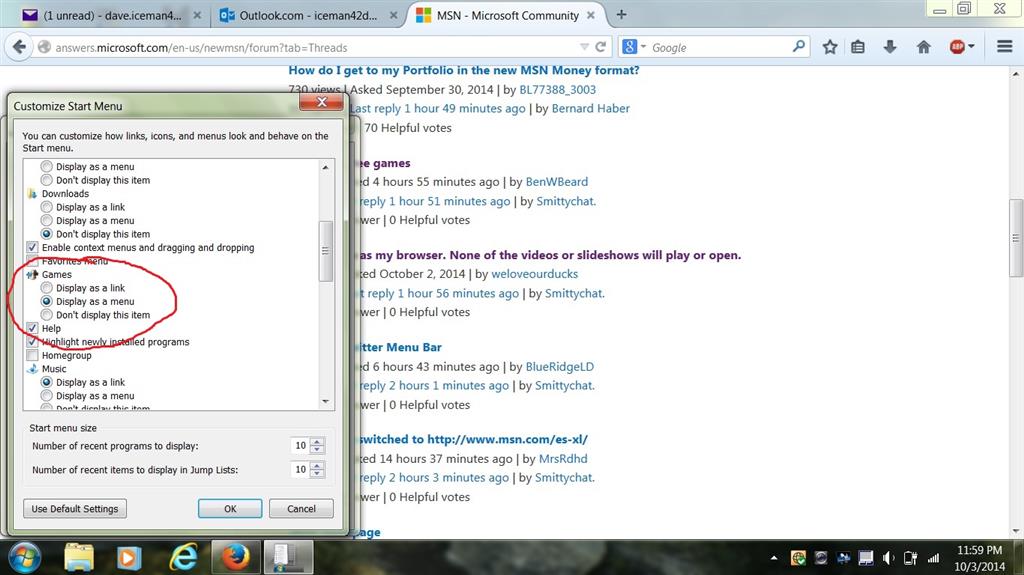
Click OK to exit this box and then go to your Start Menu to Games and select "More Games from Microsoft", like so:
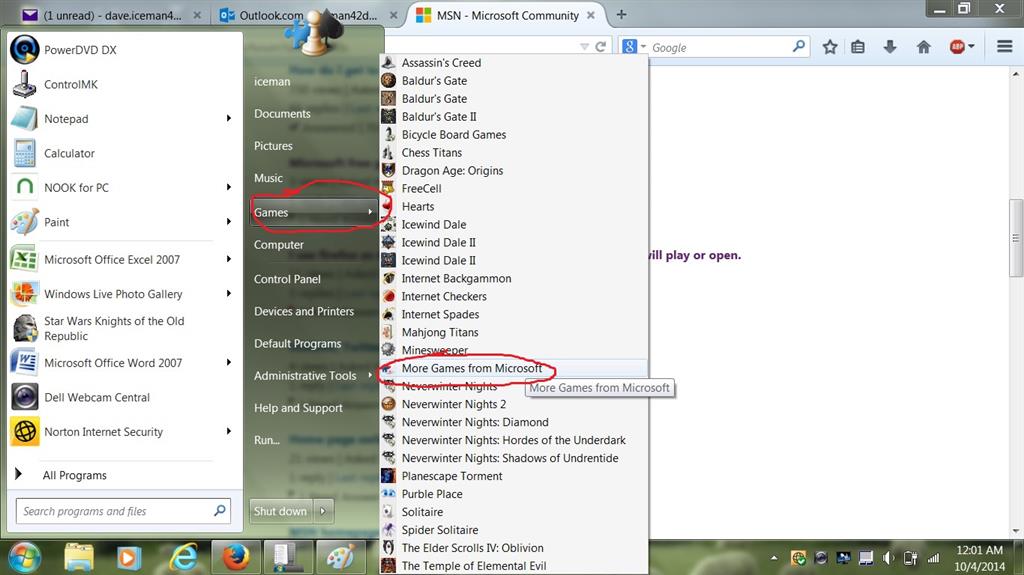
This will open IE and go to the zone.msn.com "Windows 7 landing page". (And, no, I don't know how to make it open in Firefox or Chrome or any other browser.)
From there you just click "sign in". If you've recently deleted your cookies and history, you'll have to log in, but if you haven't, clicking "sign in" will go right to the msn games home page.
The Free Online games can be found clicking on the word "games" next to MSN and the butttefly at the top of the screen, the "Free Online" link right below it, or the "More FREE Games" at the bottom of the page.
Whatever you do, don't click MSN or the butterfly. That will lead you right back to the new MSN joke of a "home page". No one wants to go there.
I don't know if this will work for anything other than Windows 7, but I thought I'd throw it out there. I find Start Menu links to be quick and easy.
-
Deleted
This answer has been deleted due to a violation of our Code of Conduct. The answer was manually reported or identified through automated detection before action was taken. Please refer to our Code of Conduct for more information.
Comments have been turned off. Learn more
-
ReportedAnonymous
2014-10-04T05:05:40+00:00 Hi,
What is your Windows OS and Browser Version?
Are you using Bing Toolbar? If you do not see MSN Games icon, click on settings (three dots on right). Look for it in the menu and click to select it. Click Add to add it back to the Bing Bar.
Follow these steps to uninstall/re-install the Bing Toolbar:
· Click Start > Control Panel > Programs and Features
· In the currently installed programs list, select Bing Bar and then click Remove.
· Follow the on-screen instructions to uninstall Bing Bar from your computer.
Remove these folders if any:
a. C:\Program Files (x86)\Microsoft\Bing Bar
b. C:\Users<Username>\AppData\Local\Microsoft\BingBar
Install the Bing Bar
· Launch Internet Explorer. The Bing Bar will not work with any other browser.
· Download the installer by going to http://toolbar.discoverbing.com/toolbar/en-us.html to install the latest version of the Bing Bar.
