Share via

How to Disabe lower left Hot corner in Windows 8.1?

Anonymous
2014-01-12T13:56:41+00:00

In windows 8.1 pro when you move your mouse into bottom left corner the Start menu icon appears and with clicking it you go to Start menu

[Microsoft call the Icon Start tip]

while I can disable charm-bar [right upper corner] and switch menu[left upper] from taking action with going to "PC and devices" ,"Corner and edges"

Or changing registry value from Run/regedit/HKEY_CURRENT_USER...

I can't find any way to disable left bottom Hot corner.when using VLC it appears in position of play button and in games when you need to go to this edge it again makes trouble.

I have my Start menu Hidden in the left side of desktop to be precise.

Is there any way to disable this left bottom Hot corner from taking action?

Windows for home | Previous Windows versions | Accessibility

Locked Question. This question was migrated from the Microsoft Support Community. You can vote on whether it's helpful, but you can't add comments or replies or follow the question.

0 comments No comments

10 answers

Sort by: Most helpful
  1. Anonymous
    2015-02-12T23:47:23+00:00

    I figured out how to do it. Download a free program called ClassicShell, which I did have this already. If you install everything it will also install an application called Settings for Classic Start Menu. Open this up and then at the bottom select All Settings, which you will then have more tabs. Click on the Windows 8 Settings tab. Select All for Disable Active Corners.

    If this helps, please mark it as the answer.

    Was this answer helpful?

    7 people found this answer helpful.
    0 comments No comments
  2. Anonymous
    2016-05-11T05:34:34+00:00

    Hi,

    Hit Windows key + M

    Hi Xircal

    Thanks for your good solution

    But not the exact solution to disable lower left hot corner.

    Thank you.

    Was this answer helpful?

    3 people found this answer helpful.
    0 comments No comments
  3. Anonymous
    2014-01-13T13:03:01+00:00

    Thanks for your effort.

    Truly when I use VLC  in full-screen mode the start tip,left bottom hot corner doesn't appear  when I move the mouse to left bottom corner,as you said

    not to mention that in full-screen mode the play button is in near middle of bottom of screen.
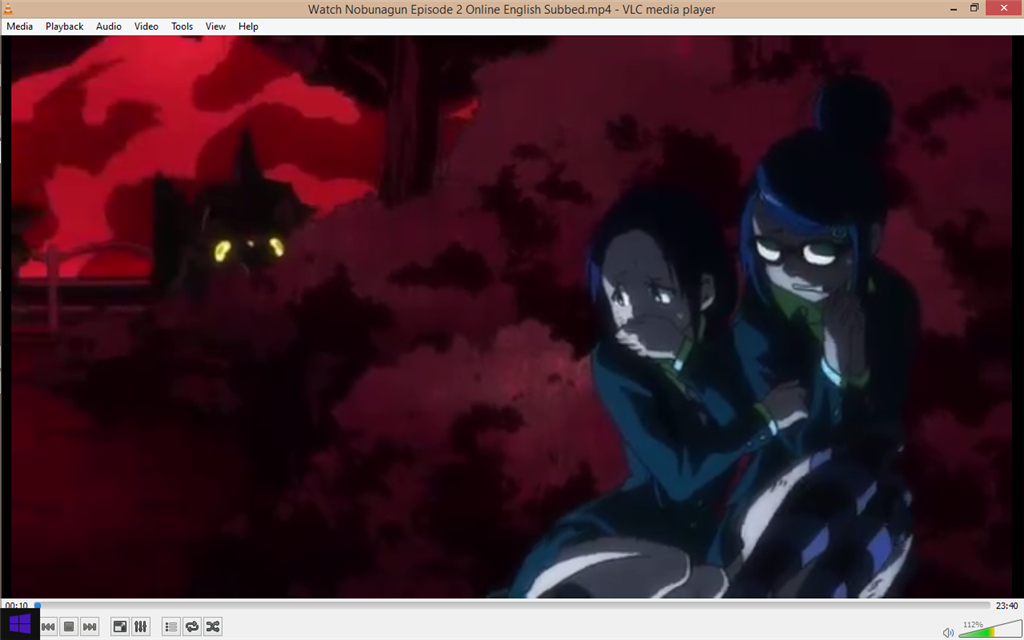
    I use VLC 2.0.8 32bit version in my laptop,and it is not an app.

    but I,for example;use VLC in Maximized size  not full-screen mode,so the Start tip appear,so if I am not careful and click on Start tip I will go to the Start screen while my video is still playing.

    I see that many one have this same problem and posted about this on other sites

    I am pretty sure,there must be a registry value for bottom left corner,that if I change it,this corner won't function anymore.just like other corners have registry value corresponding to them in Regedit.

    so the question is.where this corresponding registry value resides.

    Was this answer helpful?

    1 person found this answer helpful.
    0 comments No comments
  4. Anonymous
    2014-01-20T09:06:15+00:00

    Hi,

     Thank you for the rely.

    You are getting confuse might be because of taskbar setting. Try this setting and check.

    a. Press and hold or right-click an empty area on the taskbar, and then tap or click Properties.

    b. Uncheck the Auto-hide taskbar.

    c. Save the changes by clicking on apply and Ok

    Was this answer helpful?

    0 comments No comments
  5. Anonymous
    2014-01-13T06:53:49+00:00

    Hi Soheil,

    1.      Are you viewing the video on VLC in complete Full Screen or Maximized Screen?

    2.      Are you using VLC Media Player App or Desktop Application?

    Whenever you run desktop applications in full screen, the corners of the screen will not work. But in Modern user App version, the screen works.

    Please send us a screenshots of the issue for better understanding. Refer to the following steps.

    a. First of all, take a screen shot of the issue and save it to location on the computer. You can do this using Paint.

    b. Now, click on Add image on the answer website.

    c. Browse to the location and click on Upload Image.

    Hope this information helps you. Please do let us know if you need further assistance, we’ll be glad to assist you.

    Was this answer helpful?

    0 comments No comments
