I have seen this on several of my clients' computers. The solution I found that works is to uninstall java. You have to be prepared to do it quickly as Windows starts. The problem takes 30 seconds or so to get going. It may take several attempts to do it quickly enough.
Should I be concerned about javaws.exe running 1000's of Image Names?
Do you think this issue may be causing some hidden problems or longer term system degradation that I'm not aware of?
It's odd that this issue has actually benefited my machine's operation :
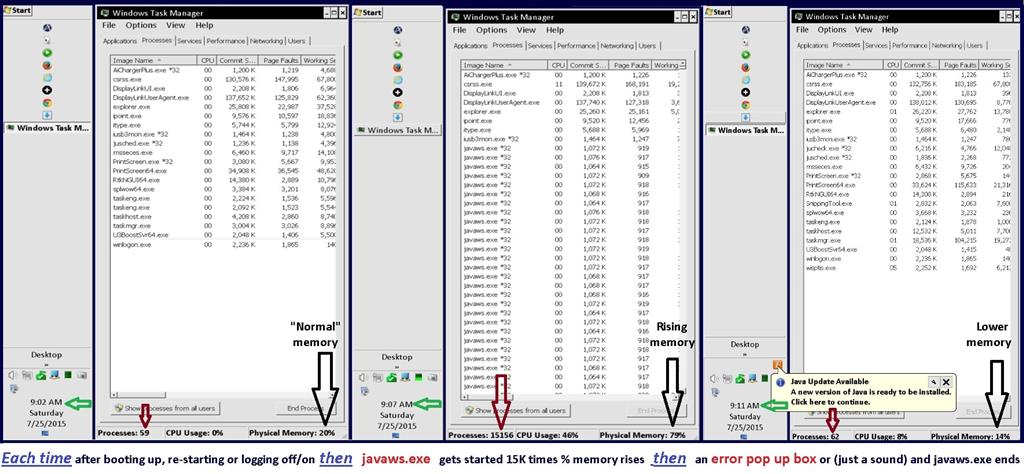
About 5 minutes after every Start, Restart or Log-off/log-on, jsched.exe*32 will start javaws.exe, up to 15,000 Image Names build in Task Manager's Process tab...Physical Memory will approach 100% before an error message window pops up or a warning sound is heard. Then the extra Image Names and high Physical Memory percentages start to decline..this takes a total of 4 to 5 minutes to complete...
Afterwards, Task Manager shows my "normal" number of Processes and "normal" CPU Usage BUT it shows a 30% LOWER Physical Memory percentage than before...AND CPU core temperatures run about 10% lower.
I have been running my machine this way for the past two weeks, 10 to 12 hours a day...I have noticed no ill effects - I can still run multiple programs, browsers etc with a the added benefit of not having to deal with closing and reopening one of my 64-bit programs that used to "slow down" after a few hours...
I can prevent the above from happening by right clicking jsched.exe and selecting End Process or by unchecking the box for Java Platform SE Auto Updater on the Startup tab in System Configuration...
I'm also reluctant to take the Java Update that's available as it might "fix" the multiple javaws.exe issue...the few minutes it takes to do it's thing does not bother me as long as my machine continues to perform great...
This link goes to a page on one of my blogs where I document the issue further...Weird Windows Stuff .
The picture shows the Task Manager before, during and after javaws.exe has done it's thing:
System Specs:
BUILD CONFIGURATION July 2012
CPU.........................Intel Core i5 3570K Ivy Bridge 3.4 GHz LGA
Motherboard............ASUS P8Z77-V LK LGA Intel z88 SATA 6Gb/s
SSD drive................OCZ Vertex 128G 2.5" SATA III
Memory...................GSKILL Sniper 8GB (2x4GB) DDR3 SDRAM 1600
Power Supply............CORSAIR/TX650 V2 (650W)
GPU.........................2 EVGA GeForce GT 520 1024MB dual DVI out
add'l adapters.....4 Sabrient USB-1612 video display adapters
Operating System....Windows 7 Home Premium SP1 64-bit
Case..............HEC steel ATX mid tower 2 x 120mm fans
Components from previous trade stations set ups
UPS...................three 4 outlet APC Uninterrupted Power Supplies *
Monitors...........3 AOC 24" LED and 3 AOC 22" LED
1 SOYO 20" LCD and 1 HP 20" LCD
Screen resolutions are set to 1920 x 1080
( The older SOYO and HP LCDs have lower maximums...
The SOYO is set to 1680x1050 and the HP is set to 1600 x 90
Windows for home | Previous Windows versions | Windows update
Locked Question. This question was migrated from the Microsoft Support Community. You can vote on whether it's helpful, but you can't add comments or replies or follow the question.
Answer accepted by question author
-
Anonymous
2015-10-13T13:08:26+00:00
12 additional answers
Sort by: Most helpful
-
Anonymous
2015-12-02T09:12:15+00:00 OK - I had this on a laptop which made it so sluggish it was almost unusable.
By right clicking an instance in task manager I opened the file location and renamed javaws.exe to javaws._xe
All the instances immediately cleared and the machine is back to its usual performance.
No issues so far in normal use.
-
Anonymous
2015-10-13T04:15:59+00:00 You may have already fixed your problem, but for anyone else out there who has an issue with Javaws.exe*32:
I also just started having trouble with 1000's of Javaws.exe*32 processes running on my mom's PC, making it virtually unusable. After doing some research, I found that this is actually a really malicious virus that seems to have mutated recently and isn't been regularly picked up by major anti-virus products (McAfee didn't find it on my mom's computer). Perhaps the virus has blocked such software from working?
There are a few blogs online that have directions on how to remove it manually, just google "Javaws.exe*32". I noticed that a few anti-virus blogs want you to download software from their sponsors to get rid of the virus, but I don't know if that is such a good idea, since it's hard to tell if they are trustworthy or not. I haven't had time to try any of the manual remedies yet, but I'll post again if I (hopefully) find one that works.
FYI You'll want to get rid of this virus a.s.a.p because apparently, from what I've read, it opens the door to a host of other difficult-to-detect bugs. Hope this info helps!!
-
Anonymous
2015-07-26T14:29:55+00:00 Thx for the reply... I too suspect a corrupt file...somewhere...
I already know the issue has something to do with Java Platform SE Auto Updater.
Uninstalling Java completely would probably "fix" the issue I described above, but I still won't
know why my machine runs better ever since this issue began to happen...
Again:
If I prevent jusched.exe from running, the 1000's of javaes.exe will not happen and my machine runs very good.
BUT
If I let jusched.exe run the 1000's of javaws.exe's, the total Physical Memory is 30% lower and my machine runs better than if I prevent jusched.exe from running the javaws.exe.
Perhaps my questions should have been "Why does my machine run better AFTER the 1000's of javaws.exe's cycles?"
and
What potential damage could happen if I continue to let the 1000's of javaws.exe's run after each start up?
I followed your suggestions with the following results:
Method 1)
I ran Performance Troubleshooter which found no problems.
Method 2)
I did a clean boot
The javaws.exe issue did not happen because Java Platform SE Auto Updater startup box gets unchecked to get to a "clean boot" environment.
Method 3)
I ran Microsoft Safety Scannerwhich found nothing.
Notes
I run Microsoft Security Essentials at start up and do a full scan weekly - nothing malicious has ever been found
I regularly run Microsoft Disc Cleanup as well as Piriform CCleaner to delete unneeded files/folders and registry remnants.
I have an SSD so I do not run Disc Defragmenter (as per the manufacturer's recommendation).
I log off occasionally to allow the SSD's TRIM garbage collection to run undisturbed.
-
Anonymous
2015-07-26T10:08:34+00:00 Hello,
Thank you for visiting Microsoft Community and providing us with the detailed description about the issue along with the screen shots.
As per the description, I understand that you are experiencing issue with whenever you log on, jsched.exe*32 will start javaws.exe and up to 15000 image names build in Task Manager.
I certainly understand your concern and will try my best to help you.
There is a possibility that this issue might have occurred due to corrupt system files or possibility there is a virus in the system.
I would suggest you to try the following steps and check if that helps.
Method 1:
I would suggest you to try Performance Troubleshooter
Open the Performance Troubleshooter, please follow the steps in the link provided below.
http://windows.microsoft.com/en-US/windows7/Open-the-Performance-troubleshooter
Note: The Performance troubleshooter checks issues that might slow down your computer's performance, such as how many users are currently logged on to the computer and whether multiple programs are running at the same time.
If the issue persists, follow method 2
Method 2:
To diagnose the problem whether any third party program or application is causing the conflict, I would suggest you to try “clean boot” and check if it helps.
**Important:**Placing your system in Clean Boot state helps in identifying if any third party applications or startup items are causing the issue. You need to follow the steps from the article mentioned below to perform a Clean Boot.
**How to perform a “clean boot” in Windows,**please follow the steps in the link provided below.
http://support.microsoft.com/kb/929135/en-us
Note: Refer "How to reset the computer to start normally after clean boot troubleshooting" to reset the computer to start as normal after troubleshooting.
Try to reboot the system and check if it helps.
If the issue persists, follow method 3
Method 3:
Run a full computer scan with the Microsoft Safety Scanner to make sure that the computer is virus free.
**Microsoft Safety Scanner,**please follow the steps in the link provided below.
http://www.microsoft.com/security/scanner/en-us/default.aspx
Note: Any data files that are infected may only be cleaned by deleting the file entirely, which means there is a potential for data loss.
I hope this information is helpful.
Please do let us know if you need any further assistance, we will be glad to assist you.
Thank you.
