What makes you think that the make/Model number of the machine would give you definitive information about the disk? Most computers models have hard disk upgrade options and this is an oft upgraded option at purchase time; so the specs you might be reading
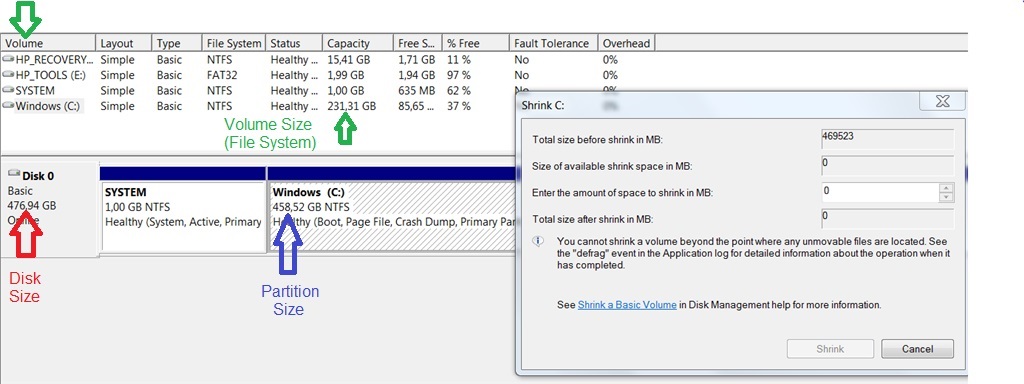
may not necessarily give you proper disk information. You also have to accept that the ones who ask questions here are not all a bunch of helpless saps, the poster stated that the laptop has a 500GB SSD and the supplied screen shot collaborate or tend to
support this, why would you not believe or trust the poster to know this?
You could ask the poster to check the BIOS or Device Manager to get the hard disk information, it would be more reliable than specs that may or may not give you correct information on the actual hardware options installed in the machine. Not to mention
that it may take more time to find the specs than fix the actual problem. Here is a copy of the screenshot that the poster included with his/her first post, as you can see much information was available there:
I replicated the problem by using Symantec's PtEdit to edit the partition table and extend a partition from 20 to 40GB without extending the file system, here is a screenshot of the Disk Management GUI. All the information was obtained from the within the
Disk Management console by simply right-clicking the different objects and selecting the "Properties" option, no need to leave the management console to obtain the information:
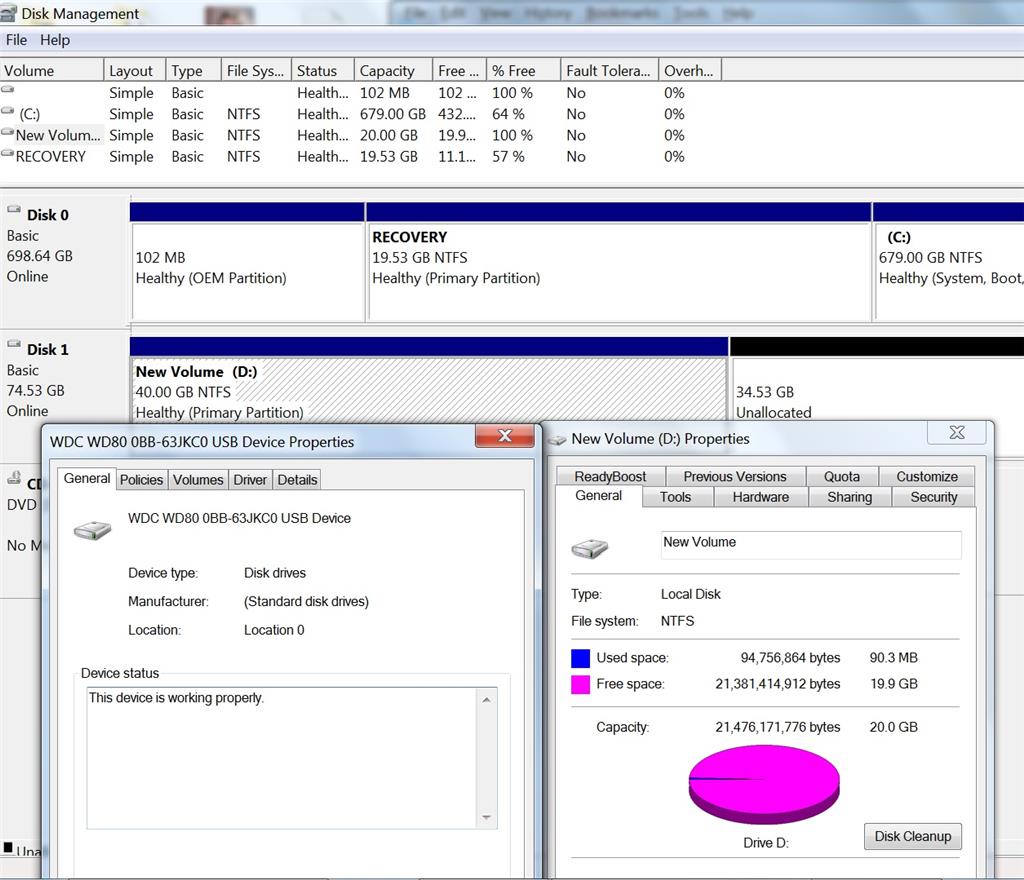
You can get quite a bit of information from the management console (as shown above) and when you understand how the reported figures are obtained and what they mean you can get a good view or a grasp of the problem at hand.
The file system "extend" problem discussed here is not often seen, this was more prevalent in the Windows 2000 and early Windows XP era than it is today, and even then it wasn't often encountered. Linux users may have seen this more often, probably because
by nature Linux users usually tend do more disk work than Windows users. The problem was (is) most often caused by third party partitioning tools that were "half baked" or had bugs. Being that re-sizing partitions is something that most people rarely, if
ever do, and that good partitioning tools have long properly handled this it is not a very common problem. However,
Windows 2000 and the as released Windows XP version had a Diskpart bug that also caused this problem. At that time Diskpart was the only thing that people used less than partitioning tools so few have ever heard of or encountered the bug and the accompanying
unextended file system problem.
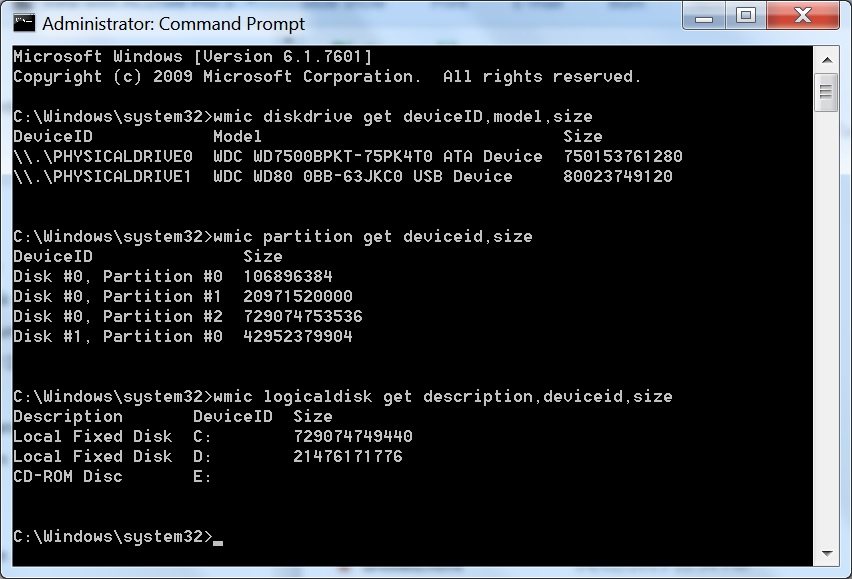
Coming back to your question, "...is there one question or set of commands that could be used to get to the solution in fewer message cycles?" Yes there is. The information needed to solve this problem can easily be obtained using PowerShell or
the WMI command line tool (wmic). Here is a screenshots of 3 WMIC commands that will give you the information:
You can also get this information with Diskpart:
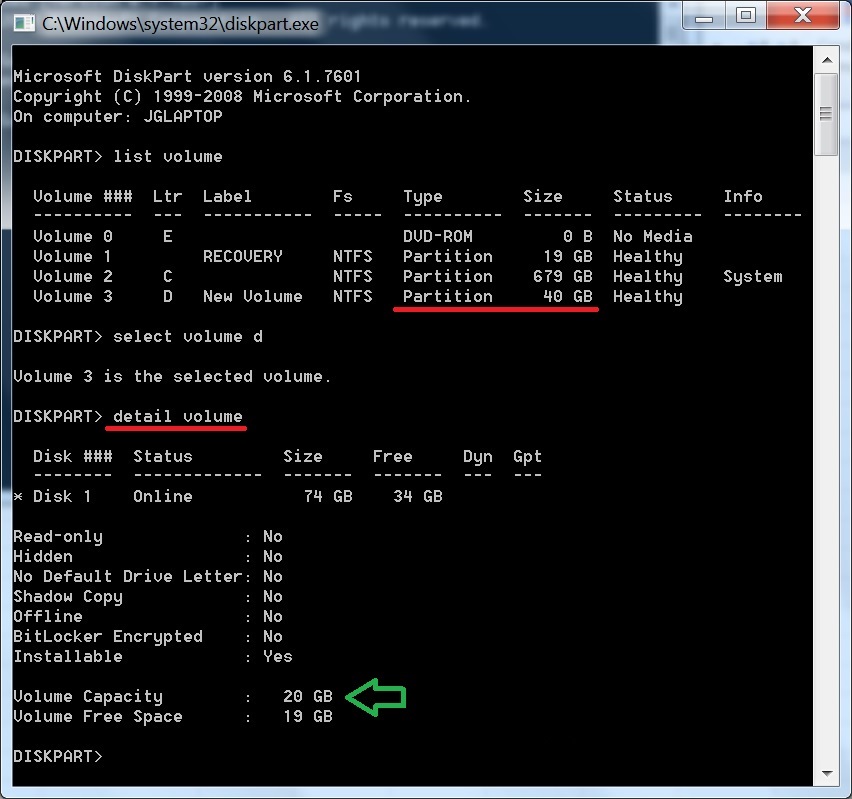
...and disk hardware details:
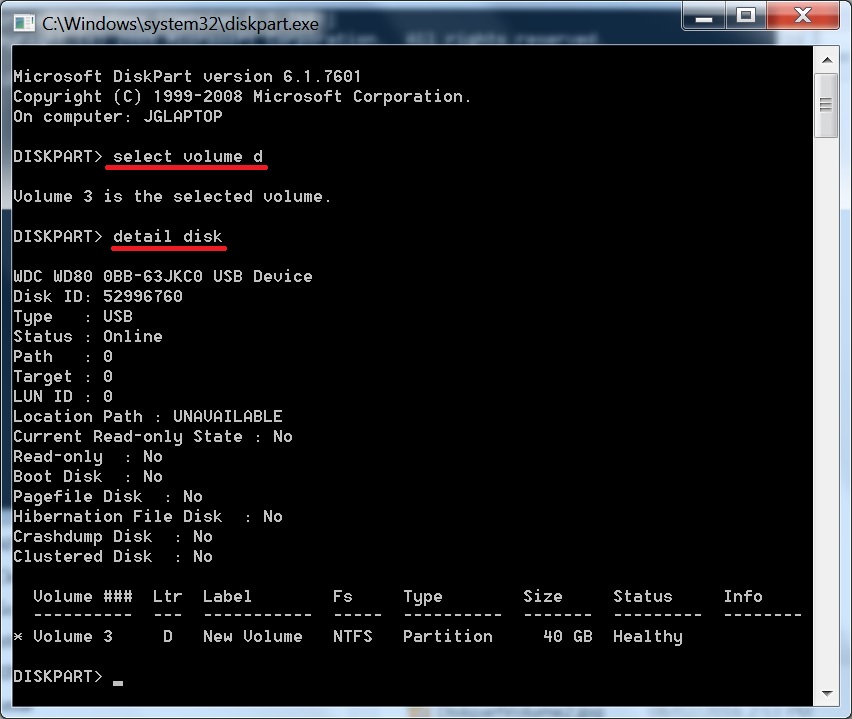
And this is the Diskpart file system correction:
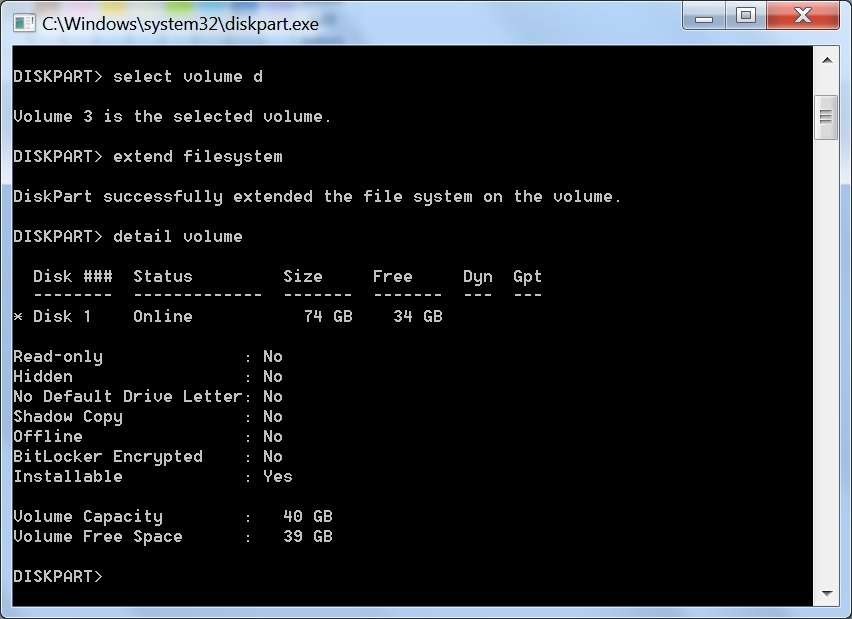
As for getting definitive information quickly and easily from posters you can ask them to run this batch file:
============================--DiskInfo.bat--===========================
wmic diskdrive get deviceID,model,size >"%userprofile%"\desktop\WmiDisk.txt
wmic partition get deviceid,size >>"%userprofile%"\desktop\WmiDisk.txt
wmic logicaldisk get description,deviceid,size >>"%userprofile%"\desktop\WmiDisk.txt
"%userprofile%"\desktop\WmiDisk.txt
=================================================================
As for the fix for this problem the first step was to run Chkdsk /f on the volume to make sure the volume was not experiencing file system corruption, the poster had already been advised to do this and had supplied the Chkdsk report and the report confirmed
that the file system was healthy but that it was not encompassing the whole partition.
All of this becomes much clearer once you understand that Windows doesn't work with partitions as such. Partitions are a hardware thing. Partition are sometimes called volumes and the terms are often used interchangeably, they are often the same but there
are subtle differences, one of them being that a volume is a component of the file system while a partition may not necessarily hold a file system. A volume is a collection of directories and files, Windows works with volumes (file systems) rather than partitions
as such. The partition is the container for the file system and the file system is the container for the volume.
John
' cx='32' cy='32' r='32' /%3E%3Ctext x='50%25' y='55%25' dominant-baseline='middle' text-anchor='middle' fill='%23FFF' %3EA%3C/text%3E%3C/svg%3E)
