Share via

Junkware Removal Tool (JRT) by Malwarebytes

Anonymous
2015-09-27T21:48:34+00:00

So, in research for a BHO remover for another poster here, I downloaded & ran Malwarebyte's JRT - just to see what it might offer. I thought I'd trust them. I do gratefully use their Anti-virus scanner on demand to supplement Defender, after all. And I've sworn to pay up should it ever catch a thing Defender missed.

To my shock, JRT found stuff & just went ahead & deleted them - w/o asking permission! Either it - or Windows - did make a restore point, however. Who can analyze this report & help decide whether I should revert? My own rerearch...

(1) PCDoctor appears to be part of Dell. But it won't be long before I attack lots of Dell stuff in here.

(2) That searchscopes entry was part of McAfee (I think), called Secure Search...

...but I've uninstalled McAfee. Now, Secure Search is gone, & BING is the default. (Honestly, I'm not sure it was actually still working.)

(3) The folder "pc drivers headquarters" was part of Driver Detective, which I did once try when still Win 8.1. It said it wanted to replace two - but I never pursued that.

I think I've talked myself into keeping the deletions - but does anyone disagree? Here's the report...


Junkware Removal Tool (JRT) by Malwarebytes

Version: 7.6.3 (09.21.2015:1)

OS: Windows 10 Home x64

Ran by PCR on Sun 09/27/2015 at 1:10:58.32


~~~ Tasks

Successfully deleted: [Task] C:\WINDOWS\system32\tasks\PCDEventLauncherTask

Successfully deleted: [Task] C:\WINDOWS\system32\tasks\PCDoctorBackgroundMonitorTask

~~~ Registry Values

~~~ Registry Keys

Successfully deleted: [Registry Key] HKEY\_CURRENT\_USER\Software\Microsoft\Internet Explorer\SearchScopes\{EBD4B3CF-DD1C-4303-88AF-0FD62ABD0CBE}

~~~ Files

~~~ Folders

Successfully deleted: [Folder] C:\ProgramData\pc drivers headquarters

Scan was completed on Sun 09/27/2015 at 1:12:36.30

End of JRT log

Windows for home | Windows 10 | Security and privacy

Locked Question. This question was migrated from the Microsoft Support Community. You can vote on whether it's helpful, but you can't add comments or replies or follow the question.

0 comments No comments

76 answers

Sort by: Most helpful
  1. Anonymous
    2016-03-04T17:37:05+00:00

    Okay I saw it was installed 2-9-16.  I uninstalled it.  Then I clicked the gear icon in the hidden app taskbar... the gear icon went to a white screen.  So then I went to the task view icon, and closed that white screen by x off.  When I did the Dell Update gear icon disappeared.  I went to the Dell folder, and tried to click on the Dell Update, but it would not go back to the hidden app box.  So Dell Foundation Services must be part of Dell Update.  Weird.

    0 comments No comments
  2. Anonymous
    2016-03-04T06:55:54+00:00

    Here is the thread I saw...

    http://en.community.dell.com/support-forums/software-os/f/4997/p/19649756/20815248#20815248

    Icon in Taskbar - Dell Common Settings

    It is the Dell Foundation Services. msw192 was the hero in that thread. Where others say "delete" in there, I'm sure they mean "uninstall". Do you see it in Programs & Features? If it's really troubling, uninstall it there. Then, let us go investigate further. I did try once, but failed to discover for sure what it is.

    0 comments No comments
  3. Anonymous
    2016-03-04T06:11:18+00:00

    No, it isn't JRT. We both survived that. I've seen your problem mentioned elsewhere. It is a Dell thing that either...

    (a) came with your computer (but you never saw it before), or

    (b) downloaded from Drivers & Downloads (I think you said you did take something), or

    (c) was brought in by Dell Update.

    It might be the Dell Foundation Services - I have to go look. There's a thread somewhere about it. In the meantime...

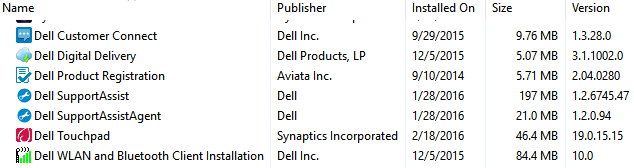
    (1) R-Clk START, & select "Programs & Features". Is there something from Dell recently installed...?...
    (2) Examine your recent restore points...

    (a) R-Clk START, & select "System".

         The Control Panel opens at the System page.

    (b) Click "Advanced system settings" at the left.

         System Properties opens at the Advanced tab.

    (c) Click the "System Protection" tab, to see...
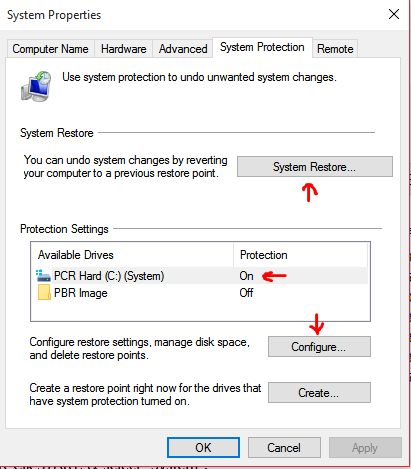
    If the Protection Setting for C: is "Off", you have no restore points. Click the Configure button to turn it on. Close out. Next time, you'll have them. If it was "On", continue.

    (d) Click the "System Restore" button.

          The System Restore requestor opens.

    (e) Click "Next", & click into the "Show more restore points" box, to see...
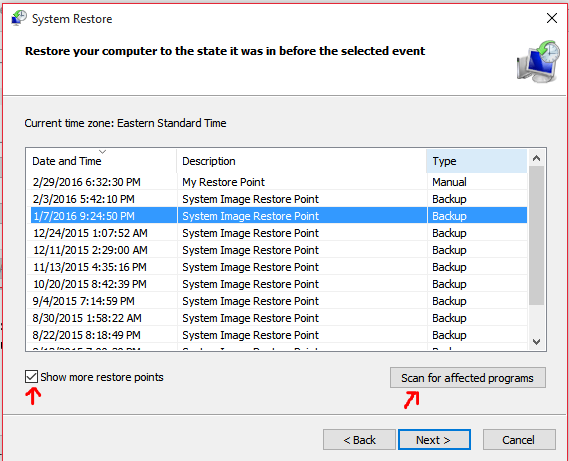
    (f) Select a restore point.

        The "Scan for affected programs" button will activate. Click it to see what the restore point will undo. It will look like what I posted earlier. **Just don't have it actually do the restore unless necessary.**But - to have it do the restore - you click "Next" on the System Restore requestor (under the "Scan for affected programs" button).

    Probably, you just need to uninstall something to be cured of this problem. I'm going to look now.

    0 comments No comments
  4. Anonymous
    2016-03-04T05:00:20+00:00

    I dunno.  Some of this is just beyond me.  Now I have an issue, and I don't know the reason.  If you go to show hidden icons in the bottom right taskbar, it shows Dell Common Settings.  It has a flower icon.  If you click on it, it just goes to a solid white screen.  The Dell Update was no longer in that hidden icon group.  I went and found it and clicked it.  It is back in the box now.  I don't recall Dell Common Settings in that box before.  I have no idea what that is.  If you click it to see, or even right click, it only shows a sliver of a white box. 

    I have never inspected my restore points.  I wonder if my troubles are from the JRT removing those two files, or what.  Other than this issue, I think things are running okay.

    0 comments No comments
  5. Anonymous
    2016-03-04T01:56:27+00:00

    It could be from the Dell Update previously.  It did an update, but I don't know what it was.  Then Microsoft has downloaded  umpteen updates.  So I am not sure.  I have done no graphics driver update on my own, with this computer.  On my older computer, yes I had to after the horrific upgrade to 8.1.  (from Win8)

    I got this computer in early January.  So it is possible it was updated before they sent it out.  I have had other things going on, and have not compared what I have to what Dell is showing for drivers that I could update the driver with.  I did try to update a card reader driver, but Win10 would not allow that.  It said what I had was better. (paraphrase)  I feel sure that was from Win Updates.  It is a great idea to let Win Updates show me what drivers I could update to.  Then I can check it out, and see if I want it.  It is a very bad idea to automatically install one.  It may be glitchy.  If you were in the middle with something, the last thing you need is to drop that, and have to work on computer "issues".

    I have seen drivers pop on & off & back on my own Dell Drivers & Downloads site. But I'm inclined to believe your Intel HD Graphics 4400 driver, v.20.19.15.4331, never was at your site. I think the site hasn't caught up to that particular advancement put into the latest Dell Inspiron 3847 Desktop which you've got. I think that driver came with your machine, as you suspect. The 4400 is mentioned in...

    http://www.mysoft.hu/docs/Dell/Dell\_Inspiron\_3847.pdf

    Dell Inspiron 3847 Specs

    It is possible that Dell updates to that driver are meant to come in through Windows Update. Such an agreement between Dell & Microsoft is intimated in an article I posted earlier...

    http://www.dell.com/support/article/us/en/19/SLN297955

    Windows 10 upgrade walkthrough

    ==== Quote ====

    Update your computer with Windows 10 drivers after the upgrade

    Once your computer has finished the upgrade to Windows 10, check the Dell drivers website for updated drivers for Windows 10 that may not have made it into Windows Update. [Emphasis added.] Install all drivers under Windows 10 that are appropriate for your computer.

    ==== EOQ =====

    I think that possibility is what you turned off with PA Bear's input. Which could be wise (though I haven't done it) - considering that other Dell article, which said: "Installing drivers unnecessarily can, in some rare cases, create new problems" and considering various horrid threads I seen here/there about auto updates. Nevertheless, it's up to you, now, to occasionally check Dell's Drivers & Downloads site for driver updates that may be critical (& hopefully harmless). I would contact Dell & ask them why the site doesn't seem to have caught up to your particular machine. They shouldn't want money yet.

    Yes, when you get the time, make a comparison of all your drivers against the Dell site. Right, as with your card reader, driver downloads from the site do a version check before installing. Very good. One of them once told me to manually uninstall the greater version first, if I wanted the lesser. Then, turning off auto-driver updates would be necessary to prevent the greater version getting back in. Let's hope it never comes to that!

    If you've installed something at Dell's Drivers & Downloads site & forgotten what it was, there's a chance a record of it was made in a restore point. Here is the restore point that Windows made automatically after I had the site install 4 driver updates...

    ![](http://en.community.dell.com/resized-image/__size/550x0/__key/communityserver-discussions-components-files/4997/0160.Capture.PNG)

    Have you ever inspected your restore points?

    0 comments No comments
