Share via

How to remove DNS Unlocker from Windows 10

Anonymous
2016-04-01T22:42:34+00:00

Hi, can anyone give step me by step instruction to flush DNS through command prompt, and then to renew it, many thanks. M Ritchie

Windows for home | Windows 10 | Security and privacy

Locked Question. This question was migrated from the Microsoft Support Community. You can vote on whether it's helpful, but you can't add comments or replies or follow the question.

0 comments No comments
Answer accepted by question author
  1. Anonymous
    2016-04-02T00:07:33+00:00

    Follow the steps here.

      [https://malwaretips.com/blogs/ads-by-dns-unlocker-removal/](https://malwaretips.com/blogs/ads-by-dns-unlocker-removal/)  
    
      If it is not listed in the Control Panel, or it can't be removed
      there, move on to step 2. HitmanPro might not be needed.
    
    6 people found this answer helpful.
    0 comments No comments
Answer accepted by question author
  1. Anonymous
    2016-04-04T18:42:21+00:00

    Hello:  Yes, I have additional ideas.

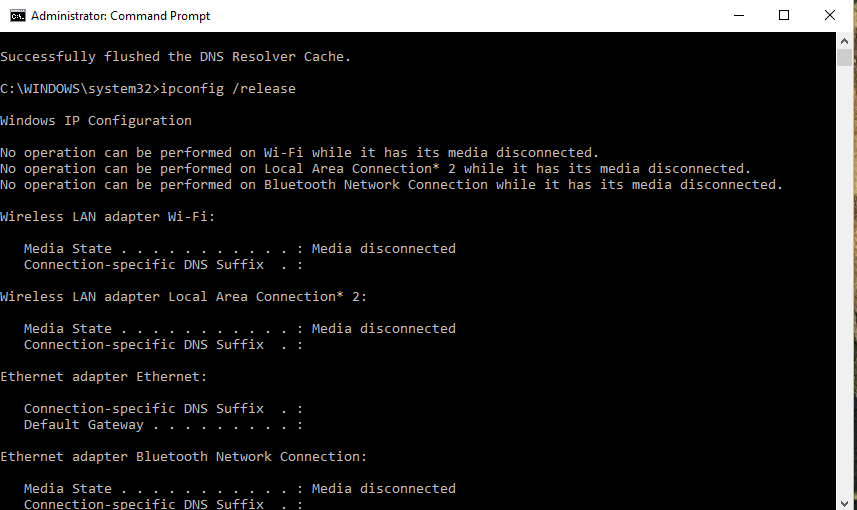
    First, do you have an Ethernet or wireless connection?  I get this also, see screenshot below:

    1.  Open Task Manager.  Click File at top, select "run new task" then type  services.msc in box.  Check that DHCP Client and DNS Client are both running and are set to "automatic."

    2.  Did flushing the DNS (first command) knock out your internet connection? Confirm this by running ipconfig /flushdns again and then looking on the little computer icon in lower right side of taskbar.  If that has a yellow warning on it, just restart your machine. Run the Troubleshooter from Control Panel, selecting "Incoming Connections" and then "Find this computer on  the network."

    If it says, repair as Administrator, choose that option, then it'll likely say "one or more network protocols are missing" which it'll then hopefully fix.   Run all the ipconfig commands again, adding  ipconfig /registerdns   and see what happens.

    Otherwise, if it ran successfully, yes, I get the same messages, I have a hard-wired connection. 

    1. Open Command Prompt to Run as Administrator and type the following, pressing Enter after each:

    ping www.yahoo.com

    ping www.google.com

    See whether any data packets were lost during the process.  You can load a screenshot here with the results if you want. 

    4.  Are you sure you got rid of this thing completely?

    5.  Can you reset your wireless or Ethernet devices? 
    0 comments No comments
Answer accepted by question author

17 additional answers

Sort by: Most helpful
  1. Anonymous
    2016-04-01T23:36:10+00:00

    Type   cmd   in Search box, right click on Command Prompt to Run as Administrator.

    In black box, copy or paste each command one at a time and press Enter key.

    ipconfig /flushdns

    ipconfig /release

    ipconfig /renew

    If you want to clear your winsock and reset your IP stack:

    netsh winsock reset  (you must reboot your machine)

    netsh int ipv4 reset reset.log

    netsh int ipv6 reset reset.log

    7 people found this answer helpful.
    0 comments No comments
