As GTS-NJ wrote in this thread over 5 years ago, you should always configure wireless printers to use a static IP address.
Passing that in order to get things going again as quickly as possible, please do the following:
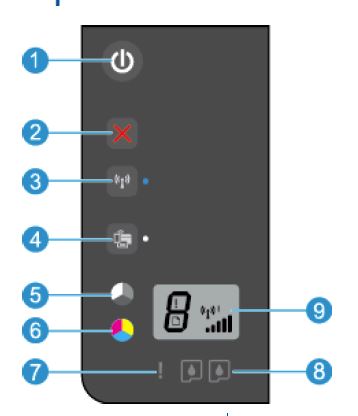
Is the blue light next to the "wireless" button (#3) on? If not, press the "wireless" button
● If the printer has an active connection to a wireless network, the wireless light will be on solid
blue. In the mean time, the printer display will show the wireless icon and signal bar.
● If wireless is turned off, the wireless light will be off.
● If wireless is enabled (wireless radio on) and you do not have a wireless connection, the wireless
light will be blinking. In the mean time, the display screen shows the wireless strength indicator.
Assuming the light is on and not blinking, press the "wireless" button and the "start copy black" button (#5) simultaneously. This should print out a network configuration page/network test report. I don't know what specifically is on this report, but
at the very least, you should see the printer's IP address and Default Gateway address and the network name (SSID) to which the printer is connected. You may be able to determine if the printer is set to have its IP address automatically assigned by DHCP
(your router) or if it has been set to a specific address.
On your computer, open a Command Prompt window (Start Orb > cmd > press Enter) and type
ipconfig /all {press Enter}
Somewhere in the output you will see the information for your wireless network adapter. Make a note of the IPv4 address assigned to the wireless network connection and the Default Gateway. The Default Gateway shown by the ipconfig /all command and the
Default Gateway shown on the printer's network configuration page should be the same. The printer's IP address should be the same as the IPv4 address shown for your wireless network adapter except for the number following the 3rd dot. For example, if your
wireless adapter has an IP address of 192.168.1.101 then the printer should have an IP address of 192.168.1.x where x is any number between 2 and 254 (as long as it is different from the Default Gateway and your computer).
If you can't figure out the ipconfig /all information, please do the following:
Open a Command Prompt window (type cmd in the Search box and press Enter)
- In the black Command Prompt window, type the following and press Enter after each line
ipconfig /all > "%userprofile%\Desktop\ipinfo.txt"
notepad "%userprofile%\Desktop\ipinfo.txt"
exit
- In the open Notepad window, click Edit > Select All (or press CTRL+A) then click Edit > Copy (or press Ctrl+C)
- In the body of your Question, Right-click > Paste (or press CTRL+V) the data from the Notepad window
- Close Notepad and delete ipinfo.txt from your Desktop
Assuming that the printer has an IP address that is consistent with the IP address for your computer, the simplest thing to do is to open Devices and Printers, right-click on the icon for your printer, and select "Remove device." Then use the "Add a printer"
wizard to reinstall it. Click "Add a network, wireless or Bluetooth printer." Windows should find the printer, after which you should select it and complete the wizard. Use the driver that is already installed on your computer.
' cx='32' cy='32' r='32' /%3E%3Ctext x='50%25' y='55%25' dominant-baseline='middle' text-anchor='middle' fill='%23FFF' %3EA%3C/text%3E%3C/svg%3E)

 , then select
Control Panel > View devices and printers.
, then select
Control Panel > View devices and printers.' cx='32' cy='32' r='32' /%3E%3Ctext x='50%25' y='55%25' dominant-baseline='middle' text-anchor='middle' fill='%23FFF' %3EL%3C/text%3E%3C/svg%3E)