Share via

Black Level Playback Issue in Media Players (VLC, Quicktime)

Anonymous
2013-10-26T17:56:53+00:00

This is a strange one:

I have a new computer that I purchased within the month running Windows 8.1. Whenever I play any video file in non-windows media players such as VLC and QuickTime I have an issue with the black levels within the playback. However when I play these files in Windows Media Player or Video, the playback is normal, the black levels correct.

My 1st assumption would be a codec support issue or the media player itself... right?

WRONG, I have tested .mov .mp4 .flv .mkv .mpeg video files in BOTH VLC and QuickTime... the same issue occurs. Once again, the native Windows media players playback normally.

How do I better describe the issue?

Well, the contrast is slightly lower, black is a dark gray, essentially it looks like a gray fog has been placed on the videos or the lightness is jacked up.

Like I said very strange.

If I want to just simply watch something, the windows programs are fine but as a video/animation student there are features within 3rd party media players that are essential and cannot be found within Windows Media Player or Video.

Here is an example:

GOOD:
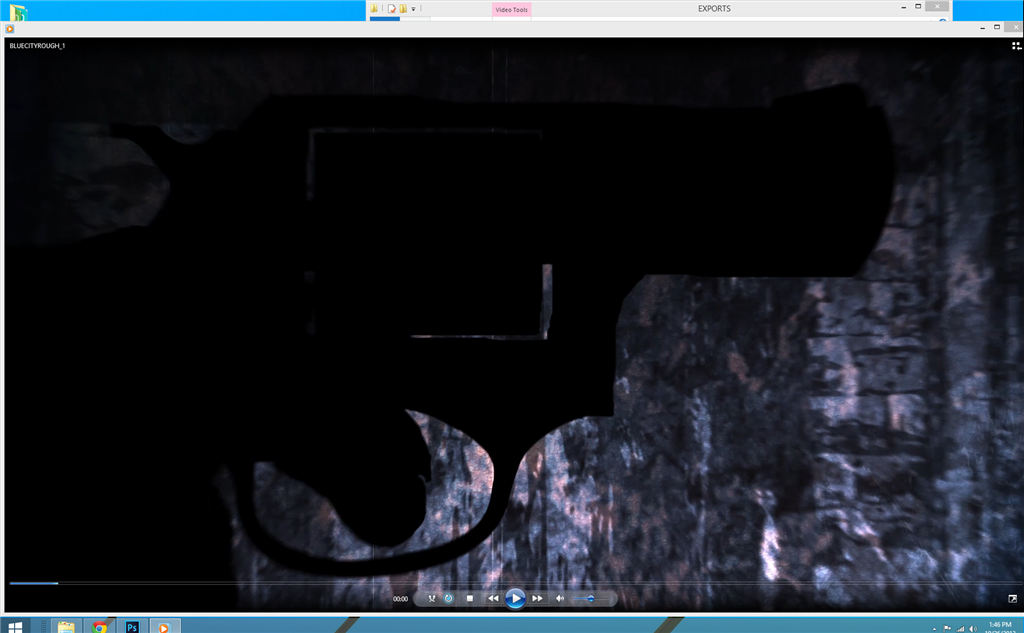
BAD:
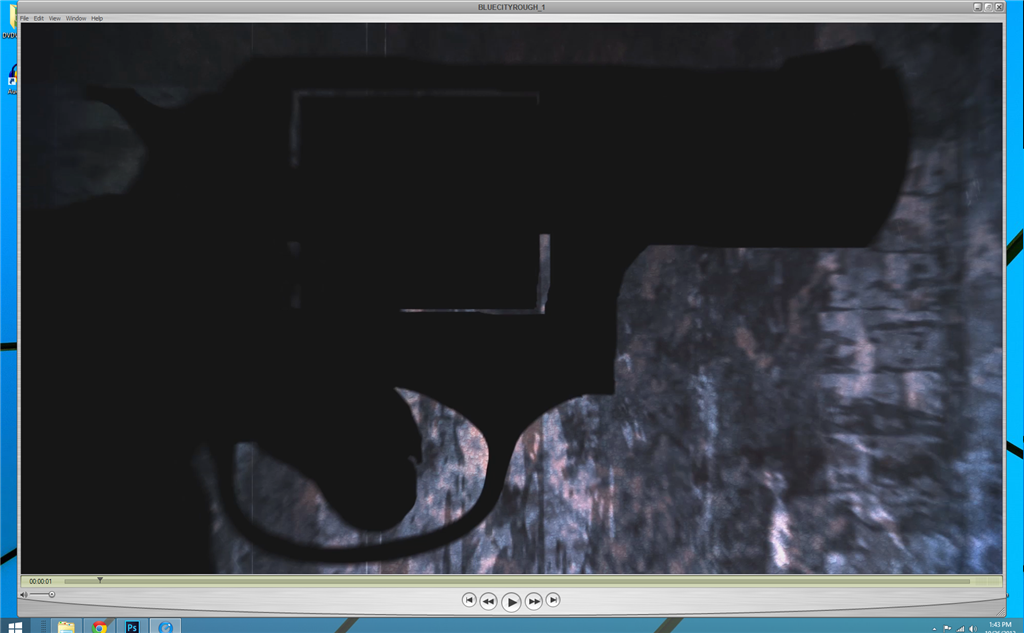
How weird is that?!

If someone has any idea at all what is going on here please let me know. I can't help but think this is some conspiracy--an embedded issue within Windows to encourage me to use Windows programs instead of others... please prove me wrong, I love my PC!

Windows for home | Previous Windows versions | Music, photos, and video

Locked Question. This question was migrated from the Microsoft Support Community. You can vote on whether it's helpful, but you can't add comments or replies or follow the question.

0 comments No comments

Answer accepted by question author

  1. Anonymous
    2016-06-27T17:11:52+00:00

    FIX : (only if you have nvidia graphics card)

    1. Goto Nvidia Control panel
    2. In Nvidia Control Panel select adjust video color settings
    3. In How do you make color adjustments? Select with Nvidia settings.
    4. Select advanced of Nvidia video settings
    5. Select FULL(0-255) in dynamic range.
    4 people found this answer helpful.
    0 comments No comments

2 additional answers

Sort by: Most helpful
  1. Anonymous
    2013-10-29T01:45:24+00:00

    Thank you for the swift response,

    Nonetheless, neither method proved successful. I attempted both a local and Microsoft account, also repeatedly set them as the default programs, then tried re-installing. Still the same issue occurs.

    0 comments No comments
  2. Anonymous
    2013-10-27T15:11:09+00:00

    Hi Seth,

    Thank you for the detailed information.

    As a work around, you can try these methods and check.

    Method 1:

    Make other players default program one by one and check,

    I would suggest you to go through the following steps and check the issue status.

    a.      Press “Windows key and W key” on your keyboard together.

    b.      Type in “Set your default programs” and press enter.

    c.       Click on Player.

    d.      Click on “set this program as default”.

    e.      Save changes the by clicking on Ok.

    Method 2:

    Create a new user account and check the issue status in the new user account.

    Create a user account.

    http://windows.microsoft.com/en-us/windows/create-user-account#create-user-account=windows-8

    Hope this information helps you. Please do let us know if you need further assistance, we’ll be glad to assist you.

    0 comments No comments
