Share via

Windows 10: Disable automatic connection of a wireless network

Anonymous
2016-03-01T00:23:10+00:00

I have a number of available networks in my area but I wish to connect automatically only to my secured Home network. The problem is that one of the unsecured building networks is checked to connect automatically. I have tried to uncheck the box but it always comes back as "connect automatically". I keep getting hundreds of notifications that "UD Tower Network requires attention"  that are making me slightly insane. How do I turn off the connect automatically button for this network? WIndows 10, 64 bit

Original Title: Connect Automatically Network

***Post moved by the moderator to the appropriate forum category.***

Windows for home | Windows 10 | Internet and connectivity

Locked Question. This question was migrated from the Microsoft Support Community. You can vote on whether it's helpful, but you can't add comments or replies or follow the question.

0 comments No comments
Answer accepted by question author
  1. Anonymous
    2016-03-01T05:47:25+00:00

    Hello Fred,

    Thank you for posting your query in Microsoft Community.

    Sorry for the inconvenience caused with Windows 10.

    You may follow the below steps to turn off the “connect automatically” option.

    1. Press Windows key + A to open action center and click on All Settings.
    2. Now select Network and Internet.
    3. In the left panel, select Wi-Fi.
    4. Now in the right panel, select the option Change Adapter Options.
    5. The Change Adapter Options will open the Network Connections. You will find the network connection to which your computer or tablet is connected.
    6. Double click on the wireless connection to open the Wi-Fi status. Go to Wireless Properties.
    7. Under Connection tab, find out “Connect automatically when this network is in range“. By default it is enabled. To disable it, uncheck the option and tap ok.

    Hope the information helps, do reply if you need further assistance.

    Thank you.

    20+ people found this answer helpful.
    0 comments No comments

51 additional answers

Sort by: Most helpful
  1. Anonymous
    2016-07-03T17:04:38+00:00

    That answer was absolutely useless, and I think you knew it. You guys have screwed this up, haven't you? There's no fix yet is there?

    50+ people found this answer helpful.
    0 comments No comments
  2. Anonymous
    2018-07-14T01:26:45+00:00

    Hi Tommaso, I'd be glad you help you. I'll give you an example of how to use the commands Pieter gave as I used them on both my Windows 7 and 10 PCs (All commands are the same, it's just how to start a Command Prompt [Win 7] or Windows Powershell [Win 10] that's different). First, if you're using Windows 7, click on the Start Button (the very lower left of the taskbar, if your taskbar is on the bottom of your display) , click on "All Programs", then "Accessories", and then right-click on "Command Prompt" and select "Run as administrator" (running Command Prompt as an administrator is required for some of these commands) A window will appear that will ask "Do you want to allow the following program to make changes to this computer". Click "Yes". If you're using Windows 10, right-click on the Start Button (at the bottom left of the taskbar) and select "Windows Powershell (Admin)", then "Yes" to "Do you want to allow this app to make changes to your device". With Windows 7, you should see a mostly black window with a blinking cursor at a command prompt (on my Windows 10 PC, the window is blue). Since I'm writing this on my Windows 7 PC, I'll show some screen captures from it.

    The first thing I need to do before walking you through the commands is to urge you to be very careful, as it is possible that if you don't use these commands properly, you could be left without WiFi access until getting the Windows wireless settings set properly for your router(s) or other WiFi access points. I highly recommend that you copy Pieter's commands and my instructions to a Word file or some other text document, and save it to your computer so you will have all this to work with if you are unable to get back online if something is set wrong. Also, write down or save in a file on your computer the SSID or SSIDs (a term for the names of the WiFi network(s) around your computer) you are normally connecting to. For example, my router's SSID is "TechnoDan5G", as you will see below.

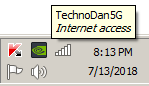
    Before I start, I'll show you what I see when I left-click once on my WiFi adapter icon in the notifications area on my taskbar. The notification looks like this, a set of ascending bars, and when I point at the notification, the SSID of my router, which I am connected to is shown, along with my Internet access status:
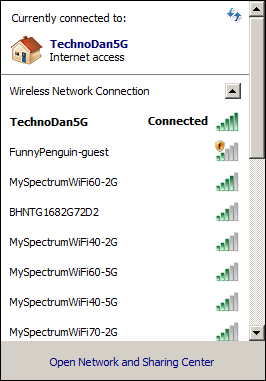
    When I left-click on the network adapter (WiFi) icon, I get this, showing which WiFi router or access point I'm connected to, in this case, my router, plus all the other routers and (possibly) WiFi printers around me:
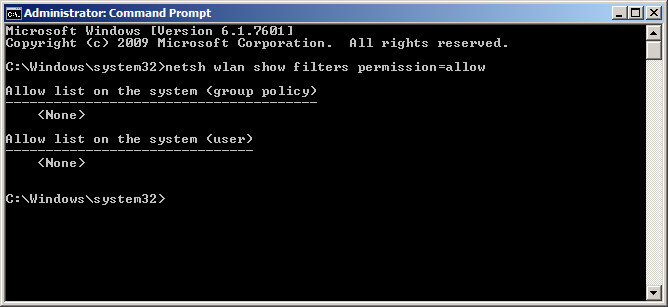
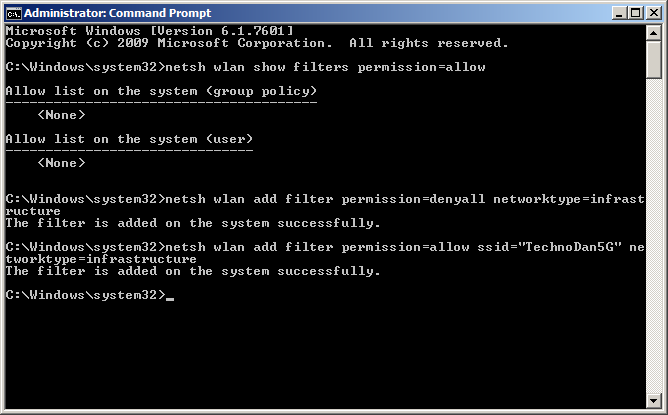
    OK, let's get started. First, just try copying (without the quote marks) "netsh wlan show filters permission=allow", then go to the Command or Powershell window and right-click once. Then press <Enter> on your keyboard. You should see the following or something similar:
    Then, copy (again, and as always, without the quote marks), "netsh wlan add filter permission=denyall networktype=infrastructure", and then go back the command window and right-click once, and then press <Enter>.
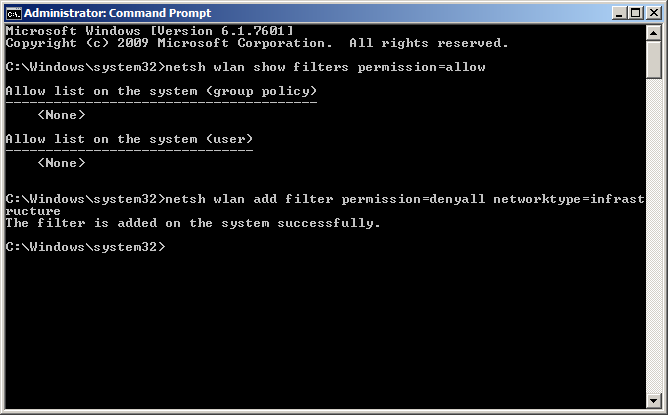
    Your computer will then, if the command is entered properly, lose all wireless access (don't worry, if you need to go back to allowing all WiFi networks, copy "netsh wlan del filter permission=denyall networktype=infrastructure", paste it into the command window with a right-click, and press <Enter>. You should be back to your wireless adapter seeing all WiFi networks around you.) Now, add any WiFi network SSIDs you want to connect to with this command, copying and pasting to the command prompt, "netsh wlan add filter permission=allow ssid="your SSID" networktype=infrastructure", like I did with mine, "TechnoDan5G":
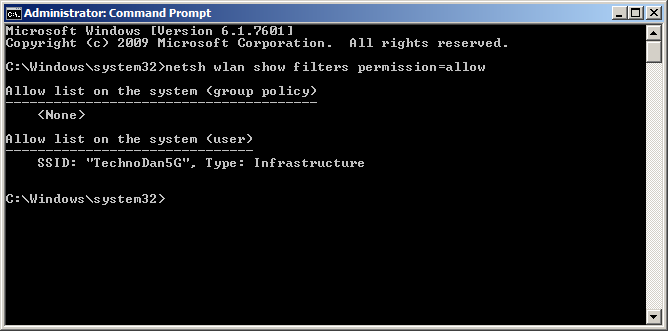
    When you are done adding the SSID or SSIDs that you want, copy "netsh wlan show filters permission=allow", paste to the command prompt and press <Enter>. You should see something like I see:
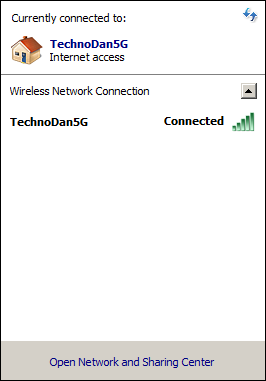
    And now go back to your WiFi adapter icon in the notification part of the taskbar and left-click once on it. You should see only the SSID or SSIDs that you added, like I see with my one SSID from my router, with no other routers and such shown:
    If you need any more help, just let me know.

    Daniel

    40+ people found this answer helpful.
    0 comments No comments
  3. Anonymous
    2017-08-09T08:11:53+00:00

    The issue seems to be that the Microsoft responders are all working inside a domain with Group Policies set, while we are not. After considerable research, I seem to have found the answer by manually using netsh to set local Group Policies as shown here:

     To deny all SSID not ALLOWED:

    > netsh wlan add filter permission=denyall networktype=infrastructure

    To Add Available Wireless Network to Block List:

    > netsh wlan add filter permission=block ssid="SSID" networktype=infrastructure

    To Remove Wireless Network from Block List:

    > netsh wlan delete filter permission=block ssid="SSID" networktype=infrastructure

    To Add Available Wireless Network to Allow List:

    > netsh wlan add filter permission=allow ssid="SSID" networktype=infrastructure

    To Remove Wireless Network from Allow List:

    > netsh wlan delete filter permission=allow ssid="SSID" networktype=infrastructure

    To Show all allowed:

    > netsh wlan show filters permission=allow

    For several of these commands I have created shortcuts in a WIFI Mgmt folder, like this:

    C:\Windows\System32\cmd.exe /s /k "netsh wlan show filters"

    I hope this solves some of the issues

    20+ people found this answer helpful.
    0 comments No comments
  4. Anonymous
    2016-08-12T14:46:11+00:00

    This isn't helpful.

    This is clearly a software issue and can't be rectified by playing with wireless settings. Please can Microsoft create a patch? I find that often it stops me logging in as the computer is confused on the networks it is connected to.

    I have followed all the suggested steps and it makes no difference as I am not actually connected to the networks that the computer is suggesting I connect automatically to.

    Regrads

    David

    20+ people found this answer helpful.
    0 comments No comments
