Share via

Grayed out picture thumbnail

Anonymous
2016-10-01T20:22:39+00:00

I have been editing photos with Google Picasa, which is also my viewer.

In Windows Explorer, my folders so far today have been fine - thumbnails crisp and brilliant.

However, my current folder has all greyed out thumbnails.  Double-clicking opens (in Picasa) a brilliant photo, so it's lost no data.

However, I cannot cursor-arrow through the folder (look at the next photo without closing the first and double clicking the next.

There is another folder where half of the pictures have this behavior, and the other half crisp brilliant thumbnails.

How can I make them all that way?  I understand the other issue is one for Picasa.

Windows for home | Previous Windows versions | Files, folders, and storage

Locked Question. This question was migrated from the Microsoft Support Community. You can vote on whether it's helpful, but you can't add comments or replies or follow the question.

0 comments No comments
Answer accepted by question author
  1. Anonymous
    2016-10-02T21:03:50+00:00

    Right click one of the afflicted folders/images, choose Properties and see if the Properties say it is Hidden.

    If course you would have to have your Explorer set to show hidden files and folders in order to see them.

    Here is an example of a folder that has inside a Hidden folder and a Hidden image and both are dimmed:

    5 people found this answer helpful.
    0 comments No comments

6 additional answers

Sort by: Most helpful
  1. Anonymous
    2016-10-03T00:20:37+00:00

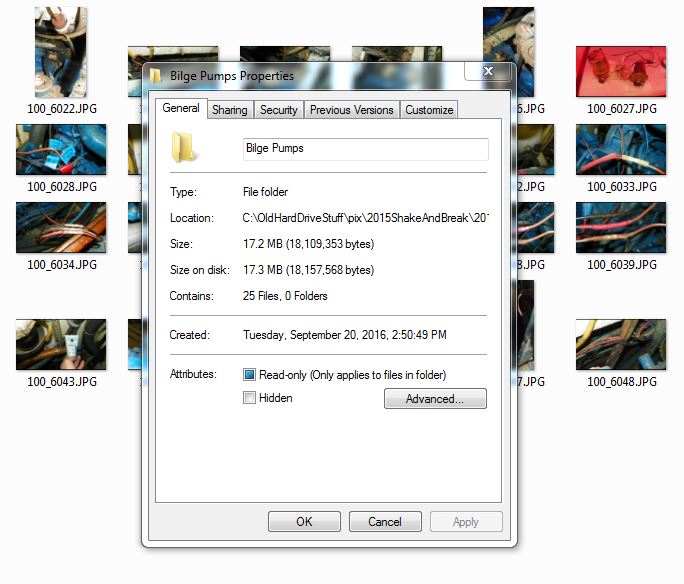
    I looked the folder had the 'hidden' box checked.  I unchecked it and there was no change.
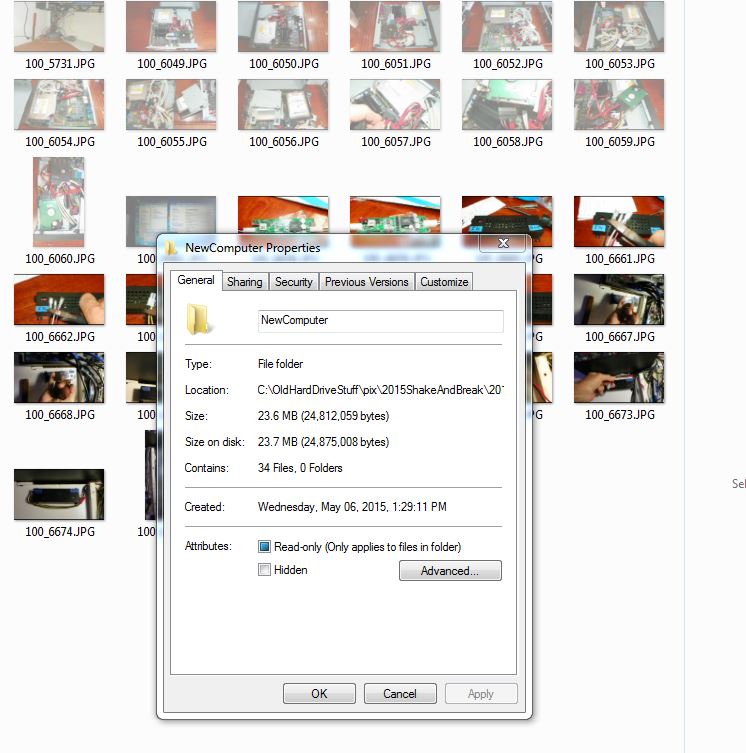
    I changed it back:
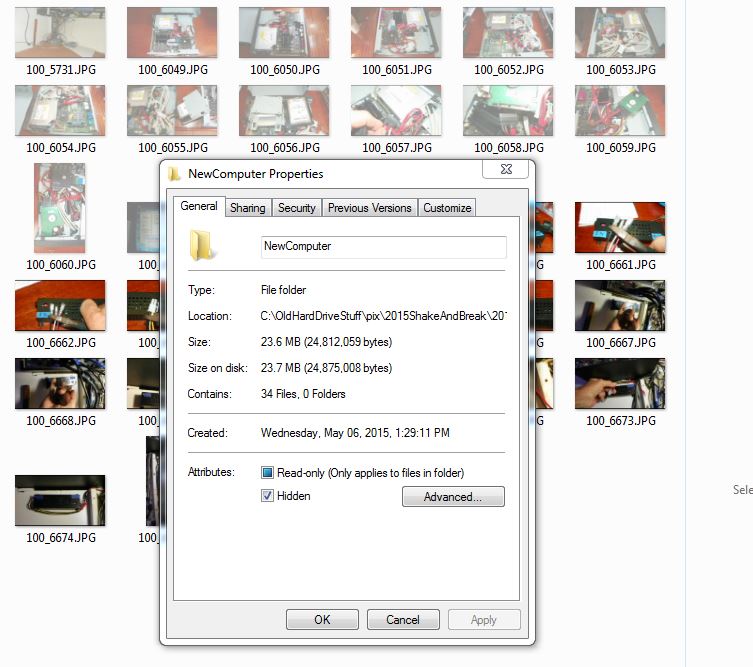
    Both captures were after the changes were applied via 'ok' and then reopening the properties.

    BUT!....

    I also tried getting the individual files to change.  Unclicking the 'hidden' "opened" that particular file.

    I tediously did all the others, one at a time, with the same results.  Here's what the thumbnails look like now:
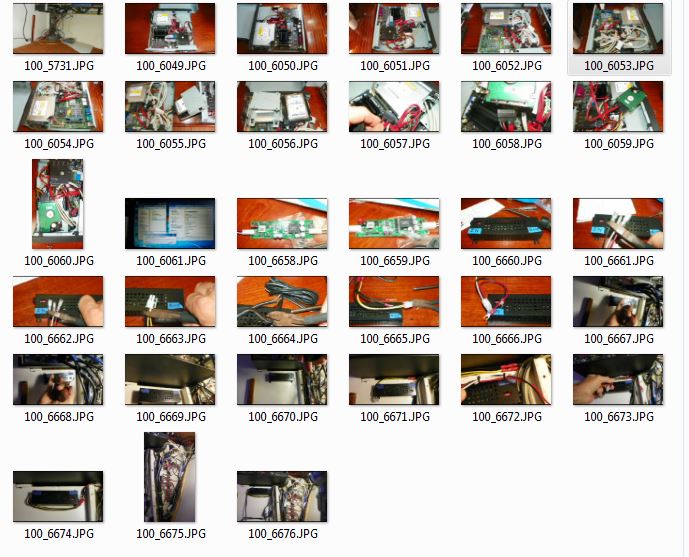
    So...

    Changing the folder attributes didn't change anything.  Individually changing my hidden shots fixed it.  Un'hidden'ing the folder had no effect, and I had always been able to see it in the tree, so I presume that the folder itself never was 'hidden'.

    So, on to the one which actually started all this; it's entirely grayed:
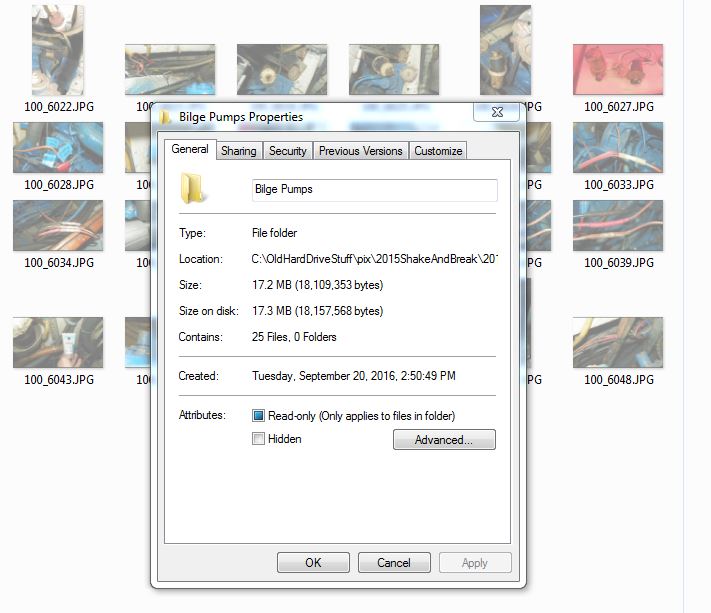
    Its  properties were already not 'hidden' - but I expect I can deal with the pictures as they show up, again, in other folders.

    I started to say that I wish there were a global solution. But I wondered... What happens when I click one, then 'control-A' and highlight them all, and ask for properties.

    Sure enough, it showed 'hidden' - and when I clicked it to remove it, all of them came up brilliant.

    So, a brilliant, pardon the expression, solution, and thank you so much.  I'd actually tried the folder version of 'hidden' or not, but as you saw, it didn't change the contents.  Highlighting/selecting 'all' got it to come out of hiding.

    Thanks again!
    1 person found this answer helpful.
    0 comments No comments
  2. Anonymous
    2016-10-03T00:24:31+00:00

    Since my earlier reply, I have solved the issue.

    See the response under yours for the answer.

    I opened one of the newly brilliant folder previously completely grayed thumbnails, and asked to edit in Picasa.  It immediately took me there, and created an index folder with all the images in it.

    I expect that the solution to the previously 'hidden' (for why and how I have no idea) files also solved the Picasa issue.

    Thanks!

    0 comments No comments
  3. Anonymous
    2016-10-03T00:00:08+00:00

    I have V 3.9.141.

    The resolutions are unknown.  The file sizes are in the mid 700K range.

    My click-through is under C:\OldHardDriveStuff\pix\2015ShakeAndBreak\2015ShakeAndBreakRaw\NewComputer in this particular instance; I get that by clicking on folders in the tree as seen.  I'm guessing that the program that does that is File Explorer

    My issues are with the grayed out items.  Those I cannot cursor-arrow through.  Opening any one of those, when I 'arrow' right, yields one of the brilliant ones, and then the cursors behave normally.  If I open the first brilliant one, I cannot 'arrow' left into the others.

    I'll go on to the next reply; I trust this clarified.

    Here is a hybrid example.

    The first set of pix is the 'grayed out' I referred to, and the second is the 'brilliant' version.

    0 comments No comments
  4. Anonymous
    2016-10-02T19:49:40+00:00

    Hi Skip,

    To help resolve your concern, kindly answer the questions below:

    • Have you updated Picasa to the latest version of it?
    • What are the resolutions of the photos that are affected?
    • Where you say "However, I cannot cursor-arrow through the folder (look at the next photo without closing the first and double clicking the next", does this mean whenever you access the File Explorer?

    It would be better if you could send us a screenshot to better assist you.

    Looking forward to your response.

    0 comments No comments
