' cx='32' cy='32' r='32' /%3E%3Ctext x='50%25' y='55%25' dominant-baseline='middle' text-anchor='middle' fill='%23FFF' %3EA%3C/text%3E%3C/svg%3E)

How to solve Freedom Fighter Game Error: Direct3D try changing resolution or color Error ? Just like it happens with games like GTA VC, Hitman : Silent Assassin and Prince of Persia, the Freedom Fighter game too has this so common issue while gamers try running it. So in this article we will try investigating this problem by using some common fixes. This article will help users only when their computer or operating system that they operate is compatible for playing the game. So before we go any further, have a look at the System Requirements for the game:
Minimum System Requirements for Freedom Fighter game:
| CPU | Pentium III 733MHz or comparable |
|---|---|
| RAM: | 128 MB |
| VGA | 32MB D3D With Hardware T&L* capable Video Card with DirectX8.1 or higher Compatible drivers |
| DX | DirectX8.1 or higher |
| OS | Windows(r) 98/2000/ME/XP/7 |
| HDD: | 650 MB |
| Sound: | Sound Card with DirectX8.1 or higher compatible Drivers |
| ODD: | CD ROM Speed: 4x |
Now one you have checked your PC with above mentioned System Requirements, lets go ahead looking into some of the Quick Fixes for the problem.
Some Hints for Fixing the Error : Direct3D try changing resolution or color 1. Open Game From Program Files Game Directory
You might have tried opening the game from the desktop shortcut but have you tried the same from the main exe file? Just go to Program Files and open the folder in which Freedom Fighter game executable program is available and try opening the game from there. You may try changing compatibility mode to lower OS versions by right clicking and choosing properties.
2. Lower Screen Resolution and Color:
Just as the error indicates, you may try opening the game by changing screen resolution and color. To do this you must right click on desktop and choose properties to change screen resolutions. You may also change bit color to 16 bit or 32 bit and try running the game.
3. Install Graphics Drivers in Safe Mode
If you are having problem with graphics drivers just try opening the computer in safe mode by pressing F8 when windows logo appears while booting. The safe mode being free from other applications occupying system's memory will make installation easier.
3. Check .dll missing or deleted
As I see in some forums online, some people also get this error because they or some program that they installed has deleted some important dll files. Deleting or removing Dll files or even duplicating some can cause serious problems in your PC. So make sure you download Dll checker program and recover or fix any DLL errors.
4. System Restore and Uninstall some unnecessary apps
A thumb rule for fixing any recent unknown error is the System Restore. If you have enabled it and have some saved System restore points before you encountered this error, simply get back to previous state by doing a system restore. You may find some useful steps to do System restore on your OS on microsoft site.
6. Get the Latest Directx Version
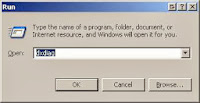As you see in the above System Requirements you need to have Directx version above 8.1 so better download the latest version available. Moreover, you can check for any issues with your video card or version of Directx by typing dxdiag in Run and checking for the required settings. Set hardware acceleration in Sound tab to various levels and try running game again. Some even recommend getting appropriate .NET version.
10. Get a New Graphics Card
As I recommended in my previous fixes on GTA VC error or GTA Fatal Error, just buying a new graphics card can be best solution for most people because in many systems the inbuilt video card often becomes inefficient after some time and when you have many programs using them, you may get errors like these.