Share via

Windows 8 has no bluetooth settings.

Anonymous
2012-11-18T00:32:26+00:00

I recently traded in a pc to best buy for a new one directly from the manufacturer.  It came with windows 8.  First off the new revision of Windows 8 is way to different from the windows 8 RC that I used several months prior to the public release and not in a good way.  The menus are too hidden and impossible to find, or seemingly non existent.  Which is where this issue is heading.  When I try to add any bluetooth device, it says it has paired, installed, and is fully functional.  This is not accurate for several devices I attache.  And when I go to bluetooth settings on the task bar, it brings me to devices in metro, with no ability to activate troubleshoot, or modify the device settings.  In the earlier version of Windows 8, I had the ability to work in the Windows 7 environment uninterrupted, now every time I try to access a setting it brings up metro instead of allowing me to continue in Desktop Mode.  And metro doesn't give me the same deep interactions to system settings that I had from 3.1 through 7 like being able to change hardware performance and capabilities and as a technician, it is a necessity.  Basically, how do I decativate this metro menu feature so I can work in a normal environment?

Windows for home | Previous Windows versions | Devices and drivers

Locked Question. This question was migrated from the Microsoft Support Community. You can vote on whether it's helpful, but you can't add comments or replies or follow the question.

0 comments No comments

8 answers

Sort by: Most helpful
  1. Anonymous
    2016-11-23T19:08:43+00:00

    omg. I have tried literally everything on Windows 8. Nothing works. This is making me want to shoot myself. Windows 8 is a retarded piece of sh**. Every piece of advice I've seen, I've tried several times and it's all useless. My bluetooth speaker works perfectly on my iphone 4s and my friend's phone. Thank god it's only my work laptop (belongs to my boss) and not MY laptop that's Windows 8 or I'd be totally furious. What kind of computer in this age doesn't have bluetooth? Gotta be stupid. This better work on Windows 10 when I get home, though. I've wasted an hour or more of my time trying to connect my device. Bluetooth literally does not exist as far as this laptop is concerned.

    10 people found this answer helpful.
    0 comments No comments
  2. Anonymous
    2013-06-10T05:00:14+00:00

    Hello GroundHawk,

    I have been dealing with the same frustration. I have an Arctic P311 Bluetooth stereo headset that, for whatever reason, performs poorly as a bi-directional device (headset and microphone) but works supurbly as  Bluetooth stereo headphone device... if you can configure it as that ONLY. With my old XP desktop, I had to buy a Bluetooth software suite (BlueSoleil 7) and a dongle to use the headset. It would not work well as a microphone/headset on the XP either. I'd get signal interference, (no frequency hopping capability with the cheap dongle I was using), that would invariably cause the signal to get lost; (a high pitched whine resulting.)

    With my new laptop, which has Bluetooth 4.0 hardware, I don't get the signal failure but, the sound quality is still tinny sounding and poor. Neither can I do anything with the windows 8 OS software, to configure the device after the initial setup has taken place and the associated windows have been closed. I think you may find it helpful to uninstall the Bluetooth headset and reinstall it. Then, before closing the associated installation windows, select the "Bluetooth Operations" window, (with the BT device name in the window's title bar), and select "View Device Properties," (just below your computer's icon and name in the white screened portion of the window.) From the new pop-up window's services tab, un-check the box for Audio Sink; assuming you don't intend to use the headset for video chat and, do want to hear good quality audio playback.

    Hope the info helps!

    Now, if only the Windows tech folks would make the Bluetooth Operations window post install accessible!

    5 people found this answer helpful.
    0 comments No comments
  3. Anonymous
    2012-11-18T17:29:10+00:00

    Hi GroundHawk,

    Thank for posting in our Community and giving us an opportunity to help you.

    It looks like while going to Bluetooth settings on task bar it moves you to the metro screen. Here I would like to inform you that, this is by design for windows 8. From the metro app screen you can press WINDOWS+C to open charms bar on the screen. From there you can go to Devices or Settings and work accordingly. Again from metro app screen you can type in the application which you want to use and work.

    Hope it helps. For further queries you are always welcome to our Community.

    4 people found this answer helpful.
    0 comments No comments
  4. Anonymous
    2012-11-29T19:16:02+00:00

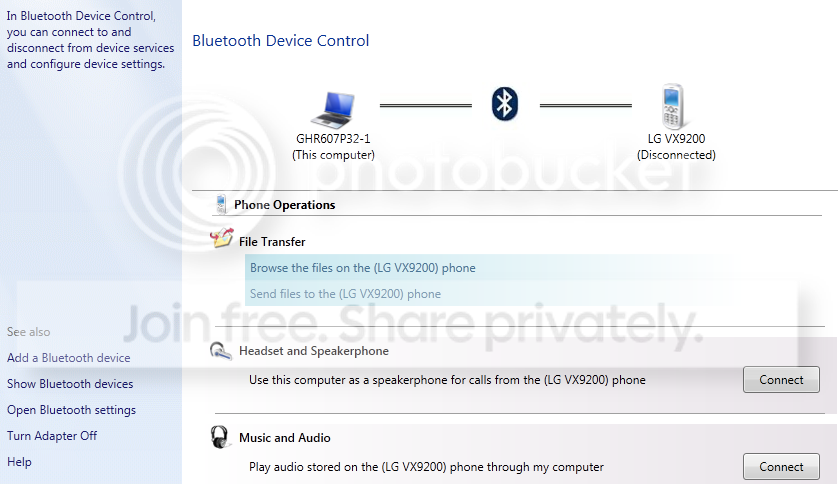
    Unfortunately that is not a helpful solution.  (winkey) + C brings me nothing but options I've dug through time and time again.  Not even geek squad has any idea as to how to get bluetooth peripherals to function properly on windows 8 computers, at all, they said they experience several cases with devices not cooperating.  I had even less luck with the manufacturer.  I now have a computer less than 25 hours old and they refused to help me without paying $170 for support.  This is what I need to get to to manage any device settings.  It was similar for all bluetooth devices I connected.  http://i674.photobucket.com/albums/vv109/GroundHawkX/phoneblu.png

    3 people found this answer helpful.
    0 comments No comments
  5. Anonymous
    2014-12-24T05:26:05+00:00

    Windows 8.1 does include Bluetooth settings, if your PC, (laptop/desktop), has either a Bluetooth card or dongle installed. If it is a card that came with the PC, the drivers should already be installed and the device should be ready to pair with any Bluetooth device you're trying to connect to it. You can check the Bluetooth card/dongle status by going to charms/Settings/Control Panel. In the "View By: Category" setting, you will need to select (click on) the Hardware and Sound category group and then click on "Device Manager," listed with the "Devices and Printers" category group. From the Device manager window, you can easily see if there is a problem (as any device issues are shown by the device group icon having its category drop-down already open (typically with the device icon showing with a yellow warning "!" icon beside it.) Otherwise, click on the icon, (in this case the BT symbol), and the Bluetooth device and associated (paired) devices will be displayed in a drop-down list. All you should need to do is confirm that the Bluetooth icon is present and no warning symbols are associated with any of the devices here. If there are issues, you will need to uninstall and reinstall the device drivers; (and software, if any.) If a device you wish to use is not listed here, you will need to have it active in pairing (discovery) mode and have Windows "find" it. Go to your Charms bar, select Settings. Click on Control Panel and select "Add a Device" from the "Hardware and Sound" category. Windows will automatically detect the discoverable device and configure it: (You may need to enter a pairing code to enable the device pairing.)

    As I still have issues with poor sound quality and complaints from others I chat with using VoIP, I'd recommend not using Bluetooth headset devices for internet chat or Skype. Windows often misisconnects the headphones in headset mode when I want to stream a movie though, which has forced me to disable the "headset" feature of my Bluetooth stereo headphones with built in mic. Other than that headset issue, I like having Bluetooth 4.0 on my desktop as, it allows me to listen to my music and movies without a "tether" just about anywhere in my house and, even in the front or back yard.

    If you have a headset, (or other Bluetooth audio device, like portable speakers), already paired, you can connect to them via the speaker icon (beside the date and time on the right hand side of your Windows desktop tool bar), and right click on it. Select Playback Devices and choose your (powered on) device from the list by right clicking on it and choosing "Connect."

    XP was more familiar for me to set up devices with but, now that Microsoft has addressed some of the connection/device access issues it has had, via updates, much of the trouble I and other Windows 8.X users have had has been remedied. Now, it's just getting familiar with the new interface and navigation tools.

    For me, once I got over the "shock" of the dramatically different user interface, I've found it fairly easy to get around in and use. (I hated Windows 7, and never got familiar with it - going straight to Windows 8 when XP was right at it's end of support date.)

    1 person found this answer helpful.
    0 comments No comments