Microsoft Security | Microsoft Entra | Microsoft Entra ID
A cloud-based identity and access management service for securing user authentication and resource access

This browser is no longer supported.
Upgrade to Microsoft Edge to take advantage of the latest features, security updates, and technical support.
' cx='32' cy='32' r='32' /%3E%3Ctext x='50%25' y='55%25' dominant-baseline='middle' text-anchor='middle' fill='%23FFF' %3EER%3C/text%3E%3C/svg%3E)
For some time, we use Meraki Access Points with Radius authentication. The NPS configuration is straight forward, we configured a network policy > Authentication Methods > EAP types: "Microsoft: Protected EAP (PEAP).
On the "Edit" page below EAP type, we used "Secured password (EAP-MSCHAP v2) and we configured the certificate that must be used.
Now this works great for domain joined devices. Even pre-logon works great, so before the user is logged in we already have Wi-Fi connection.
But for Azure AD Joined devices (using PIN login), this doesn't work as expected. As soon as you try to connect, it asks for a password. If you fill in the password, you are connected. Even if you somehow login to the network with a password, it's also working perfect. And logging in with a password in the User Account on the Windows Logon screen, it also works.
In the NPS-log, I do see a successful login, even though it's not working. If I check the security eventlog, it tells me that the logon has failed with "bad username or password".
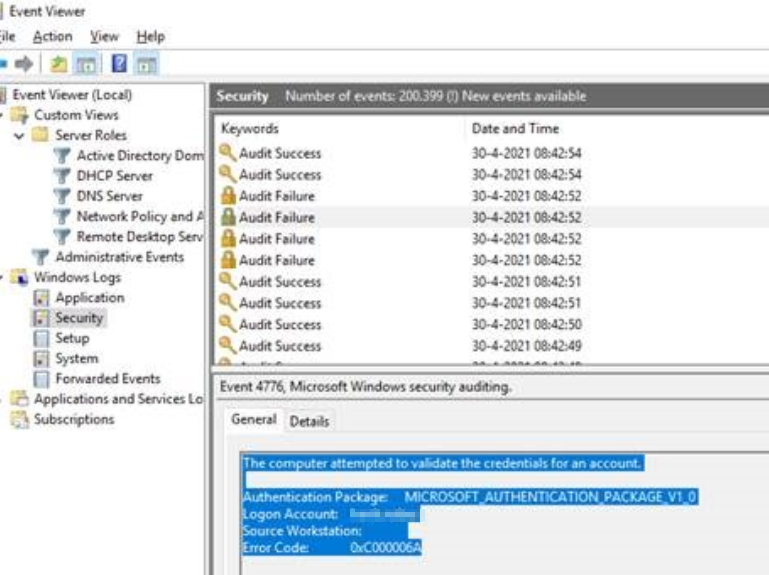
We use Windows Hello for Business (which works great for drive mappings and other applications).
I found a recent blog that could be the problem: https://sysmansquad.com/2021/04/27/working-around-nps-limitations-for-aadj-windows-devices/
Maybe NPS needs to find the computer object. But I want to verify it here first, could that be the problem? I have not configured a condition in NPS that checks for a domain computers group for example.
Can someone shed some light on this problem, why it's failing? Thanks a lot in advance.
A cloud-based identity and access management service for securing user authentication and resource access
Thank you Jason for your help. We weren't actually using device auth in NPS, that's what I meant.
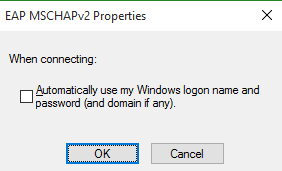
Luckily, we found the issue. The issue was related to WH4B because the WiFi settings on the device were configured to use the Windows username and password for automatic sign on to the WiFi network but that was failing because of WH4B (as WH4B uses smartcard auth).
Unchecking that checkbox solved our issue.
Thanks again!

Makes sense and glad you found it.
Thank you for confirmation! I had some doubts because that Q&A didn't mention Windows Hello for Business.
We will try the workaround. Thanks again.
Maybe NPS needs to find the computer object.
Not maybe, definitely. The blog you linked to as well as the Q&A thread that it links to calls this out. The blog presents a possible workaround. Other alternatives include only using user auth (meaning there is no pre-logon, device-based auth).
Yes, this is a known issue and in the backlog to be addressed but with no commitment at this time.
(This is unrelated to Intune so I'm removing the Intune tag as well.)
Hi Jason,
Unfortunately, this is not the problem. We checked it multiple times but even with dummy devices, the login fails. We don't use devices in the conditions tab so that can't even be the issue.
Just one more detail to add. As soon as we connect to any SSID that's just using wpa2 key and then try to access my shares. That works so also WH4B works fine. After that, I try to connect through RADIUS and I am directly connected. So somehow the WH4B sign in process must be triggered everytime and is failing with NPS.
Any idea's how we could solve this?
Sorry, not following the comment here or what dummy devices have to do with this. NPS when used for device auth (as with 802.1x) requires the devices to have a local AD account. This is fact and is unrelated to WHfB. This may or may not be your only issue, but it is certainly an issue.