Let me guide you Nagesh.
First, create your own installation media using either a USB flash drive or a DVD. Before you begin, make sure that you have the following:
- A USB flash drive or DVD. A blank USB flash drive or DVD with at least 5 GB of available drive space. Using a DVD requires a DVD burner and software on the PC you’re using to create the media and a DVD player on the PC where you want to
install Windows.
- A product key. The 25-character product key.
Here are some things to check on the PC where you want to install Windows:
- 64-bit or 32-bit processor (CPU). You’ll need to download either the 64-bit or 32-bit version of Windows that’s appropriate for your CPU. To check this on your current PC, go to
PC info in PC settings or System in Control Panel, and look for
System type.
- System requirements. See the system requirements before installing
Windows 8.1. We also recommend that you visit your PC manufacturer's website for info about updated drivers and hardware compatibility.
- Language in Windows. You'll need to choose the same language when you install
Windows 8.1. To see which language you're currently using, go to
Time and language in PC settings or Region in Control Panel.
- Edition of Windows. You should also choose the same edition of Windows. This might be
Windows 8.1 or
Windows 8.1 Pro. To check which edition you're currently running, go to
PC info in PC settings or System in Control Panel, and look for
Windows edition.
Second, when everything is ready, download Windows 10 from this link below:
Create Windows 10 installation media
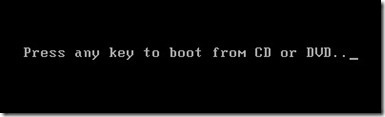
Once your computer is set to boot from the DVD, you should see this option. If you are installing from a retail Windows 10 USB thumb drive, you will be asked to select either 32 or 64 bit Windows 10.
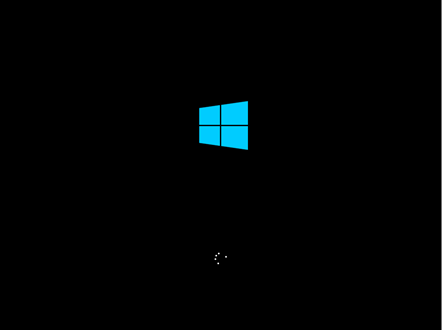
The Windows logo will appear on screen, this might be here for a while, as long as you see the animating dots, everything should be ok.
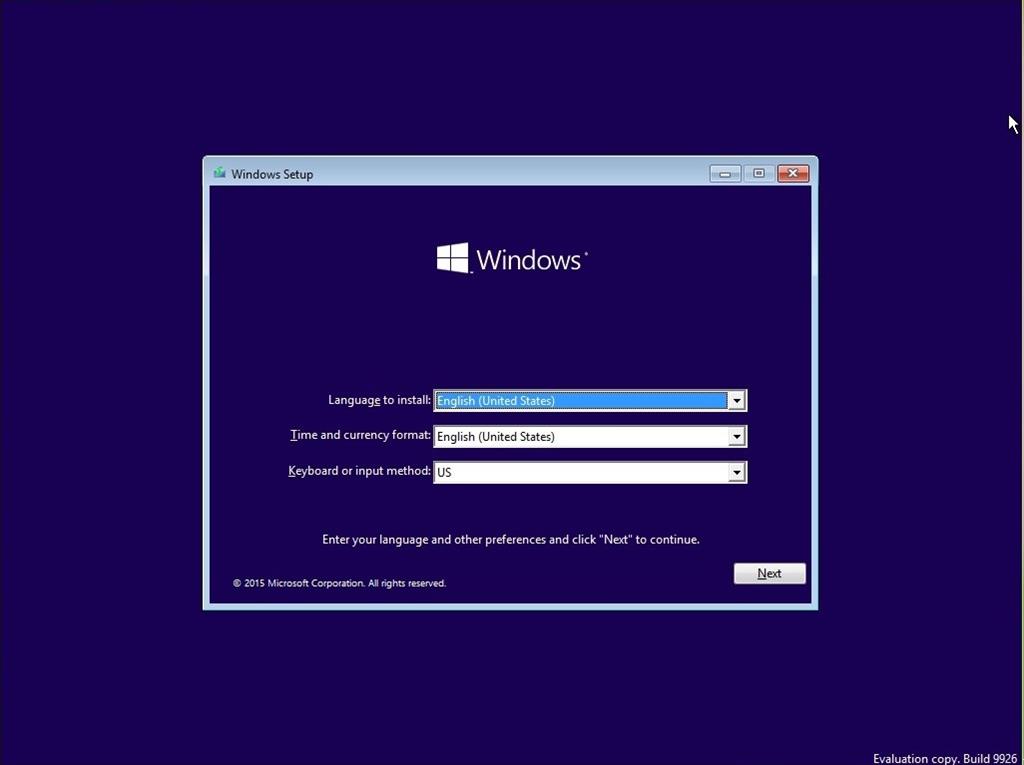
Select your Language, Time and Keyboard method then click Next.
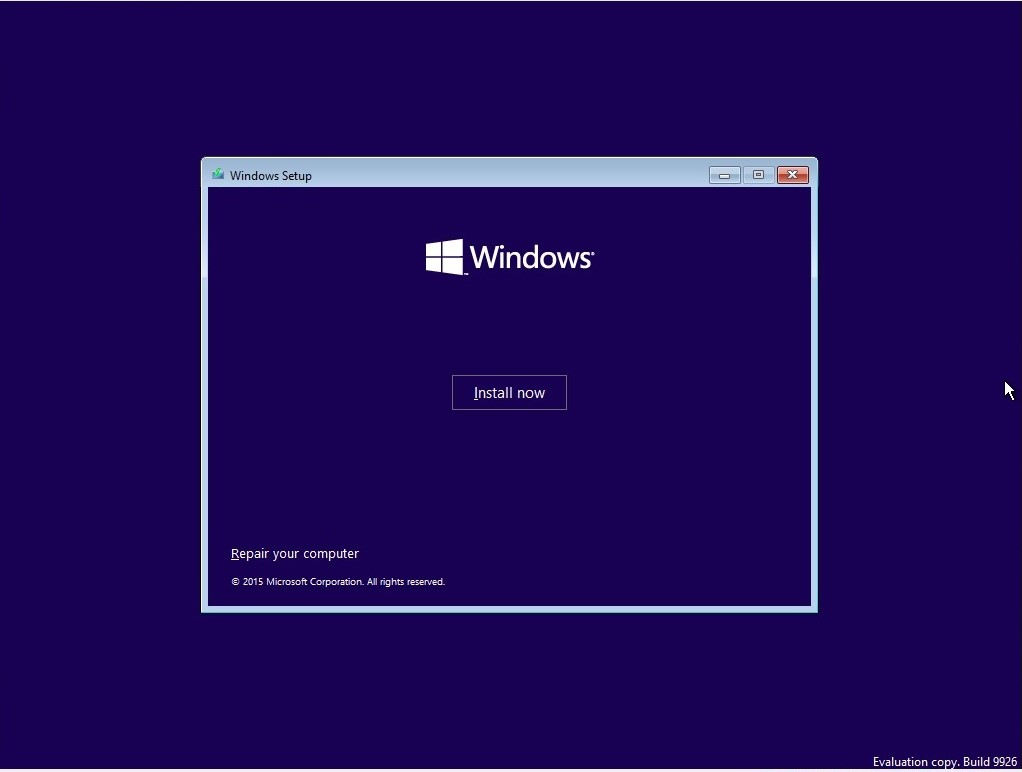
Click Install now.
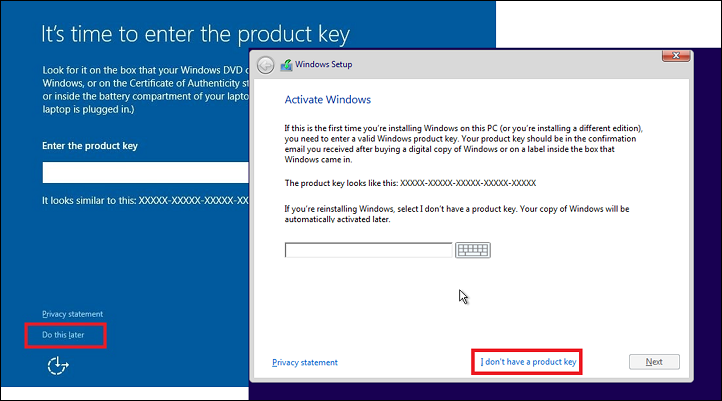
Windows 10 setup will prompt you for a product key during installation a couple times. If you originally upgraded from Windows 7 or Windows 8/8.1 click the option 'I don't have a key' and 'Do this later' . If you have a Windows 10 product key, you can proceed
to enter it.
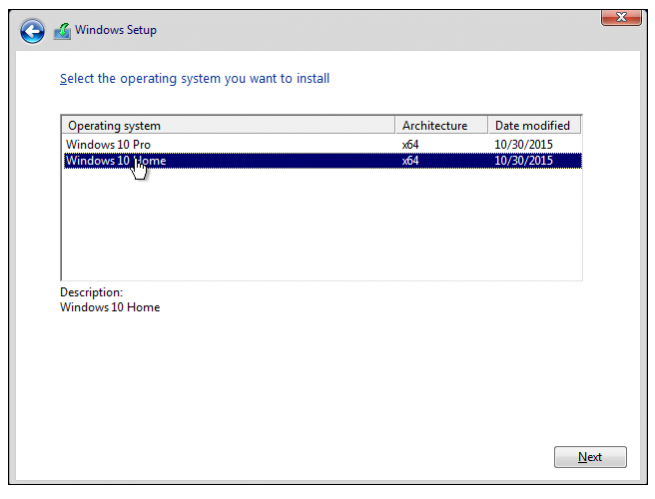
Setup will also prompt you to select the edition you have a license for - Home or Pro. Please make sure you choose the right edition. If you choose the wrong edition, your only option will be to perform a clean install again.
The copy of Windows 10 you download and upgrade from will correspond with the edition of Windows you have installed.
Wait while setup prepares to copy files.
Accept the license terms then click Next .
That's it. That should reinstall Windows 10.
Let us know how things go so we can further assist you.
' cx='32' cy='32' r='32' /%3E%3Ctext x='50%25' y='55%25' dominant-baseline='middle' text-anchor='middle' fill='%23FFF' %3EA%3C/text%3E%3C/svg%3E)
