Share via

Antimalware Service Executable very high disk usage

Anonymous
2018-01-19T16:42:58+00:00

Dear everyone,

I have recently upgraded to Windows 10 when my university began supporting it. I started off with a clean install, without old files. However, I am on a laptop with a HDD, and the Antimalware Service Executable runs nearly always, every day, all day, at 100% disk usage (which is approximately 4 MB/s). My laptop has become nearly unusable. Even merely opening Settings takes over 5 minutes.

If necessary, I am willing to disable Security features since the machine is mostly used for programming and has nearly no installed programs or downloads. Of course, highly limiting the scheduled check would still be preferred.

What is the best course of action to take? I cannot find any setting that would seem to help, and disabling real-time protection for instance is only temporary.

Thanks!

Windows for home | Windows 10 | Security and privacy

Locked Question. This question was migrated from the Microsoft Support Community. You can vote on whether it's helpful, but you can't add comments or replies or follow the question.

0 comments No comments

Answer accepted by question author

  1. Anonymous
    2018-01-20T17:10:50+00:00

    Hi Infima,

    Antimalware Service Executable is a process used by Windows Defender to protect you real-time for any threats. What I recommend you to do is to change the triggers that starts this process and set it only whenever the device is idle. Follow these steps:

    1. Press Windows key on your keyboard, then type Task Scheduler, right-click the Task Scheduler search result then choose Run as administrator.
    2. On the left-pane, click Windows folder and search for Windows Defender.
    3. Double-click Windows Defender Scheduled Scan to open its setting.
    4. On the window that would appear, click the Conditions tab.
    5. Under Idle, tick Start the task only if the computer is idle for: and Wait for idle for: and set these for around 1 or 2 hours depending on your preference.
    6. Make sure that you also tick Stop if the computer ceases to be idle so that whenever you're actively using the device, the process would stop.

    NOTE: Make sure that only the Idle options are the only one with checks.

    Update us if there are improvements.


    If you think this was useful, feel free to "Mark it as an answer" to help those who are facing the same problem.

    1000+ people found this answer helpful.
    0 comments No comments

22 additional answers

Sort by: Most helpful
  1. Anonymous
    2018-05-04T17:58:18+00:00

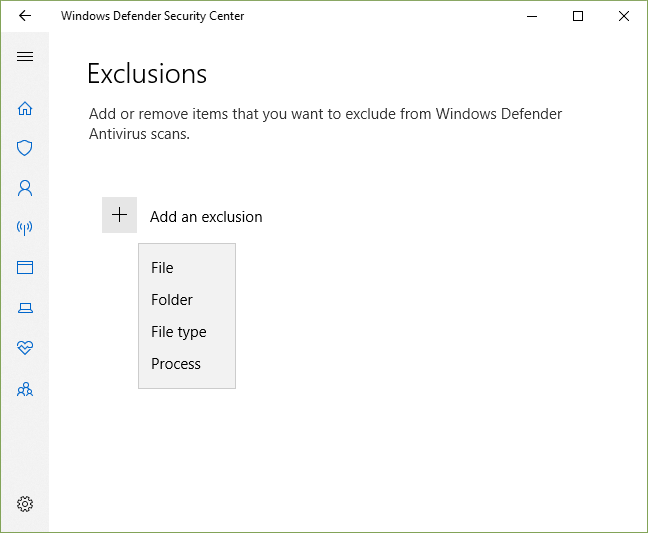
    There’s a potential confusion in your instructions for setting up an exclusion for MsMpEng.exe, rkcreationzzz. This file should only be excluded with a process exclusion. A process exclusion prevents Defender from scanning a file every time it’s accessed by the excluded process and thus reduces the workload and resolves the resource overhead issue for the Antimalware Engine. These are the choices that we’re presented with in Windows 10, and the proper choice would be Process:
    The idea of setting up a process exclusion in order to prevent the Antimalware Engine from tracking itself goes back to 2007, when it was first posted by Coleman:

    http://geekswithblogs.net/Coleman/archive/2007/03/26/109906.aspx

    Obviously, people are still looking for a simple answer for this issue, and assuming that the issue is just with the Antimalware Engine tracking itself makes the answer a whole lot easier than it would be if we had to use Task Manager, or the Windows Resource Monitor, or the Sysinternals Process Monitor to actually hunt down the process responsible for Defender’s aggravated state.

    Now, a process exclusion for the Antimalware Engine isn’t likely to help with the current version of Windows Defender, but it certainly won’t hurt to try. And this might just set folks on the right track – because using a process exclusion is precisely how we prevent the Antimalware Engine from chasing the read/write operations of any problematic process. These days Defender would more likely be chasing some malicious or overactive third-party application process, or maybe even an errant system process; rather than just chasing its own tail.

    https://docs.microsoft.com/en-us/sysinternals/downloads/procmon

    And it’s not really surprising to see that unchecking the items in the Conditions tab of the Windows Defender Scheduled Scan task has now gone viral – because it certainly does have the virtue of simplicity – but on the downside, it’s sad to see that so many of today’s Windows users don’t have a clue about how Windows Automatic Maintenance works, or even about how Task Scheduler works, and that they’re so easily led astray. It looks like it’s now mandatory for all derived tutorials on this topic to include these bogus steps for fixing the Windows Defender Scheduled Scan task, e.g.:

    https://windowsreport.com/msmpeng-exe-high-cpu-usage/

    And we even see these steps repeated in blogs by people who really should know better:

    https://blog.emsisoft.com/en/28620/antimalware-service-executable/

    And of course the credit for this mountain of misinformation really goes back to Tadasha Mishra’s reply in this classic Answers Forum thread:

    https://answers.microsoft.com/en-us/windows/forum/windows_8-performance/can-one-prevent-antimalware-executable-to-start/14d43f26-c682-4b3d-80b6-59ae754b8649

    I protested until a Community Moderator finally removed the reply's “answer” credit, but the damage had already been done – and now there are a thousand and one derived tutorials out there that all parrot these same contrived steps (or variations thereof). 

    GreginMich

    10+ people found this answer helpful.
    0 comments No comments
  2. Anonymous
    2018-08-31T10:53:17+00:00

    I have the same problem but when I select the Conditions tab for Windows Defender Scheduled Scan the check box to "Start the task only if the computer is idle" is greyed out. I have selected Run as Administrator.

    8 people found this answer helpful.
    0 comments No comments
  3. Anonymous
    2018-01-21T02:17:00+00:00

    Thank you very much!

    It seems to resolve the issue for me completely. Since the machine is quite often idle for hours on time, this is a perfect solution for me.

    8 people found this answer helpful.
    0 comments No comments
  4. Anonymous
    2018-01-21T17:25:51+00:00

    Thank you for letting me know it works on your end. Do post it again and let me know if there's anything else you need.

    All the best.

    6 people found this answer helpful.
    0 comments No comments
