Share via

High CPU usage "Service Host: Windows Biometric Service" and "Service Host: Local system", also fingerprint sensor won't work

Anonymous
2018-01-10T05:14:06+00:00

I purchased an ASUS Zenbook UX430UN laptop in Dec. 2017 (Brand new, Windows 10 home, 1703 version, OS build 15063.726) but soon I encounter following problems:

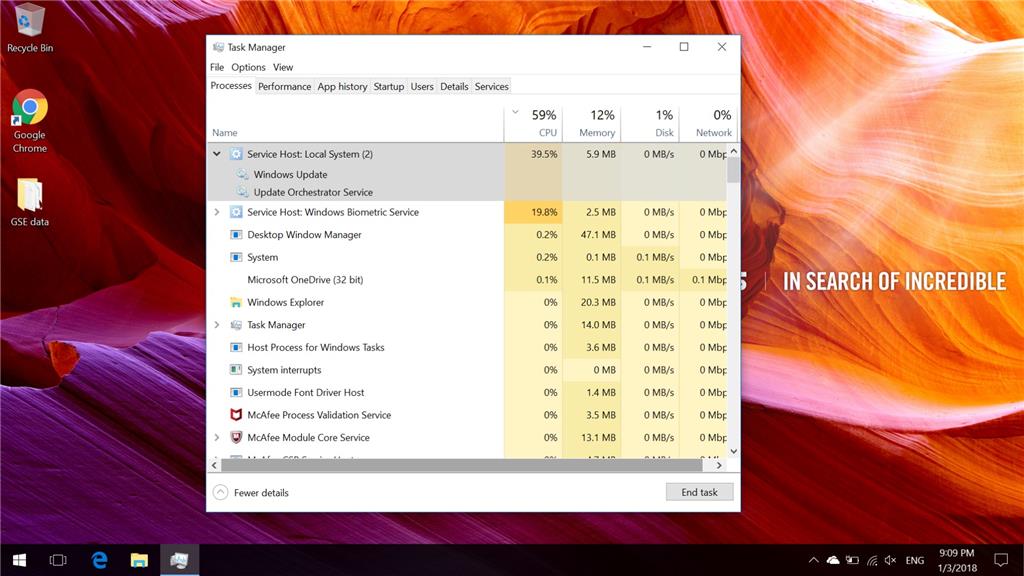
  1. CPU is always high at 60% usage.

40% usage from Service Host: Local System (2) 1. Windows updates and 2. Update Orchestrator Service; 20% from Windows Biometric Service). 
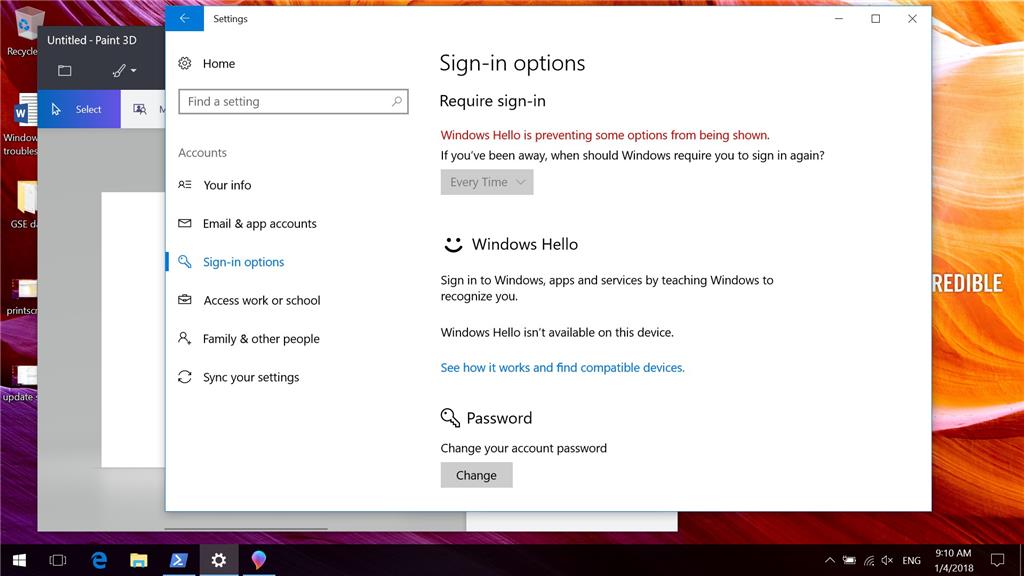
2. Fingerprint sensor no longer works with the message “Windows Hello is not available on this device”. 
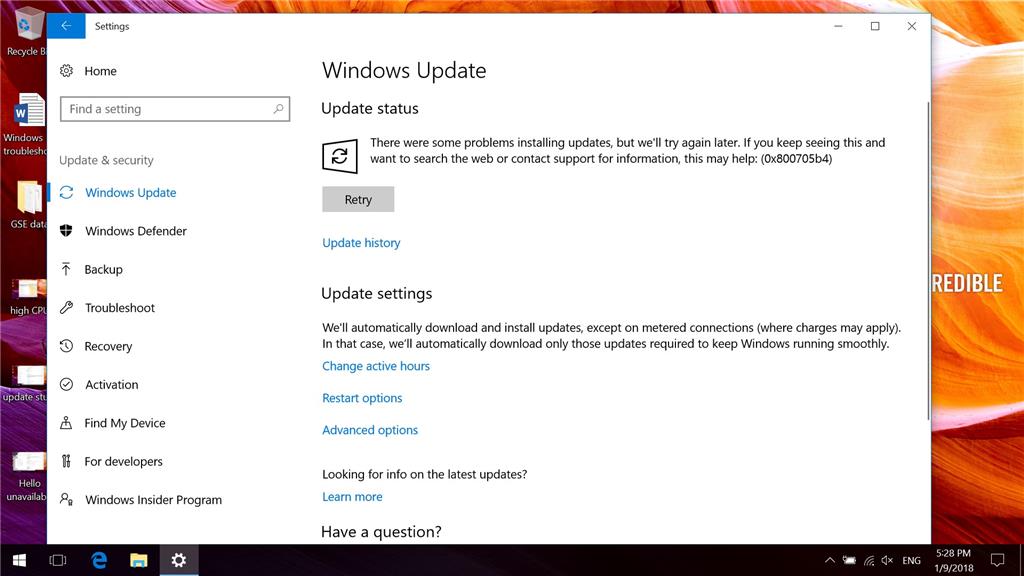
3. Have not been able to install or check for any windows updates. A message comes on: ”There were some problems installing updates…, 0x800705b4”. I turned off third party antivirus software. I make sure Windows Firewall is on and Windows Defender service is running. Still unable to do Windows updates.
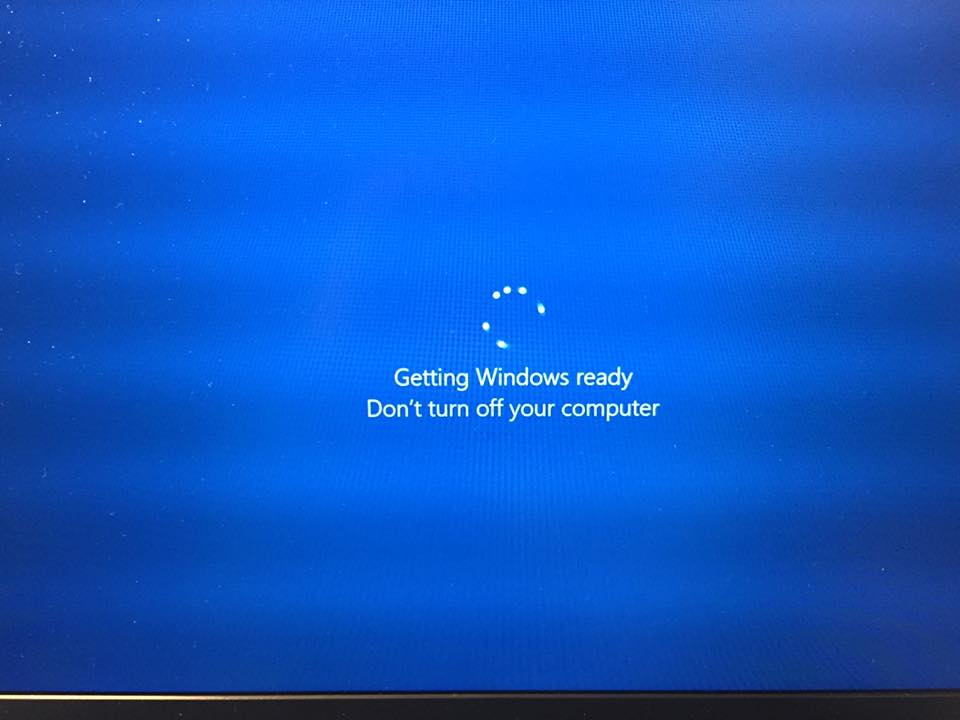
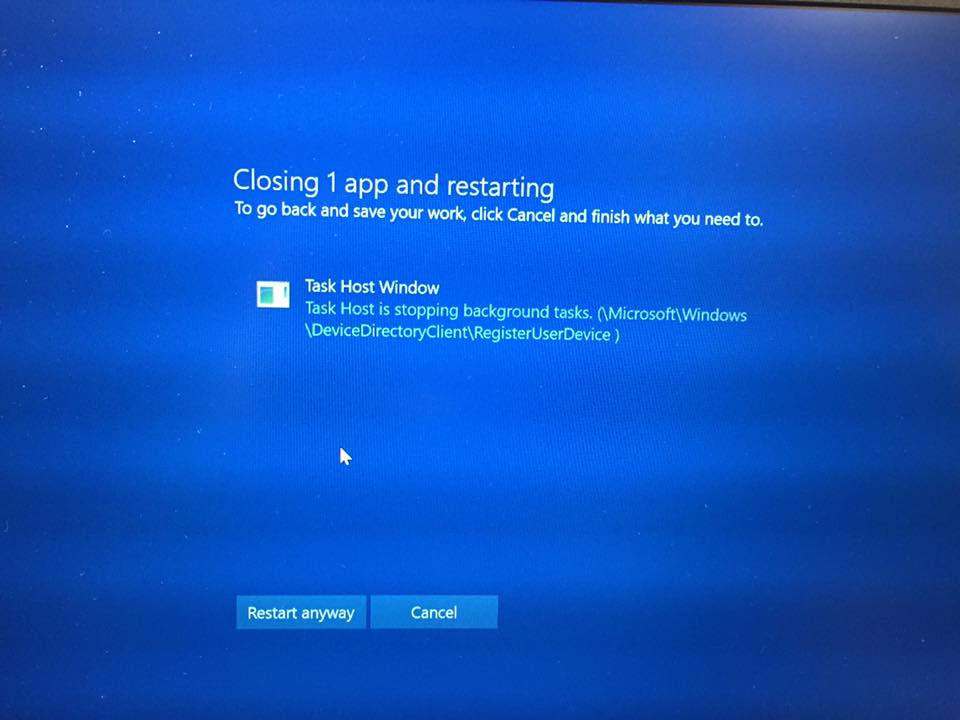
4. Sometimes I want to shut down the laptop, a blue screen comes on “Task Host Window: Task Host is stopping background tasks.  (\Microsoft\Windows\DeviceDirectoryClient\RegisterUserDevice)”. I press “Restart anyway” button, then the laptop stuck forever in next blue screen “Getting Windows ready, Don’t turn off your computer”. 
 

I did following trouble shootings (tried log in laptop using Microsoft account or log in as laptop local account):

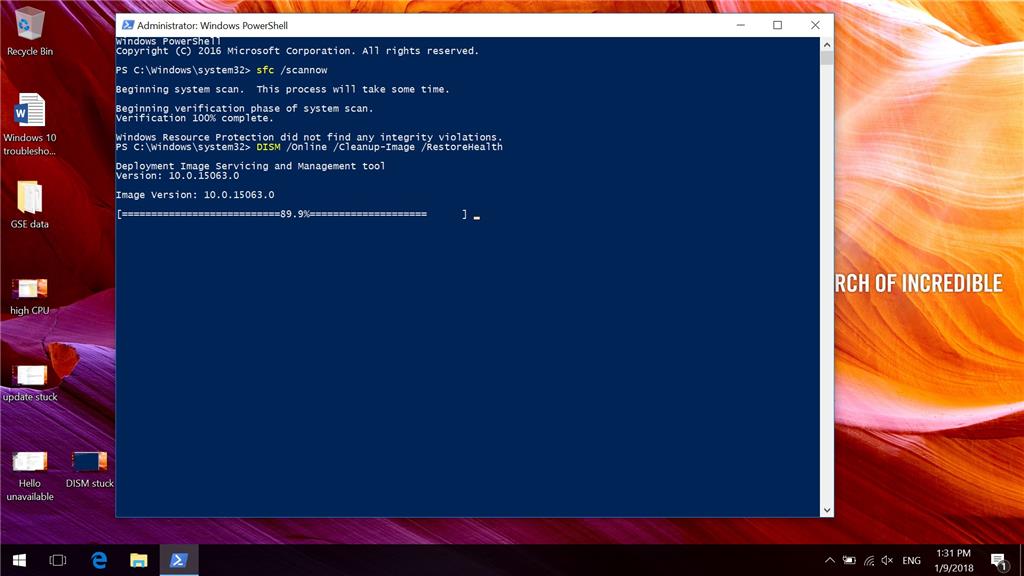
  1. Run sfc /scannow: results showed no integrity violations, which is good.
  2. Run DISM /Online /Clean-Image /RestoreHealth: Get stuck at 89.9% forever. 
  3. Try update driver of ELAN WBF Fingerprint Sensor through device manager: Get stuck forever in searching online for drivers; have to end task by using task manager.
  4. Perform clean boot: makes no different, issues remain exist.
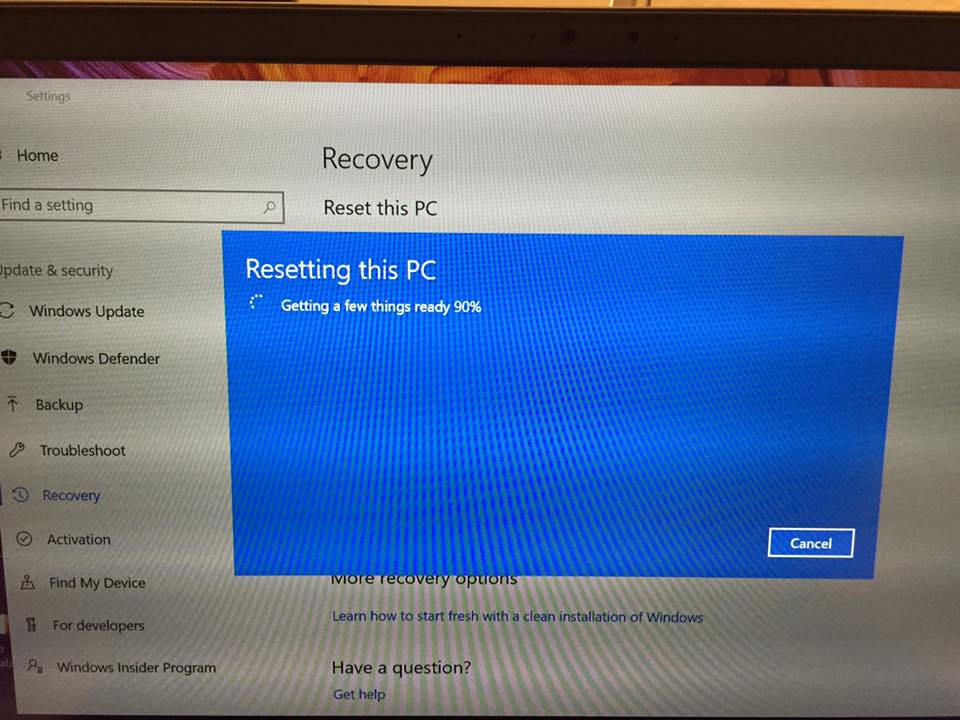
  5. Reset this PC: unsuccessful, stuck at 90% forever.
I have a Microsoft account (my personal account), and have an Office account (from my workplace, I use it to activate Office 365). Not sure if multiple accounts could cause problems. I tried to delete the Office account but it makes no different.

Could you please tell me what could I do?

*Moved from: [*Windows / Windows 10 / Windows Hello, lock screen & sign-in]

Windows for home | Windows 10 | Performance and system failures

Locked Question. This question was migrated from the Microsoft Support Community. You can vote on whether it's helpful, but you can't add comments or replies or follow the question.

0 comments No comments

9 answers

Sort by: Most helpful
  1. Anonymous
    2018-01-15T08:55:59+00:00

    Since all of the troubleshooting steps that you've tried failed, it's probable that your operating system is damaged. Let's try performing an in-place upgrade on your computer using the media creation tool for Windows 10 Fall Creators update. To do so, follow the steps under Step 7: Perform an in-place upgrade in this article: Fix Windows Update issues. That step includes a hyperlink for a video that can show you how to do it. Once done, check if the issue persists.

    Kindly get back to us once you've tried performing an in-place upgrade on your computer.

    Was this answer helpful?

    0 comments No comments
  2. Anonymous
    2018-01-12T18:22:17+00:00

    I ran the Windows Update troubleshooter. It fixed Windows Update database corruption. However, after I restart the laptop, there is no difference. All issues remain exist: high CPU usage, fingerprint sensor not function. Still fail to complete DISM check, can't do Windows Update, can't not reset the PC (all stuck in the middle of process).

             I suspect the installation of "Office 365 pro plus" and "Windows OneDrive" associate with problems, so I uninstall them, but still no help. What can I do?

    Was this answer helpful?

    0 comments No comments
  3. Anonymous
    2018-01-12T00:22:47+00:00

    Have you tried the other troubleshooting steps in the article that we have provided? If not, we recommend that you follow them first. A lot of important updates for Windows 10 1703 were released since last November. After you've successfully installed the said updates, let's check if the performance of your computer improves.

    Remember to update your drivers once you're able to successfully update your system. To do so, follow the steps in this article: Update drivers in Windows 10.

    Let us know once you've tried the steps in the article that we have provided.

    Was this answer helpful?

    0 comments No comments
  4. Anonymous
    2018-01-11T18:36:13+00:00

    Hi Joshua Her1,

          1. The device should not be outdated, I got this ASUS Zenbook UX430UN in Dec. 2017. with

              8th Gen Intel Core i7-8550U, 512GB SSD, 16GB RAM, NVIDIA MX 150 Graphics.

          2. I did full scan using Windows Defender, Windows malicious software removal tool and Norton 

              security scan. No threats were found in the laptop.

         3. I follow your recommendation to do Windows update. It took 6 hours to reach 99% and stayed

             at 99% for another 8 hours... I don't know if the updating process is still running or just no 

             response or stuck completely.

    Please advise, thank you.

    Was this answer helpful?

    0 comments No comments
  5. Anonymous
    2018-01-10T08:36:45+00:00

    Hi Chou,

    The performance issue that you are experiencing can occur due to several reasons such as an outdated computer, a possible malware on your computer, etc. Let's try to resolve your issue with Windows Update first. We recommend that you follow the troubleshooting steps for Windows 10 in this article: Fix Windows Update issues. Remember to do it in order and not to skip any steps, even the ones that you've already tried.

    So that we can be sure that the issue is not because of a possible malware on your computer, we also recommend that you run a full scan on your computer.

    Kindly get back to us once you've tried all of the troubleshooting steps that we have provided.

    Was this answer helpful?

    0 comments No comments