Share via

No color management in print dialogue box

Anonymous
2018-01-25T19:44:53+00:00

Lenovo Ideapad 110 - Windows 10 - HP Deskjet 4675

There is no color management in print dialog box. I've uninstalled and installed again the full driver and software package. I don't know what else to do. It's frustrating. Please help.

Windows for home | Windows 10 | Devices and drivers

Locked Question. This question was migrated from the Microsoft Support Community. You can vote on whether it's helpful, but you can't add comments or replies or follow the question.

0 comments No comments

5 answers

Sort by: Most helpful
  1. Anonymous
    2018-01-27T15:20:17+00:00

    The  only workaround I got is this:

    Uninstalled every driver, removed every printer from Devices list and then rebooted. Then, I just plugged in the USB cable, let Windows automatically do the job for the usb connection. Then, went to settings, clicked on Add a printer, and added the network printer. Ejected the usb connection, made the network printer as default.

    It prints with color now, but I can't take advantage of the HP Software.

    Too bad.

    3 people found this answer helpful.
    0 comments No comments
  2. Greg Carmack 24,770 Reputation points Volunteer Moderator
    2018-01-27T15:19:28+00:00

    Why is the critical step of removing all old printer drivers (Step 5) in the Printui dialogue the same as Step 6 right clicking the printer in Devices and Printers to delete it and restart PC?

    After you install the printer software in Print 8 you did a lot of other things with a Desktop app that are not in the list and unneeded. Why were these necessary instead of just selecting a .pdf document to print and trying it?

    The reason I ask is that I've suggested these steps countless times and they have always worked if only they are followed, not adding a bunch of steps at the end.

    I hope this helps.

    0 comments No comments
  3. Anonymous
    2018-01-27T11:46:35+00:00

    First of all, step 6 proved to be step 5 and vice versa. About step 7, I downloaded and installed the latest firmware to the device. Proved to be useless, but anyway.

    Second, I installed the full driver package via a usb cable connection. So far so good. Opened the HP 4670 series app, the printer was functioning normally, engaging the color management.
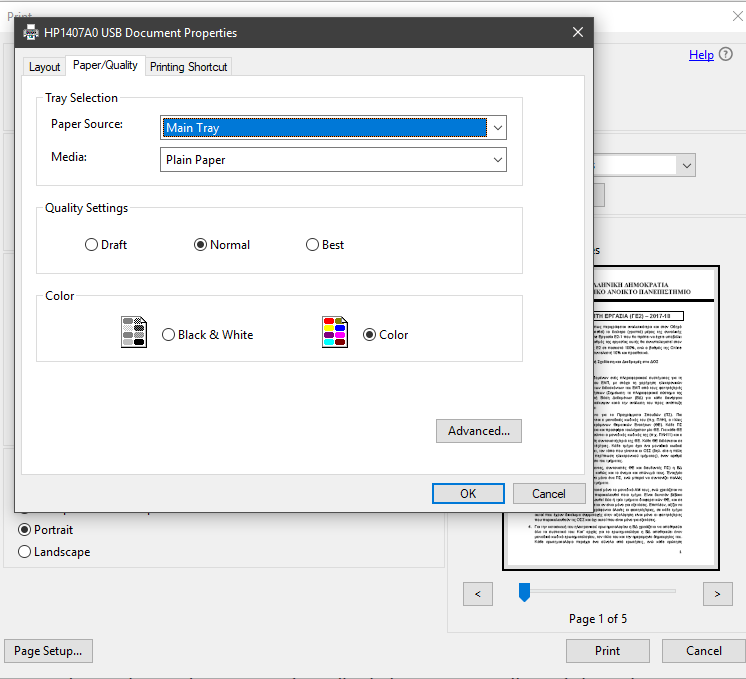
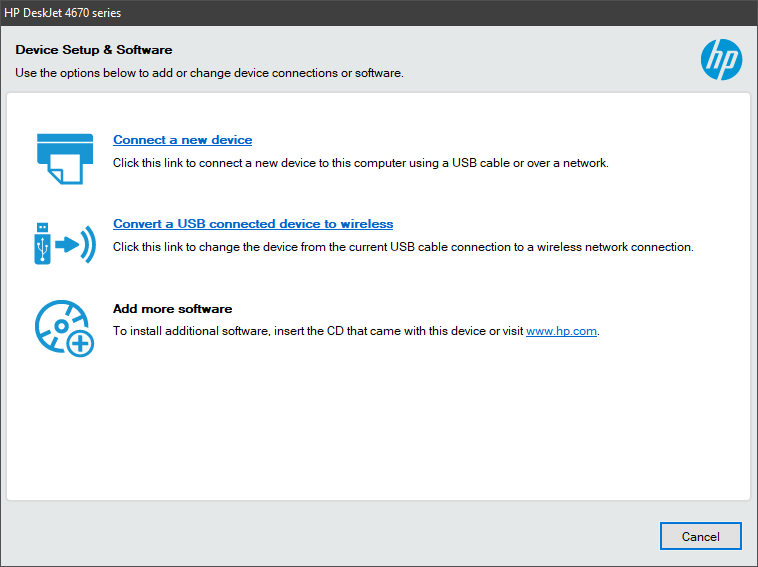
    I then opened the HP 4670 Series desktop app, and requested a new connection.
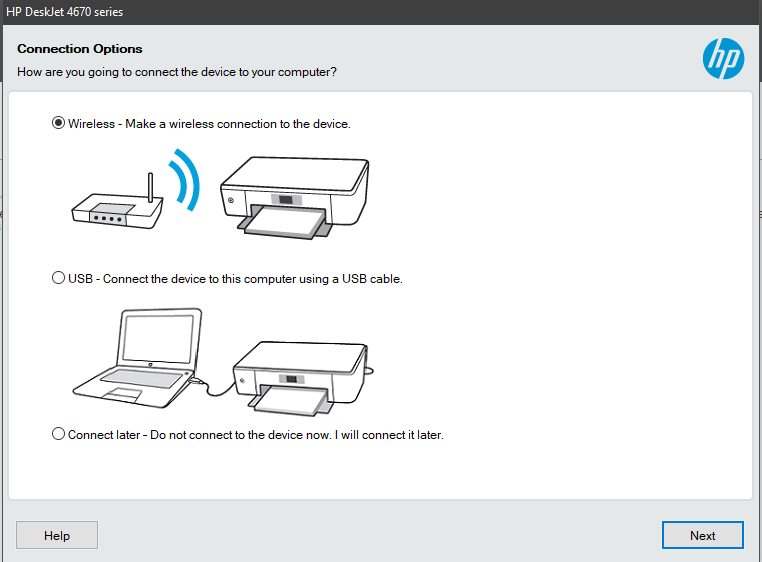
    I clicked on wireless connection, then next.
    Chose the right wireless printer (needless to show a screenshot, I have only one). Let the app install its' drivers and complete the process. I chose not to activate a proxy connection (since I don't know what that is). I then tried to print a pdf file in color, using the wireless printer connection. Again, no color management.

    Nothing seems to work. I have to add that the same process was followed on an HP laptop. The color management works fine there.

    I really don't know what else to do.

    0 comments No comments
  4. Greg Carmack 24,770 Reputation points Volunteer Moderator
    2018-01-25T20:00:47+00:00

    I'm Greg, an installation specialist and 8 year Windows MVP, here to help you.

    Rather than spending too much more time fiddling I'd simply Clean Reinstall the printer which always works, lasts longer and actually saves time:

    1. Power up the printer, if wired unplug it's USB cable from PC.
    2. Go to Settings>Apps>Apps and Features to find and Uninstall the printer software.
    3. Next copy and paste in Start search box: printui /s /t2 (Note that there is one space before each forward slash).
    4. Right click result to Run as Administrator.
    5. Open the Print Server properties, Remove the printer’s drivers for this printer and for any other printers you don't use presently. If you get a message about access denied or the printer being in use and you cannot find the driver or any installed program that would account for this, you may restart the computer in a diagnostic startup and then use the printui command to remove the driver package(s): https://www.isunshare.com/windows-10/enable-dia...

    You must restart back to normal mode before you will be able to install the printer again.

    1. Now type Control Panel in Start Search, open CP, choose Icon View. In Control Panel open Devices and Printers, right click the printer to delete the Printer and any scanner or fax of the same name. Restart PC.
    2. Go to the printer model’s Support Downloads webpage to download and install the latest full software package. Now is also the time to check for any newer printer firmware to install which matters a lot.
    3. Extract Printer software, right click Setup file to Run as Administrator. Follow the setup screens closely as you install the software. For USB it should prompt when to plug in the printer.

    If you have further problems reply back with results of each step.

    0 comments No comments
  5. Anonymous
    2018-01-25T19:56:52+00:00

    Could you see if the solution in the following thread helps?

    https://h30434.www3.hp.com/t5/Inkjet-Printing/o...

    0 comments No comments
