Share via

No speakers or headphones are plugged in. Problem on Windows 10.

Anonymous
2018-02-17T20:28:32+00:00

Recently, my computer started to get this problem where any form of audio—even external speakers—doesn't make any sounds. I only have one playback device shown:
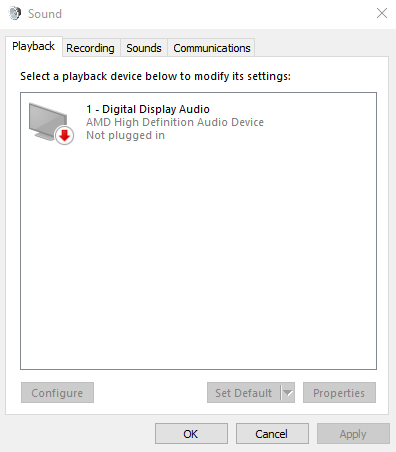
And yes, disabled devices and disconnected devices are shown. The programs I remember that might have something to do with the audio was AMD High Definition Audio Device and Conexant HD Audio. Since there's only one device, Conexant HD Audio is nowhere to be seen.

I took a look around and saw the events for the device. The latest event saying "Device install required". I don't know what that means, but I assume that I have to install some other driver.

I almost never use the speaker so I doubt that the internal speaker is the problem. I always use earphones. Right now, when I use the earphones, it tends to not work too.

Here is the list of "solutions" that I have tried to do:

  • Reinstall the audio drivers
  • Disabling the driver, restart, then enable back
  • Used CMD and entered various kinds of codes
  • Tried to update it, or roll back the update
  • Reinstall Windows 10
  • Factory Reset Windows 10

Here is a list of things I did before that might've led to the problem:

  • I updated my graphics device
  • I unplugged my earphones the moment of shutdown
  • I carry my computer around my backpack (don't worry, I have a case)

Here are some other extra information that might be useful

My computer:

  • Model: ASUS X555Q
  • CPU: AMD A12-9720P RADEON R7, 12 COMPUTE CORES 4C+8G (2.70 GHz, 3.60 GHz in turbo.)
  • Graphics Chipset: AMD Radeon R7 Graphics (Integrated) (512 MB)
  • Windows: Windows 10 64bit

Drivers/Devices/Softwares:

  • Radeon Settings Version - 2018.0131.1849.33856
  • Driver Packaging Version - 17.50.17.03-180131a-323831C-RadeonSoftwareAdrenalin
  • Provider - Advanced Micro Devices, Inc.
  • 2D Driver Version - 8.1.1.1634
  • Direct3D® Version - 9.14.10.01316
  • OpenGL® Version - 6.14.10.13506
  • OpenCL™ Version - 23.20.15017.3010
  • AMD Mantle Version - 9.1.10.0237
  • AMD Mantle API Version - 102400
  • AMD Audio Driver Version - 10.0.1.1
  • Vulkan™ Driver Version - 2.0.1
  • Vulkan™ API Version - 1.0.65

Right now, my only hope is to wait for a Windows update.

Windows for home | Windows 10 | Devices and drivers

Locked Question. This question was migrated from the Microsoft Support Community. You can vote on whether it's helpful, but you can't add comments or replies or follow the question.

0 comments No comments

3 answers

Sort by: Most helpful
  1. Anonymous
    2018-02-25T18:39:13+00:00

    Thank you for letting me know. Upon researching, the AMD High Definition Device is only required audio when using an HDMI connection to an external display. It would be be best if you can also send us a screenshot of the devices listed on Sound, Video and Game Controllers in Device Manager. Meanwhile, check if there is a driver called IDT High Definition Audio Codec in your computer's Device Manager. If there is, try to uninstall it and reboot your computer.

    Hope to hear from you soon.

    Regards.

    0 comments No comments
  2. Anonymous
    2018-02-18T00:45:49+00:00

    The OS build is 16299.248. The audio device seems to be working: 

    For the rollback and update, I meant the driver update.

    As for the solution you referred to, it seems that it didn't have any effect. The playback device is still saying it's unplugged. Keep in mind, I'm a laptop user. There might be a possibility that the speakers are damaged. Even if they were damaged, the headphone jacks should still work regardless.

    0 comments No comments
  3. Anonymous
    2018-02-17T23:48:17+00:00

    Hello SnowyDevo,

    I do appreciate the detailed information regarding the troubleshooting that you've completed on your end. It would also be best if you can answer the following questions:

    • Please confirm which build is currently installed on your device. To check, follow the steps below:
    1. Press Windows key + R, then type in winver.
    2. Click OK.
    • Are you getting any error codes in the Device Manager? To find the error, check the steps below:
    1. Launch Device Manager, double-click the device type that has the problem.
    2. Right-click the device that has the problem, and then click Properties. This opens the device's Properties dialog box. You can see the error code in the Device status area of this dialog box.
    • Regarding the rollback that you've performed, please clarify if this for the Windows Update or the audio driver.

    Meanwhile, you can try some of the suggested workarounds in this **article**to resolve sound issues on Windows 10.

    Also, try to restart the Audio services, refer to the steps below:

    1. Press Windows key + R, then type in services.mscand clickOK.
    2. Scroll down and locate Windows Audio.
    3. Right-click on Windows Audio, select Restart.
    4. Double click the Windows Audio and make sure that the startup type is set to Automatic.
    5. Click on Apply and Click OK to save changes

    Looking forward to your response.

    Regards.

    0 comments No comments
