
Thanks but I've already tried this. I mentioned in my initial post that the PDF printer no longer exists:
This browser is no longer supported.
Upgrade to Microsoft Edge to take advantage of the latest features, security updates, and technical support.
' cx='32' cy='32' r='32' /%3E%3Ctext x='50%25' y='55%25' dominant-baseline='middle' text-anchor='middle' fill='%23FFF' %3EA%3C/text%3E%3C/svg%3E)
After having issues with Windows 10 not printing to microsoft pdf, was advised on these very same forums that the best solution was to disable via Windows Features, reboot, and then reactivate. However, now it will not reactivated and am constantly met with below:
Upon restart, I try to activate and am met with the same issue. So I am stuck in limbo! Anyone have any ideas?
It does not appear in my printer/device list anymore so cannot uninstall and/or reinstall the driver/device.
Have also tried same steps to add new printer via link below, but 'Microsoft Print To PDF' does not appear in my listing?!?
Please help!!!
Locked Question. This question was migrated from the Microsoft Support Community. You can vote on whether it's helpful, but you can't add comments or replies or follow the question.
Thanks but I've already tried this. I mentioned in my initial post that the PDF printer no longer exists:
Simple - install a third-party PDF reader. There are lots of them. And they're free. Take your pick. Here are two PDF readers that are popular with the cognoscenti here: Foxit Reader and Sumatra Reader.
Thanks for the advice and will try them out. However, still doesn't explain why Microsoft Print to PDF wont work/reactivate, especially since these were the steps advised via the Microsoft 'experts'...
Hi David
I've got numerous issues and simultaneous forum conversations going on, so I think resetting my PC is unfortunately my best option i.e. starting from scratch.
Am in process of backing up everything but wondered whether I would be better off doing a clean install via an ISO image, or whether the 'Reset This PC>Remove Everything' function will ultimately do the same thing?
I basically want to set up my computer as new. If I have corrupted files and registry values I'd rather start with a clean slate. It will take a me a while to get it back to how I'd like, as having to get manufacturer (from Acer) drivers, software, programs (not apps) etc. is the time consuming part of this process. But we are approaching an Easter holiday break, so want to spend a day doing it then.
Hi,
Can you try to add the Print to PDF manually like follows?
Step 1: Open Control Panel, clickHardware and Device, and then click Devices and Printers.
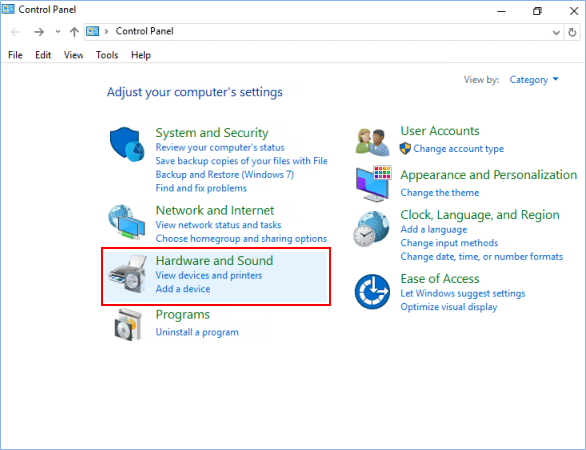
Step 2: Click on Add a printer in the toolbar of Devices and Printers.
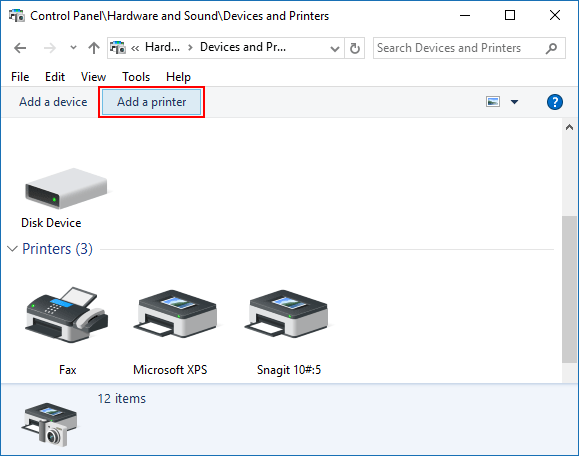
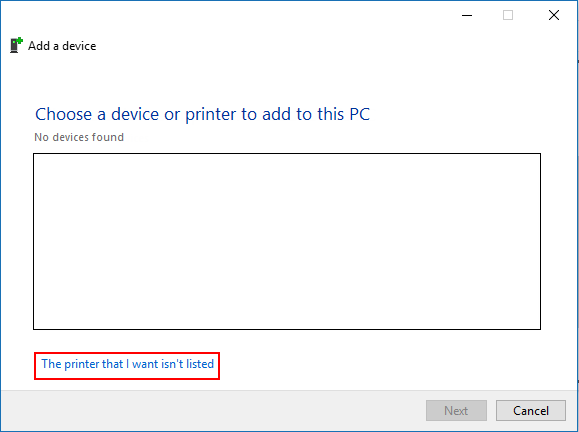
Step 3: Click on the The printer that I want isn't listed link, and go to step 4 below.
How to Activate Microsoft Print to PDF Option on Settings
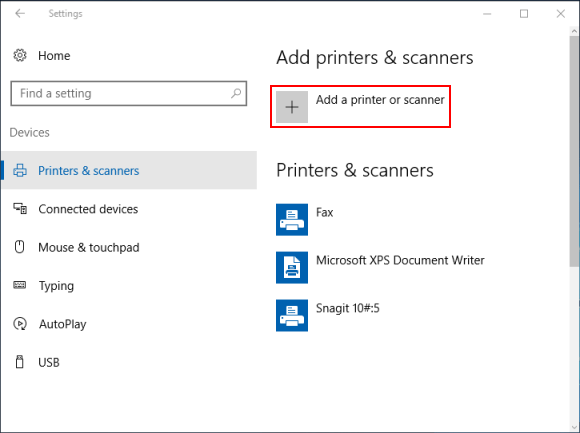
Step 1: Open the Settings app, clickDeviceicon.
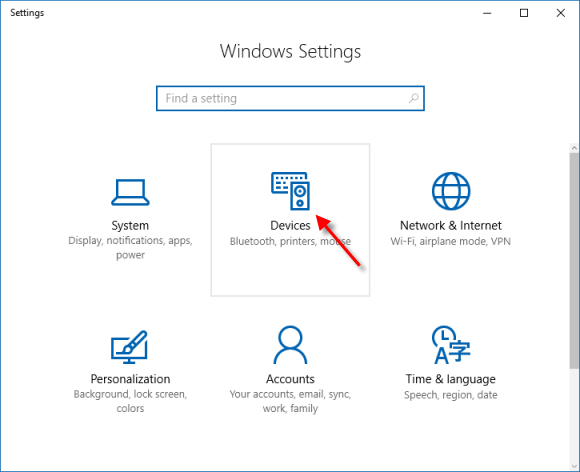
Step 2: On the left of Printers & scanners tab, click on Add a printer or scannerunder Printers & scanners.
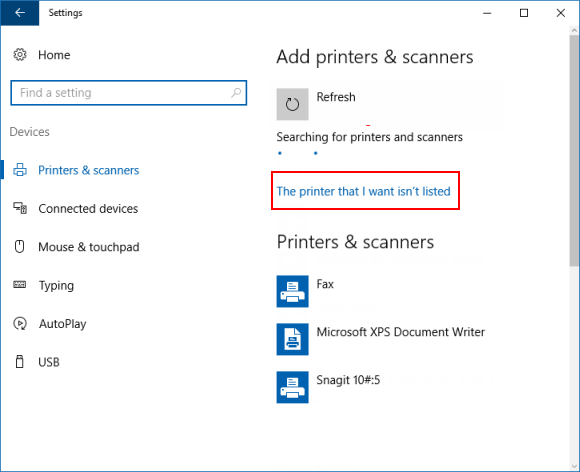
Step 3: Click onThe printer I want isn't listed link.
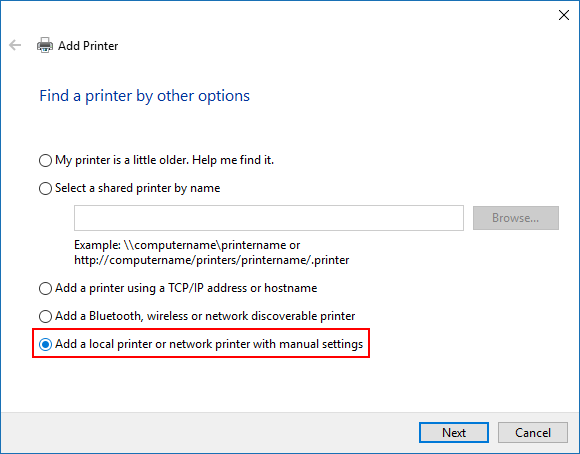
Step 4: Select Add a local printer or network printer with manual settings, and click on Next.
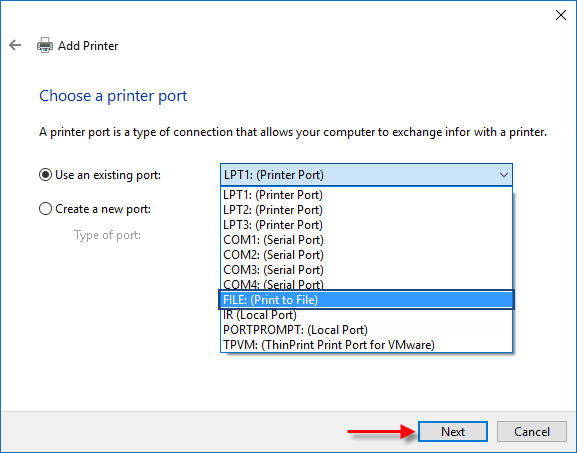
Step 5: Select Use an existing port, select FILE: (Print to File) from its drop down menu, and click on Next.
Step 6: Select Microsoft in the left pane, select Microsoft Print to PDF in the right pane, and click Next.
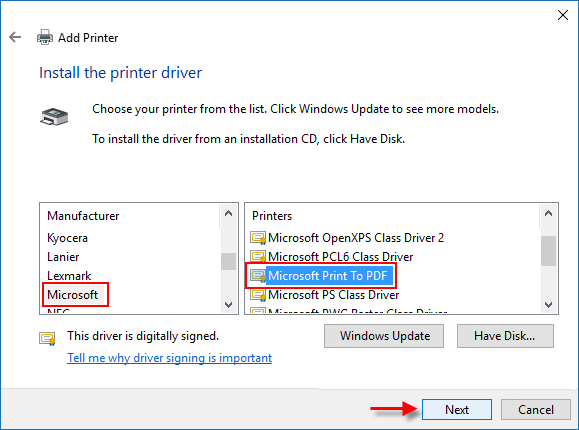
Step 7: Select Use the driver that is currently installed, and click on Next.
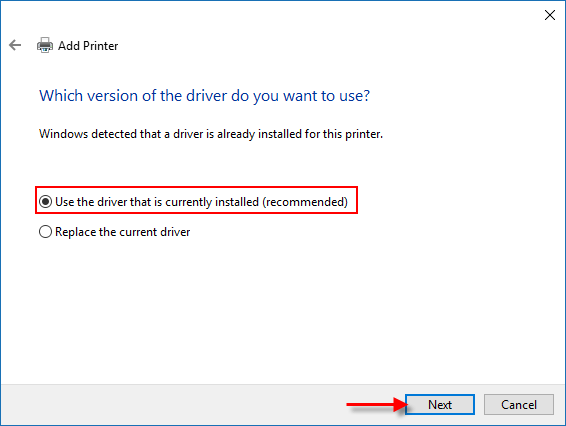
Step 8: Then click Next, and then click on Finish.

Hello,
If an option or setting can't be activated/reactivated, there might be an app or a process that is interfering with the option/setting to be changed/activated. Before we proceed, may we know if the issue is still occurring in your computer? This is for us to know and to proceed with troubleshooting it.
We look forward to your response.