Hi kn1000a:
The Windows Update "speed up" patches shown in your image look similar to those mentioned in the FAQ
How to Fix Vista SP2 "Checking for Updates..." Hangs and Slow Windows Updates
I recommended in my previous post. The KB numbers for the required "speed up" patches are listed in the section titled "How Do I Fix These "Checking for updates..." Hangs?" in that FAQ. If you read that FAQ it discusses problems with
high CPU consumption and overheating while the Windows Update Agent searches for available updates for hours (or even days) on end, so if Windows Update is working normally again any previous issues related to an overheating CPU might be resolved
now - unless the heat permanently damaged your motherboard. Microsoft hasn't released any new security updates for Vista SP2 / IE9 via Windows Update since extended support ended on 11-Apr-2017 so if a manual Windows Update now runs to completion and reports
that no further updates are available I'd advise that you permanently disable your automatic Windows Updates [Windows Update | Change settings | Important updates | Never check for updates (not recommended) and re-boot] unless you have other
Microsoft products like MS Office 2010 that are still supported and need to be updated regularly. You can still run the occasional manual Windows Update [Windows Update | Check for updates] any time you wish.
I'll assume that you confirmed that you have a NVIDIA GeForce 8800 GTX before you installed the latest Vista-compatible drivers for that graphics card. If you right-click the NVIDIA GeForce 8800 GTX graphics card in the
Device Manager and choose Properties, does the General tab report that "This device is working properly" under Device Status? Boot into Safe Mode (restart your computer and repeatedly tap the F8 key until you see
the Advanced Boot Options menu) and see if your monitor works normally. I believe that booting into Safe Mode will force Windows to use the on-board integrated graphics chip on your motherboard instead of your discrete NVIDIA graphics card, and if that helps
you can disable the NVIDIA graphics card from the Device Manager as shown below and force Windows to use the on-board integrated graphics whenever you boot into Normal Mode.
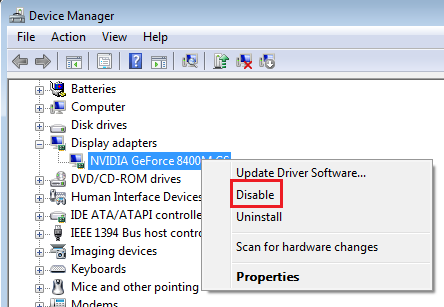
Unfortunately, I suspect the odd squares and vertical lines on the monitor indicate
faulty hardware, rather than a software/driver issue. If you don't have a spare monitor you can swap in for testing, try re-seating (or even replacing) the cable to your monitor, or turn off your computer for a few hours and try re-seating
the graphics card on the motherboard (again, make sure you're properly grounded with an anti-static wrist strap or follow other suggestions in the article
ElectroStatic Discharge or ESD before you touch any internal components). The Overclock tutorial
Cleaning and Reseating Your Graphics Card has generic instructions for cleaning a graphics card but it shouldn't
be necessary to do this type of thorough cleaning unless your Speccy diagnostic indicates that your GPU is overheating.
Searching for the keyword "NVIDIA" on Dell's support page for the Dell Precision 390 at
http://www.dell.com/support/home/us/en/04/product-support/product/precision-390/drivers indicates that your machine originally came with an older
NVIDIA Quadro FX graphics card. The original owners of this computer might be able to tell you what OS / hardware upgrades, if any, they've done over the years, but I'm wondering if the current NVIDIA GeForce 8800 GTX is throwing too much
heat for the main cooling fan to handle or whether the graphics card settings are optimized for the
resolution and refresh rate of your monitor. If the new v342.01 graphics drivers installed a
NVIDIA Control Panel at Control Panel | Hardware and Sound you might be able to tweak the settings there.
Don't worry if you don't want to publish a full Speccy snapshot of your system. I just thought someone monitoring this thread might notice an obvious problem (e.g., incorrect voltages) or find an issue with your software configuration. For example, the screenshot
of your Windows Update history indicates you might be using Microsoft Security Essentials (MSE) but I'm sure that MSE is no longer supported for Vista SP2. If you launch Firefox and go to Help | About Firefox the pop-up should show that you
have the current FF ESR v52.8.0 (extended support release) released on 09-May-2018. FF v60 (both the ESR and "standard" desktop branches) released on that same day uses the new Quantum engine and can't be installed on Win XP or Vista.
32-bit Vista Home Premium SP2 * Firefox ESR v52.8.0 * Norton Security v22.14.0.54
HP Pavilion dv6835ca, Intel Core2Duo T5550 @ 1.83 GHz, 3 GB RAM, NVIDIA GeForce 8400M GS
' cx='32' cy='32' r='32' /%3E%3Ctext x='50%25' y='55%25' dominant-baseline='middle' text-anchor='middle' fill='%23FFF' %3EA%3C/text%3E%3C/svg%3E)