Share via

How to force delete a file in Windows 10?

Anonymous
2018-06-27T17:29:30+00:00

I tried to delete a file I don't want, and it takes forever to delete. And when ever I tried to cancel it, it takes a long time canceling it too.

Proof:

https://gyazo.com/891e047e519a9f1c6fda5f37fe919b45

*Modified title for accuracy*

*Original title: How do I force delete an file on windows 10*

Windows for home | Windows 10 | Files, folders, and storage

Locked Question. This question was migrated from the Microsoft Support Community. You can vote on whether it's helpful, but you can't add comments or replies or follow the question.

0 comments No comments

Answer accepted by question author

  1. Anonymous
    2018-06-27T17:33:53+00:00

    I use Powershell.

    Give it a try and see if it works for you.

    Go to search and type Powershell and then right click it and select run as administrator.

    Command i use to remove a file say from my documents folder is this..

    Remove-Item –path c:\users\sarah\documents\myfile.txt - force

    Let me know if that helps.

    80+ people found this answer helpful.
    0 comments No comments

7 additional answers

Sort by: Most helpful
  1. Anonymous
    2018-06-27T17:42:05+00:00

    I try doing that a positional parameter cannot be found that accepts argument -

    20+ people found this answer helpful.
    0 comments No comments
  2. Anonymous
    2018-06-27T18:02:21+00:00

    You can try deleting from the command line.

    Open Start, type: CMD

    Right click CMD

    Click Run as administrator

    Type CD followed by the drive letter

    example: cd x:\

    Hit Enter

    X represents the name of the drive letter

    Once you have navigated to where the folder is on the drive, type:

    At the command prompt type del (delete) followed by the file name. Example: del win10uichanges.pptx

    10+ people found this answer helpful.
    0 comments No comments
  3. Anonymous
    2018-06-27T17:43:29+00:00

    Try it without the -force

    Also make sure you are in powershell and NOT command prompt, big difference.

    10+ people found this answer helpful.
    0 comments No comments
  4. Anonymous
    2018-08-09T09:12:34+00:00

    For whatever reason, Windows prevent some files from being deleted, moved or renamed. This locking up of files is incredibly frustrating, especially when you know the file is not, in fact, being used. Here is a great way to get around that issue. 

    TO DO: Press Windows logo key + X, and hit C to open the command prompt. 

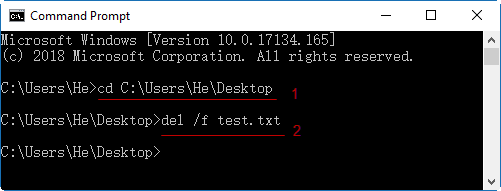
    In the command window, type the "cd folder path" command and press Enter. Then type del/f filename to force delete the file that is in use. 

    Note: In the above command, "foldpath" is the location of file. "filename" is the name of the file or files, it must be replaced by the name of the file along with its extension that you want to delete. For example: del /f test.txt.
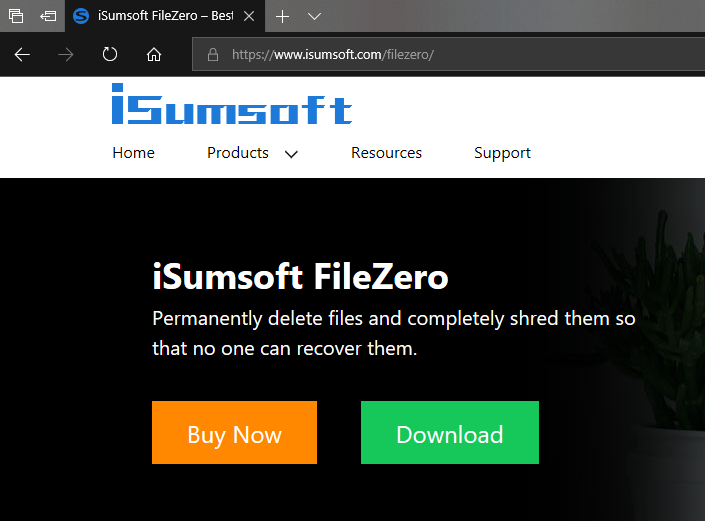
    WARNING!! – A file deleted using the DEL command does not move it to the Recycle Bin but deletes it permanently. Use the DEL command with caution. If you want to permanent delete files without data recovery,  FileZero is a good helper, it is easy-to-use and securely wipe data.
    10+ people found this answer helpful.
    0 comments No comments
