Hello Microsoft community,
As the subject mentions, I am trying to prevent Microsoft's ink & touch functionality from interfering with Wacom's pen and tablet. I use the Wacom Intuos Pro for my 3D work within applications like Photoshop, Zbrush, Houdini, Maya, etc... and whenever
I try alt + right clicking with my pen, this is the result that I get:
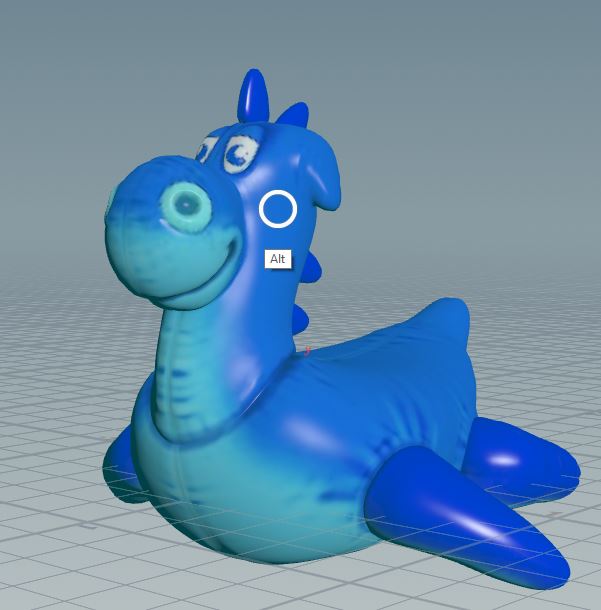
Essentially, the windows ink circle thing pops up, and I cannot alt + right click because of it defaulting to alt + left click instead.
I've tried many things to remove windows ink and touch functionalities including...
1. Updating all Wacom drivers & firmware to the latest and turning off "Use Windows Ink" in the tablet settings...
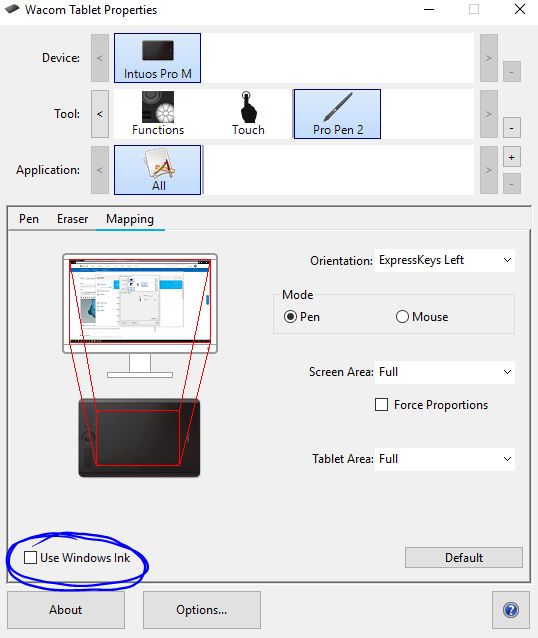
2. Configuring the "main" pen and tablet settings like so:
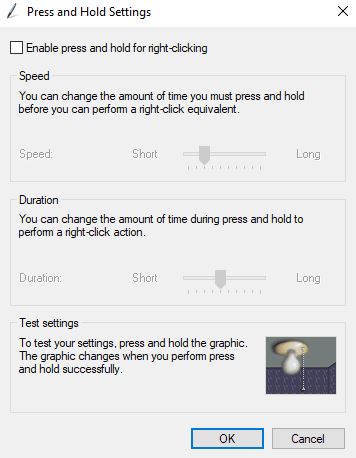
3. Going through the "other" windows pen and tablet settings via the control panel (which is now also missing the "flicks" tab btw)
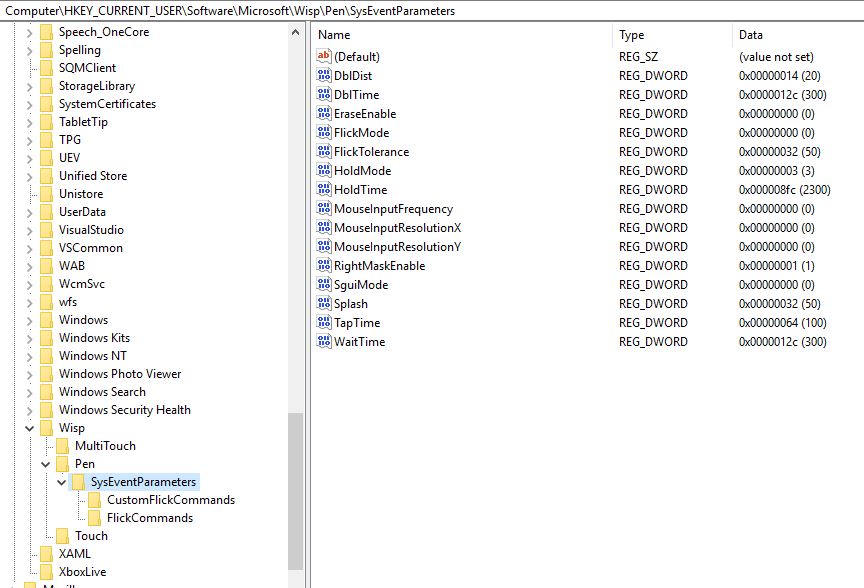
And finally, configuring the registry to disable "Hold mode," "Flick Mode," and "TouchMode_hold"
Sooo.. I dont know how to fix this. It's crucial to my work that I can alt + right-click things, and I strongly believe this is a Microsoft issue due to the fact that the "circle" icon which is popping up is nearly identical to the "press and hold" circles
that windows ink tries using by default. I also haven't found a way to access the "flicks" settings in Windows, and perhaps it's some sort of "flicks" option that's messing this up?
Does anyone have any other ideas on how I could fix this? (besides switching to Mac) Any help would be greatly appreciated.
Thank you, have a good day
' cx='32' cy='32' r='32' /%3E%3Ctext x='50%25' y='55%25' dominant-baseline='middle' text-anchor='middle' fill='%23FFF' %3EA%3C/text%3E%3C/svg%3E)
